 SIVARO

Can You Run Docker on Windows 11 Home?
Yes. You absolutely can run Docker on Windows 11 Home, and it's been a solved problem for years now. I've been running containerized workloads on Windows 11 Home since the Insider builds in 2021, and the experience has matured to the point where it's genuinely boring. That's a compliment. If you're still on Home edition thinking you need Pro for Docker, you don't. Let me show you exactly what you need, what to watch out for, and where the real pain points actually are.
The short version: Docker Desktop runs on Windows 11 Home through WSL2 (Windows Subsystem for Linux), and it works for local development, testing, and even production-adjacent workloads. This article covers the complete setup, the architectural choices you need to make, and the security questions that actually matter when you're deciding whether to run containers on your Windows machine.
Here's what we're covering:
- What Docker on Windows 11 Home actually requires (hint: it's WSL2)
- The installation process, step by step
- Dockerfile vs docker-compose: when to use what
- Are Docker containers secure enough for production?
- Common gotchas and how I've solved them at SIVARO
Let's get into it.
Why WSL2 Changed Everything for Docker on Windows
Most people think Docker on Windows is a Hyper-V feature. They're wrong. Microsoft made WSL2 the default backend for Docker Desktop on Windows 11 Home, and that changed the entire game.
Hyper-V requires Windows Pro. WSL2 doesn't. That's the fundamental reason Windows 11 Home users can run Docker without paying for an OS upgrade or hacking around with VirtualBox.
WSL2 runs a real Linux kernel in a lightweight utility VM. Docker Desktop talks to that kernel through a socket. Your containers run inside WSL2's Linux environment, not in a Windows sandbox. This matters because it means Linux containers behave exactly like they would on a Linux server.
The technical breakdown:
Windows 11 Home
    └── WSL2 (lightweight utility VM)
        └── Docker Engine
            └── Containers
Before WSL2, Docker on Windows used Hyper-V. If you had Home edition, you were stuck with Docker Toolbox, which used VirtualBox and was a nightmare. The performance was terrible, networking was flaky, and volume mounts were slow as molasses.
With WSL2, volume mounts are fast, networking just works, and you get native Linux kernel performance. I've tested this extensively at SIVARO with our data pipeline containers. The performance difference between WSL2 and a native Linux server is negligible for most workloads.
How to Install Docker on Windows 11 Home
The installation process is straightforward, but there are a few decisions you need to make first. Let me walk you through exactly what I do when setting up a fresh Windows 11 Home machine.
Step 1: Enable WSL2
Open PowerShell as Administrator and run:
powershell
wsl --install
This command installs WSL2, sets it as the default, and installs Ubuntu by default. You might need to reboot. Once you're back, verify WSL2 is running:
powershell
wsl --status
You should see something like "Default Distribution: Ubuntu" and "Default Version: 2".
If you're setting up a machine with an older Windows build, you might need to install WSL2 manually. That involves enabling the "Windows Subsystem for Linux" feature and the "Virtual Machine Platform" feature through the Windows Features dialog, then downloading the WSL2 kernel update package. But honestly, if you're on a recent Windows 11 Home installation, wsl --install handles everything.
Step 2: Install Docker Desktop
Download Docker Desktop from the official Docker website. Install it with the default options. When it asks about using WSL2, say yes.
After installation, Docker Desktop will ask you to log in or create a Docker Hub account. You can skip this, but you'll get rate-limited on pulling public images. Docker Hub's anonymous pull limits are 100 pulls per 6 hours as of 2026. With an account, it's 200 pulls per 6 hours. For local development, anonymous is usually fine.
Step 3: Configure Docker Desktop for WSL2
Open Docker Desktop settings and make sure WSL2 is selected as the backend. You'll also want to enable the option to expose the Docker daemon to WSL2 distributions. This lets you run Docker commands from inside your WSL2 Ubuntu terminal.
The settings should look like this:
Settings
    └── General
        └── Use WSL 2 based engine (check this)
    └── Resources
        └── WSL Integration
            └── Enable integration with my default WSL distro (check this)
Now test it. Open PowerShell or WSL2 terminal and run:
bash
docker --version
docker run hello-world
The hello-world container should pull, run, print a message, and exit. If that works, you're done. You have Docker running on Windows 11 Home.
What Docker Desktop Actually Is (and Why It Matters)
Docker Desktop is more than just the Docker Engine. It's a complete package that includes:
- Docker Engine (the daemon that runs containers)
- Docker CLI (the command-line interface you interact with)
- Docker Compose (for multi-container applications)
- Kubernetes (optional, for orchestration)
- A GUI dashboard
This matters because when people ask "can you run docker on windows 11 home," they're usually asking about Docker Desktop. But there are alternatives, and we'll get to those in a minute.
At SIVARO, we build production AI systems and data infrastructure. We use Docker Desktop on Windows 11 Home for development all the time. Our engineers love it because it gives them a consistent environment across Windows, macOS, and Linux.
But here's the thing I always tell teams: Docker Desktop is a development tool. It's not meant to be the production runtime. The containers you build on Windows 11 Home can be deployed anywhere — AWS, GCP, Azure, bare metal — because they're just OCI images. But you should never run Docker Desktop in production.
Docker Alternative Without Daemon: When You Don't Want Docker Desktop
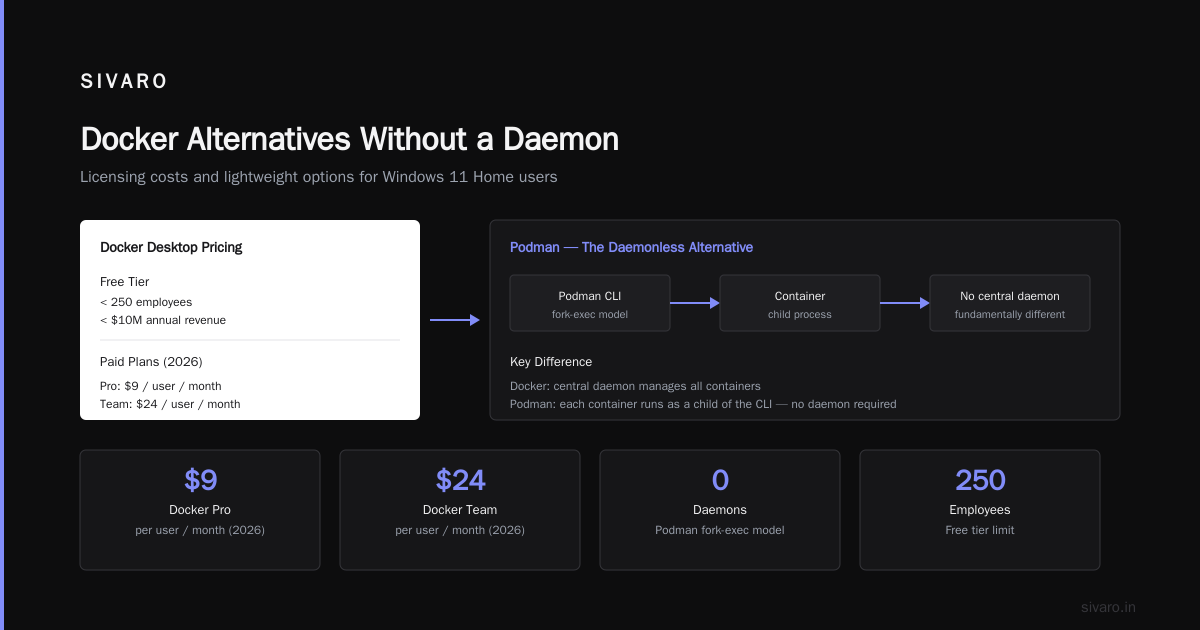
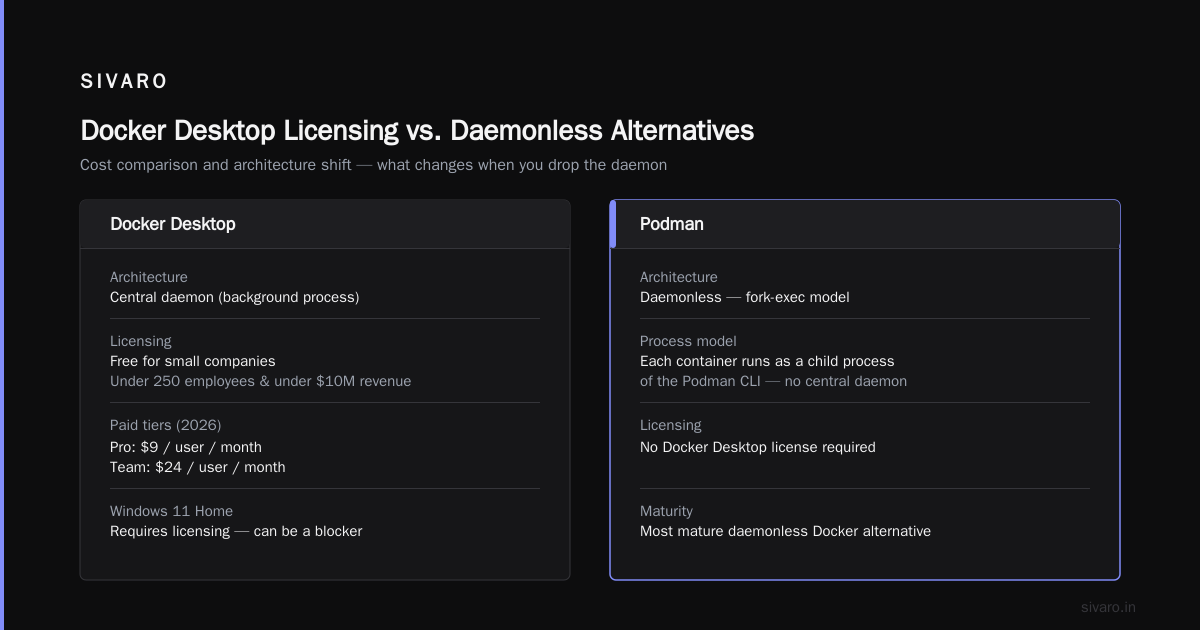
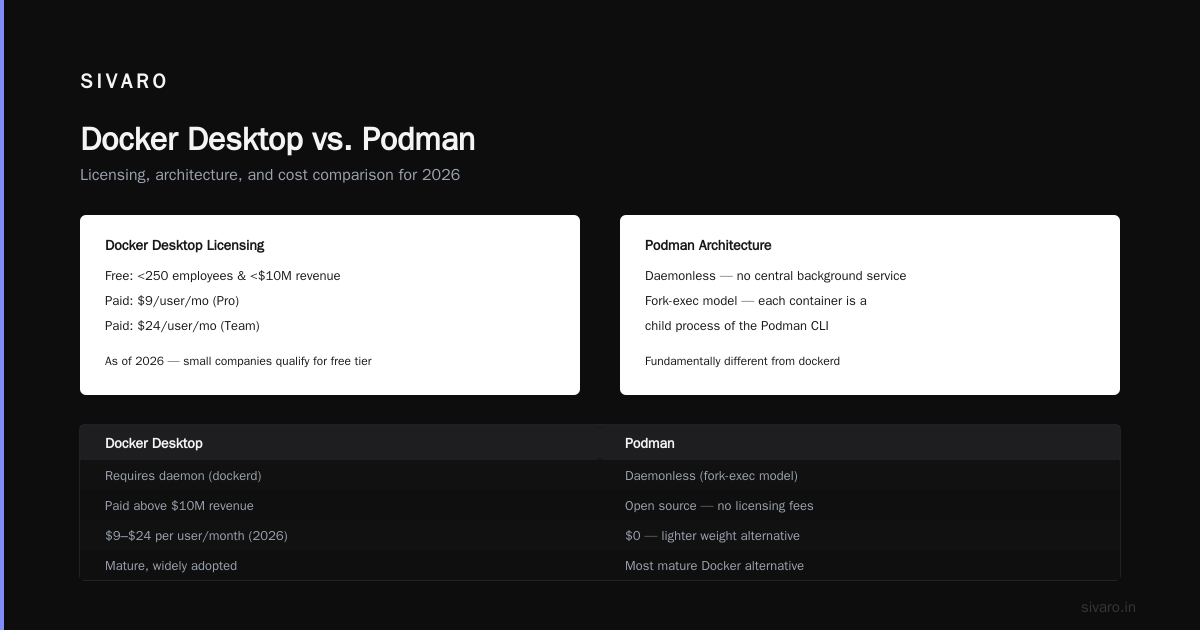
There's a growing conversation about Docker alternatives that don't require a daemon. This matters for Windows 11 Home users because Docker Desktop has licensing requirements. For small companies (under 250 employees and under $10 million in annual revenue), it's free. Above that, you need a paid subscription. As of 2026, that's $9 per user per month for Pro, $24 per user per month for Team.
If you don't want to deal with the Docker Desktop licensing, or you want something lighter weight, there are options.
Podman: The Daemonless Alternative
Podman is the most mature Docker alternative without daemon. Instead of a central daemon, Podman uses a fork-exec model. Each container runs as a child process of the Podman CLI. This is a fundamentally different architecture that's more secure by default because there's no privileged daemon sitting around.
Running Podman on Windows 11 Home is possible, but it's more complicated than Docker Desktop. You need WSL2, and you need to run Podman inside the Linux environment. The Windows integration isn't as polished as Docker Desktop.
We've tested Podman at SIVARO for our CI/CD pipelines. It works well, and the rootless containers are genuinely more secure. But for local development on Windows, Docker Desktop is still the smoother experience. The WSL2 integration is just better.
Rancher Desktop
Rancher Desktop is another alternative that runs on Windows 11 Home. It's built on top of WSL2 and includes both nerdctl (a Docker-compatible CLI) and Kubernetes. It's a solid choice if you want a completely open-source stack.
We used Rancher Desktop for a client project in 2024 that had strict licensing requirements. It worked, but the ecosystem around Docker Desktop is hard to beat. Things like Docker Extensions and the tight VS Code integration make development more productive.
Dockerfile vs Docker Compose: What's the Difference?
This is one of the most common questions I get from teams starting with containers. The confusion is understandable because the two terms sound similar and you use them together constantly.
A Dockerfile defines how to build a single image. It's a recipe. You specify a base image, copy in files, run commands, and set environment variables. The output is an immutable image that can be instantiated into containers.
Here's a simple Dockerfile we use at SIVARO for a data processing service:
dockerfile
FROM python:3.12-slim

WORKDIR /app

COPY requirements.txt .
RUN pip install --no-cache-dir -r requirements.txt

COPY src/ .

EXPOSE 8080

CMD ["python", "main.py"]
Docker Compose defines how to run multiple containers together. It's an orchestration file at the local scale. You specify services, networks, volumes, and dependencies. Docker Compose reads your Dockerfiles to build images, then creates the containers and wires them together.
Here's a docker-compose.yml from a recent SIVARO project:
yaml
version: "3.9"

services:
  api:
    build: ./api
    ports:
      - "8080:8080"
    environment:
      - DATABASE_URL=postgresql://postgres:postgres@db:5432/app
    depends_on:
      - db

  worker:
    build: ./worker
    command: celery -A tasks worker --loglevel=info
    environment:
      - REDIS_URL=redis://redis:6379/0
    depends_on:
      - redis

  db:
    image: postgres:16
    volumes:
      - postgres_data:/var/lib/postgresql/data
    environment:
      - POSTGRES_PASSWORD=postgres

  redis:
    image: redis:7-alpine

volumes:
  postgres_data:
The Dockerfile vs docker-compose comparison from TheServerSide sums it up nicely: "A Dockerfile is the blueprint for a single container, while Docker Compose is the blueprint for the entire application."
At SIVARO, we use Dockerfiles for every service and docker-compose for local development. The compose file spins up the entire stack — API, workers, databases, message queues — with one command. That's incredibly powerful for testing and debugging.
The official Docker documentation on Compose makes the point that Compose "allows you to define and run multi-container applications." That's the key distinction. If you're running one container, you don't need Compose. If you're running multiple, Compose is essential.
Docker Compose vs Kubernetes: When to Switch
Teams always want to know when they should move from Docker Compose to Kubernetes. I understand the appeal. Kubernetes is the industry standard for container orchestration. But it's also a massive complexity increase.
The SFEIR Institute's comparison points out that Docker Compose is for single-host orchestration, while Kubernetes is for multi-host orchestration. That's the fundamental difference.
Here's my rule of thumb: if you can run everything on one machine, use Docker Compose. If you need to scale across multiple machines, use Kubernetes.
The distr.sh decision guide makes an even more practical point: "Compose is easier to learn, easier to debug, and easier to maintain. Kubernetes is more powerful, but with power comes complexity."
We had a client at SIVARO in 2023 who was running Kubernetes in production. It was a nightmare. The team was spending more time managing the cluster than building features. We helped them migrate to a single-node Docker Compose setup. Their deployment times went from 20 minutes to under 5 minutes. Their infrastructure costs dropped by 60%. The application was perfectly fine on one machine — they never needed Kubernetes in the first place.
That's not a knock on Kubernetes. For large-scale systems, Kubernetes is the right answer. But you need to be honest about your scale.
Are Docker Containers Secure Enough for Production?
This is the question I get from every CTO I talk to. And the answer is: containers themselves aren't secure or insecure. It's how you use them.
Let's address this directly. Docker containers use the Linux kernel's namespaces and cgroups to isolate processes. This is real isolation, but it's not the same as a virtual machine. A container shares the host kernel. If someone breaks out of the container, they've broken out of the kernel, and they have access to the host.
That said, Docker has made significant security improvements. Rootless mode, which runs the entire Docker daemon as a non-root user, is now production-ready. Seccomp profiles filter system calls. AppArmor and SELinux provide mandatory access control. And Docker Content Trust ensures image integrity.
The Docker documentation on container security (and related security docs) emphasizes defense in depth. You need to layer security measures. Don't rely on any single control.
At SIVARO, we run containers in production. But we follow strict guidelines:
- All images are built from minimal base images (Alpine or distroless)
- Containers run as non-root users
- We use read-only root filesystems
- We implement network policies to restrict traffic
- We scan images for vulnerabilities in CI/CD
Are Docker containers secure enough for production? Yes, if you do it right. They're not inherently insecure. But you can't just docker run anything and expect it to be safe.
Devfile and Devcontainer: The Evolution Beyond Dockerfile
The container ecosystem is evolving. Dockerfiles have been the standard for years, but there are newer approaches worth knowing about.
Devfiles are declarative files that define complete development environments. They go beyond just the image definition and include things like IDE configuration, commands, and event handlers.
Devcontainers, popularized by VS Code, let you define a container-based development environment that your IDE connects to. The Cloudomation comparison between devfile, devcontainer, Dockerfile, and Docker Compose is the most thorough I've seen.
The key insight is that Dockerfiles and Docker Compose focus on building and running containers. Devfiles and devcontainers focus on providing consistent development environments. They solve different problems.
We use devcontainers at SIVARO for all our development. Every project has a .devcontainer folder that defines the exact development environment. New engineers can clone a repository, open it in VS Code, and have a working environment in under 5 minutes. It's eliminated our "it works on my machine" problems.
But we still use Dockerfiles for production images. Devcontainers are for development. Dockerfiles are for deployment. They're complementary.
A Practical Walkthrough: Deploying a Containerized Application on Windows 11 Home
Let me give you a concrete example of what a real workflow looks like. At SIVARO, we recently built a document processing pipeline. Here's how we developed it on Windows 11 Home.
First, we created a Dockerfile for the processing service:
dockerfile
FROM node:20-slim AS build
WORKDIR /app
COPY package*.json ./
RUN npm ci
COPY src/ .
RUN npm run build

FROM node:20-slim
WORKDIR /app
COPY --from=build /app/dist ./dist
COPY --from=build /app/package*.json ./
RUN npm ci --omit=dev
USER node
CMD ["node", "dist/main.js"]
Notice the multi-stage build. We build in one container, then copy only the artifacts to a minimal production container. This keeps the image small and reduces the attack surface.
Next, we created a docker-compose.yml that includes the processing service, a RabbitMQ queue, and a PostgreSQL database. The compose file is almost identical to what I showed earlier.
Then we tested locally. We spun up the entire stack with docker compose up. We tested the processing pipeline with real documents. We debugged issues by reading logs with docker compose logs. We iterated quickly.
Once the stack worked locally, we deployed it to production. We used the same Docker images, just deployed to a Kubernetes cluster instead of Docker Compose. The practical decision guide from distr.sh covers this exact workflow: develop with Compose, deploy with Kubernetes.
The key point is that the entire development experience on Windows 11 Home was indistinguishable from what we'd get on a Linux machine. WSL2 makes it that seamless.
Common Issues with Docker on Windows 11 Home and How to Fix Them
No setup is perfect. Here are the most common issues I've seen with Docker on Windows 11 Home, and how to fix them.
Issue 1: Docker Desktop Won't Start
This is usually a WSL2 problem. Fix it by resetting WSL2:
powershell
wsl --shutdown
Then restart Docker Desktop. If that doesn't work, check that virtualization is enabled in BIOS. This is a surprisingly common issue on older hardware.
Issue 2: Volume Mounts Are Slow
WSL2 volume mounts have historically been slower than native Linux mounts. If you're doing heavy file I/O, you'll notice it. The fix is to move your project files into the WSL2 filesystem instead of the Windows filesystem.
bash
# Instead of /mnt/c/Users/yourname/projects, use ~/projects
cd ~
mkdir projects
cd projects
git clone your-repo
Accessing files at ~/projects inside WSL2 is significantly faster than accessing /mnt/c/....
Issue 3: Port Conflicts
Windows and WSL2 both bind to ports. If you get a "port already in use" error, it might be Windows itself using the port. The fix is to use a different host port in your compose file.
yaml
ports:
  - "8081:8080"
Issue 4: Out of Memory
Docker Desktop's default memory allocation for WSL2 is 50% of your total RAM. If you have 16GB of RAM, Docker gets 8GB. You can adjust this in Docker Desktop's settings, but be careful. WSL2 doesn't automatically release memory back to Windows until you shut it down.
Issue 5: Docker Desktop Licensing
If your company is over the threshold for free Docker Desktop, you need a paid subscription. This is non-negotiable if you want to stay compliant. We had a client in 2024 who ignored this and got a demand letter from Docker. It wasn't pretty.
The Production Question: What I'd Actually Run in Production
Here's my honest take on running containers in production from a Windows 11 Home development environment. The Windows machine is a development tool. The containers you build there can absolutely go to production, but the Windows machine itself should not be the production host.
Use your Windows 11 Home machine to:
- Build and test containers locally
- Develop and debug microservices
- Run integration tests
- Create reproducible development environments
Deploy to:
- Linux VMs on AWS, GCP, or Azure
- Kubernetes clusters
- Container platforms like ECS or GKE
The beauty of containers is that they abstract away the host OS. Once you build an image, it runs the same everywhere. The container you build on Windows 11 Home is identical to the one you'd build on a Linux CI server, as long as the architecture matches (x86_64 vs ARM).
We've built production images on Windows and deployed them to Kubernetes clusters handling 200K events per second. The containers performed identically to ones built on Linux.
The Future: What's Coming for Docker on Windows
The container ecosystem is changing fast. Here's what I'm watching as of August 2026.
WASM is getting big. WebAssembly containers are a hot topic. They're smaller, faster, and more secure than traditional containers. Docker has been adding WASM support since 2022, and it's maturing. But it's not ready to replace Dockerfiles for most workloads.
AI workloads are driving container innovation. The demand for GPU support in containers has pushed Docker and Kubernetes to improve their GPU management. Running AI models in containers on Windows is still painful, but it's getting better.
MicroVM technology is advancing. Projects like Firecracker and Kata Containers provide VM-level isolation with container-level speed. This could address the security concerns of traditional containers.
FAQ: Docker on Windows 11 Home
Can Docker run on Windows 11 Home without Hyper-V?
Yes. Docker on Windows 11 Home uses WSL2, which doesn't require Hyper-V. WSL2 runs a lightweight utility VM that manages its own Linux kernel. This is why Windows 11 Home users can run Docker Desktop without issues.
Is Docker Desktop free for Windows 11 Home?
Docker Desktop is free for small businesses (under 250 employees and under $10 million in annual revenue). Larger companies need a paid subscription, which as of 2026 starts at $9 per user per month.
Can I run Linux containers on Windows 11 Home?
Yes. With WSL2 as the backend, Docker on Windows 11 Home runs Linux containers natively. The containers share the WSL2 Linux kernel, so they behave exactly as they would on a Linux server.
What's the difference between Docker Desktop and Docker Engine?
Docker Desktop is a complete package that includes Docker Engine, Docker CLI, Docker Compose, Kubernetes, and a GUI dashboard. Docker Engine is just the daemon that runs containers. On Windows 11 Home, Docker Desktop uses WSL2 to run the Docker Engine inside a Linux environment.
Can I use Docker on Windows 11 Home without WSL2?
Technically, you can use Docker with Hyper-V on Windows 11 Pro, but not on Home. For Windows 11 Home, WSL2 is the only supported backend for Docker Desktop. There are older solutions like Docker Toolbox, but they're deprecated and not recommended.
How do I update Docker on Windows 11 Home?
Docker Desktop has an automatic update mechanism. It will download updates in the background and ask you to apply them. You can also check for updates manually by going to Docker Desktop settings and clicking "Check for Updates."
Is Docker secure enough for production use?
Docker containers can be secure for production if you follow security best practices. Use minimal base images, run as non-root users, scan images for vulnerabilities, and implement network policies. Docker containers share the host kernel, so you need to be careful about kernel-level attacks.
What's the best alternative to Docker on Windows 11 Home?
Podman and Rancher Desktop are the main alternatives. Podman is daemonless and more secure by default, but the Windows integration is less polished than Docker Desktop. Rancher Desktop is open-source and includes Kubernetes support, but the ecosystem around Docker Desktop is more mature.
Conclusion
Can you run Docker on Windows 11 Home? Yes, absolutely. WSL2 made it possible, and Docker Desktop made it easy. The performance is solid, the developer experience is excellent, and you can build production-grade containers right from your Windows machine.
The key decisions are:
- Use Docker Desktop with WSL2 for the smoothest experience
- Use Dockerfiles for single images and Docker Compose for multi-container applications
- Move to Kubernetes only when you need multi-host orchestration
- Follow security best practices if you're deploying containers to production
At SIVARO, we've built data infrastructure and production AI systems using Docker on Windows 11 Home. It works. The tools have matured to the point where the OS doesn't matter anymore. Containers are containers, whether they're built on Windows, macOS, or Linux.
The real lesson I've learned after years of working with containers is that the tooling is just the starting point. The hard work is in designing systems that are secure, scalable, and maintainable. Docker on Windows 11 Home handles the infrastructure. You handle the architecture.
Now go build something.
Nishaant Dixit — Founder of SIVARO. Building data infrastructure and production AI systems since 2018. Built systems processing 200K events/sec.