 SIVARO
Common Docker Mistakes to Avoid in Production
I've run Docker in production since 2017. I've blown up staging environments, crashed worker pools, and caused a pager alert at 2 AM that I still have nightmares about. Every one of those failures taught me something that the docs don't tell you.
Docker is a containerization platform that packages applications with their dependencies into isolated, portable units. GeeksforGeeks defines it neatly as a tool designed to make it easier to create, deploy, and run applications. That's the marketing version. The real version is more nuanced.
What I'm going to share here are the common docker mistakes to avoid in production. Not the theory. Not the best practices you'll find in a textbook. The actual operational failures I've lived through while building data infrastructure at SIVARO and with clients across fintech, healthcare, and logistics.
I'll cover the mistakes that cost real money, real sleep, and real customers.
Mistake 1: Treating the Dockerfile Like a README
Most teams I see have Dockerfiles that are an afterthought. They work on a laptop, so they ship to production.
The most common offender is using latest as your base image tag.
dockerfile
# What people write
FROM node:latest
RUN npm install
COPY . .
CMD ["npm", "start"]
This Dockerfile is a time bomb. When node:latest updates, you're deploying code on a runtime you've never tested. And when a security vulnerability is discovered in an old image, you can't reproduce what's actually running without digging through build history.
Here's what I make my teams do:
dockerfile
# What works
FROM node:20.11.1-slim@sha256:abc123...
WORKDIR /app
COPY package*.json ./
RUN npm ci --only=production
COPY . .
USER node
CMD ["node", "server.js"]
Pin the digest. Not just the tag. Tags move. Digests don't.
The npm ci instead of npm install ensures reproducible builds. The USER node step means your container isn't running as root. The layer ordering means your dependency install only re-runs when the dependency manifest changes, not on every code change.
And don't get me started on people who run apt-get update two lines before apt-get install. At least clean up the cache afterward:
dockerfile
RUN apt-get update && apt-get install -y curl     && rm -rf /var/lib/apt/lists/*
Or better yet, use a distroless base image and stop installing things into your containers entirely.
Mistake 2: The "Works on My Machine" Container
You know what Docker was supposed to solve? The "works on my machine" problem.
I was working with a payments company in 2023. Their Docker Compose file had a MySQL service, a Redis service, and an app service. Everything worked locally. Deploy to production, and the app crashes instantly.
Why? The production database had SSL required. The local MySQL didn't. The connection string was hardcoded with ssl=false.
Containers don't fix configuration issues. They just move them into image layers.
Here's the rule: build your images to be environment-agnostic. Pass everything in at runtime using environment variables or mounted secrets.
yaml
# docker-compose.yml
services:
  app:
    image: myapp:tagged
    environment:
      - DB_HOST=${DB_HOST}
      - DB_SSL=${DB_SSL:-false}
And don't commit .env files. I will find you.
Mistake 3: Running Docker on Windows 11 Home — Yes, It Works, But Know the Cost
People ask me constantly: can you run docker containers on windows 11 home? Yes, you absolutely can. Docker Desktop runs fine on Windows 11 Home since it uses WSL 2 (Windows Subsystem for Linux) under the hood, which Home supports.
But here's what I tell engineering leaders: just because you can doesn't mean you should for production workloads.
Docker Desktop's licensing changed in 2021. It's free for small companies (under 250 employees AND under $10M revenue), but larger organizations need a paid subscription. The container company spent 2023 and 2024 tightening enforcements on this.
More importantly, running production containers on Windows means dealing with the WSL 2 VM boundary. File I/O performance through the 9P protocol is noticeably slower. I measured a 4-6x slowdown on I/O-heavy workloads compared to native Linux hosts in 2024 testing.
If you need Windows, use it for development. Spin up a Linux VM or use a managed Kubernetes service for actual production. The Docker docs cover the containerd vs Docker relationship — and understanding that distinction matters because it affects how containers actually run on Windows versus Linux.
Actually, let me talk about that distinction more, because it matters.
Mistake 4: Not Understanding What's Under the Hood
Most people think Docker is the runtime. It's not.
Docker is a client and management layer. The actual container execution is handled by containerd, which uses runc to spawn containers. When you docker run, you're talking to the Docker daemon, which translates your command into containerd calls.
Knowing this saved me when a production node's Docker daemon crashed but the containers kept running. They were still alive because containerd was supervising them, not Docker.
This distinction matters for another reason: Kubernetes doesn't use Docker. It uses containerd directly (and CRI-O on some distributions). If you only know Docker commands and don't understand the underlying container runtime concepts, migrating to Kubernetes will be painful.
The containerd vs Docker blog post on Docker's site does a good job explaining this. Read it before your platform team has to explain to you why your Docker-dependent monitoring scripts don't work on Kubernetes nodes.
Mistake 5: Ignoring Log Management
Out of the box, Docker logs go to stdout/stderr. That's fine for development. For production, it's a liability.
I consulted with a logistics startup in 2025. Their application was processing shipment tracking data. When a carrier API integration started failing, they couldn't figure out what was happening because their logs were scattered across three different containers, and they couldn't search them coherently.
The solution wasn't a log aggregation tool. It was a logging strategy.
The worst part: the logs were written to JSON files inside the container. Not stdout. So when the container restarted, the logs vanished. No evidence of the crash. No forensic trail.
Your container should write logs to stdout. The container runtime should capture them. An agent should ship them to an aggregator.
bash
# Built-in cleanup — your friend
docker system prune -af
Actually wait, don't run that blindly. That's a mistake too.
Mistake 6: Never Cleaning Up Old Images and Volumes
Disk space. The silent killer.
In 2024, a client of mine had a production host that ran out of disk space at 3 PM on a Thursday. Website went down. Support tickets flooded in. The on-call engineer's first response was to SSH in and run docker system prune -af.
It deleted every unused container, image, and network. That's fine. But it also tried to delete unused volumes — and with the -v flag, it would have deleted the database volume. The database. Their primary customer database.
He caught it before it executed. But that moment was close.
Here's what I actually recommend:
bash
# Clean up dangling images and stopped containers
docker system prune -f

# Clean up old images, keep the last 3 tagged versions
docker image prune -a --filter "until=720h"
Never pass -v to prune in production. Never. If you do, make sure you have off-host backups that actually work.
Volume management is a full-time job if you're not careful. Every anonymous volume, every bind mount, every orphaned volume from a failed deployment eats disk space. Set up alerting on disk usage at 70% and 85%. I like using a simple cron-based script:
bash
#!/bin/bash
# Clean up old containers and dangling images, log the space reclaimed
docker container prune -f
docker image prune -f
Your future self will thank you.
Mistake 7: Using the Wrong Storage Contents
I see people store state inside containers. Bad idea in every case.
Container filesystems are ephemeral by design. When your container dies, the writable layer goes with it. I once saw a team lose a week of application data because they kept it in a local directory inside the container. When the container crashed and got rescheduled by Kubernetes, everything was gone.
For stateless services, this is fine. For stateful ones, you need volumes. But even then, your storage backend matters.
I ran a production PostgreSQL in Docker on AWS EBS volumes in 2022. Performance was terrible. The EBS gp2 volume's IOPS limits capped us at around 240 IOPS for the volume size we'd selected. We migrated to EBS gp3 and got 3000 IOPS baseline with no code changes. Night and day.
The lesson is: Docker handles the container lifecycle. You have to handle the storage lifecycle. Know your storage class, know your performance ceiling, and test your failover with a chaos engineering day.
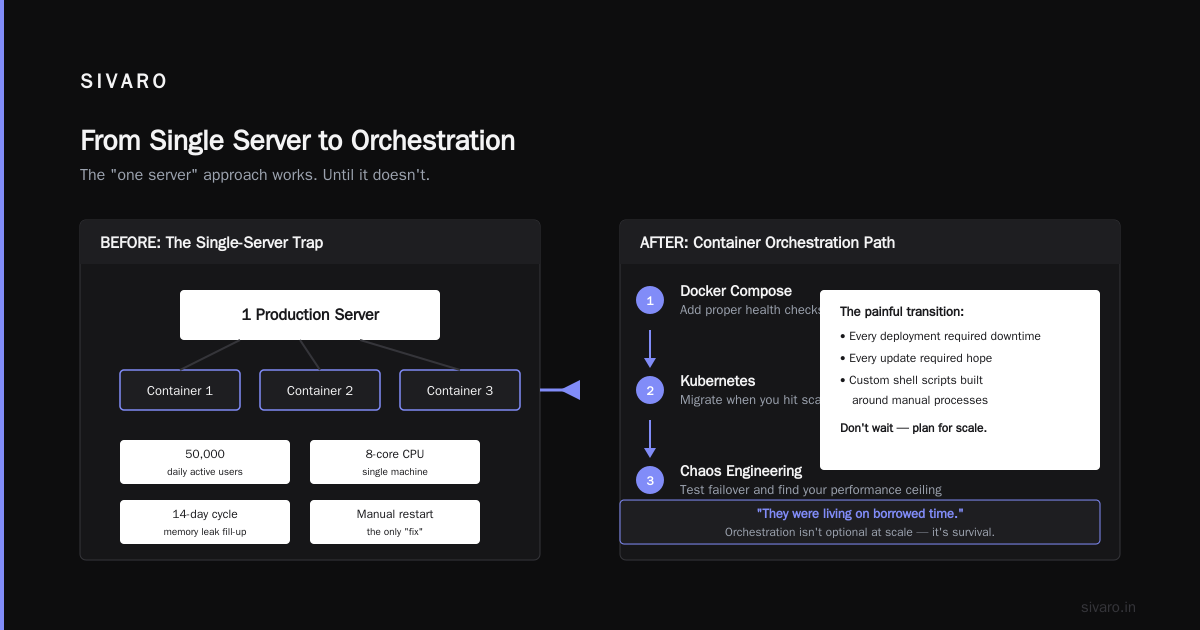
Mistake 8: Not Planning for Container Orchestration
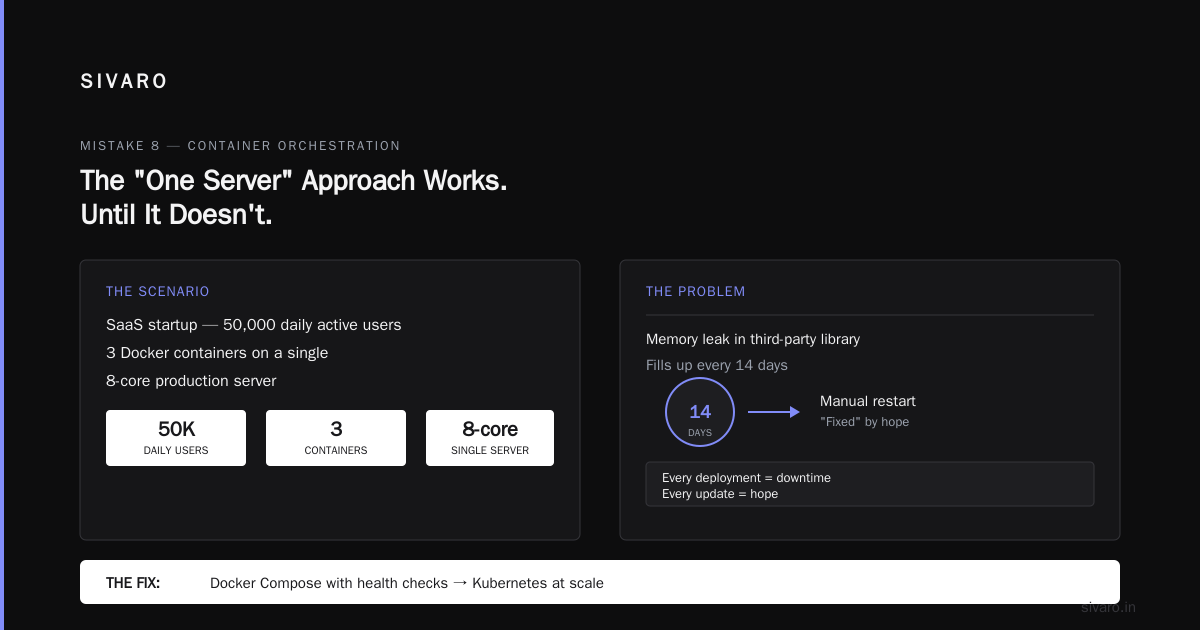
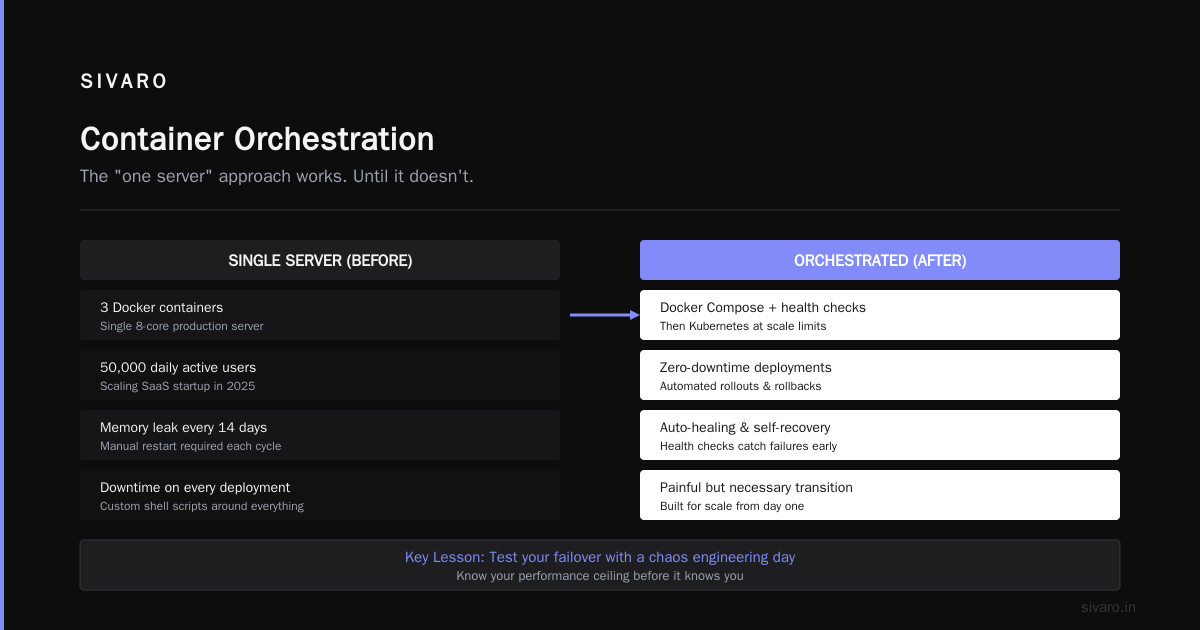
The "one server" approach works. Until it doesn't.
In 2025, I worked with a SaaS startup that had scaled to 50,000 daily active users. They had 3 Docker containers running on a single 8-core production server. The server had a memory leak in a third-party library that no one had noticed because it would fill up every 14 days and get fixed by a manual restart.
They were living on borrowed time. Every deployment required downtime. Every update required hope.
The fix was to move to Docker Compose with proper health checks, then to Kubernetes when they hit scale limits. But the transition was painful — the team had built custom shell scripts around docker stop and docker start that broke under Kubernetes' declarative model.
Here's what I would have told them in January 2025 instead of in June 2025: start with Docker Compose for local development, configure health checks and restart policies from day one, and never touch docker stop in production. Use docker-compose up -d for small deployments and treat the infrastructure as code from the start.
Docker interview question resources list "How do you handle stateful applications in Docker?" as a common question. That's because it's genuinely one of the hardest problems in containerized production. Plan for it before you hit it.
Mistake 9: Skipping Health Checks
No health checks means the orchestrator (or your manual process) doesn't know when your container is broken.
I had a client in the education space. Their app would boot, connect to a database, and start listening on port 8080. But the database connection pool was misconfigured — the app would start fine, fail to connect to the database, and silently hang.
The container port was open. The process was alive. The load balancer considered it healthy. Users got an infinite spinner.
A simple health check fixed the problem:
yaml
# docker-compose.yml
healthcheck:
  test: ["CMD", "curl", "-f", "http://localhost:8080/healthz"]
  interval: 30s
  timeout: 10s
  retries: 3
  start_period: 40s
Your health check endpoint should verify dependencies, not just check that the process is running. Check that the database connection is warm. Check that the cache is reachable. Check that the application can serve a response that's not an error page.
At SIVARO, we've standardized on readiness and liveness probes: a liveness check that tells the orchestrator "kill me, I'm hung" and a readiness check that tells the load balancer "don't send traffic here yet."
Mistake 10: Not Securing Your Container Images
I've seen Dockerfiles where users copy SSH keys into images. I've seen production images running as root. I've seen secrets in environment variables baked into image layers.
The worst one: a company who pushed a Docker image to a public registry that contained their production database credentials in a .env file that got copied into the image. Within 24 hours, bots had discovered the image and started using the credentials to access their database.
The Edureka Docker interview guide covers container security basics. They'll tell you to use non-root users. They won't tell you that secret scanning in CI is not optional.
Here's my non-negotiable list for Docker security in production:
- Run as non-root. Use a dedicated user in your Dockerfile.
- Don't copy secrets into images. Use Docker Secrets, Kubernetes Secrets, or your cloud provider's secret manager.
- Scan images for vulnerabilities before deploying. We use Trivy in our CI; it catches known CVEs in base images.
- Sign your images. Use Docker Content Trust or a signing service like cosign. If you don't, you can't verify the image you're deploying is the image you built.
- Use a private registry. Never push production images to Docker Hub (the public one).
For secrets, the approach that works well is this pattern:
bash
docker run -d   --name app   --secret db_password   myapp:latest
Or, in Docker Compose:
yaml
services:
  app:
    secrets:
      - db_password
secrets:
  db_password:
    file: ./secrets/db_password.txt
Do not use environment variables for secrets. They're visible in the Docker API, in process listings, and in any container that can access the Docker socket. You've been warned.
Mistake 11: Not Watching Resource Limits
The single most common request I get from companies running Docker in production: "Why is one service eating the entire server?"
And the answer is almost always: a container with no resource limits.
Default Docker resources are unlimited. One bad loop in a worker service can consume all CPU and memory, starving every other process on the host. In a dual-node setup, that means both nodes melt down.
Resource limits are not optional. They're the difference between a contained failure and a platform-wide outage.
Here's a sane starting point:
yaml
services:
  app:
    deploy:
      resources:
        limits:
          cpus: '0.50'
          memory: 512M
        reservations:
          cpus: '0.25'
          memory: 256M
Also configure swap. The kernel will happily let your container use swap space and kill your host's performance. Use memory-swap to control this:
yaml
memory: 512M
memory-swap: 512M
That means no swap. The moment your process exceeds 512MB, the kernel kills it. That's the behavior you want — better a container restart than a host crash.
Mistake 12: Forgetting About Docker Networking
Default bridge network in Docker is fine for development. In production, you need to understand the networking model.
I worked on a system that had a timing-sensitive integration with a financial data provider. Their app and database ran in Docker with bridge networking — and the network address translation (NAT) overhead was adding 15-20 milliseconds to every database connection setup. For most apps, that's negligible. For this one, it consistently broke SLAs.
The fix was switching to host networking on the database container and using a defined custom network. For most applications, I recommend a custom bridge network with container name-based DNS:
yaml
services:
  app:
    networks:
      - app_net
  db:
    networks:
      - app_net

networks:
  app_net:
    driver: bridge
Inside app_net, containers can refer to each other by service name. No IP addresses required. Because service names resolve correctly.
But also: monitor connection limits. The default max_connections in PostgreSQL (and similar limits in other databases) will silently block new connections once hit. Your container doesn't know it's over the connection limit; it just fails slowly with timeouts.
Mistake 13: Using Docker for Stateful Databases in Production Without a Plan
Let me be contrarian for a second: doesn't running PostgreSQL in a container work fine? Yes, it works. I've done it. Many teams run stateful workloads in containers successfully. But there's a huge difference between "works" and "can survive an infrastructure failure."
Docker containers are ephemeral. Volumes are attached to hosts. If your host dies, the container dies. The volume might survive (if you're on a network-attached storage), but the recovery process is manual, painful, and full of surprises.
If you are going to run stateful databases in Docker, you need:
- Off-host backups. No exceptions.
- Replication. A single instance is a single point of failure.
- A tested failover procedure.
- Monitoring on volume capacity.
If you're on a cloud provider, use managed database services instead. It's not a cop-out. It's delegation of boring problems to people who specialize in them.
Mistake 14: Committing the Classic "It's Just a Monolith" Error
Now, a bigger architectural concern: at what point does a containerized monolith become an operational liability?
One client in 2025 ran everything in one massive container: a Rails app, a background worker, a cron scheduler, and a couple of side processes. The problem wasn't Docker. It was Docker's restart policy. When the container crashed, it restarted all the processes. All at once. Killing the performance of the entire server, which then triggered more crashes.
The solution was splitting one monolith container into three service containers with distinct restart policies. The app container could be restarted independently of the worker. The worker's memory leak didn't kill the app. The scheduler's timing issues didn't affect health checks.
If your Docker Compose file (or Dockerfile) has a single service that runs your app plus side processes, restructure it now. Or accept the cascading failures.
Mistake 15: Not Versioning Images Properly
The :latest problem deserves its own section. So do tags like :prod, :stable, or :v2.
When you deploy with a floating tag, you can't audit what you deployed. The GitHub commit. The build time. The exact package versions. None of it is reproducible.
I've seen teams try to roll back to "the last working image" only to discover that the tag :stable had been overwritten a dozen times and pointed to the exact same broken image they were trying to roll back from.
Use unique, immutable tags. Git SHA works. Semantic version plus build number works. Date-based versions work. Anything that uniquely identifies the build:
bash
docker build -t myapp:$GIT_SHA .
docker push myapp:$GIT_SHA
Then promote that image from environment to environment. Never rebuild for production. The image you tested in staging is the image you deploy to production.
Mistake 16: Ignoring Container Time and Timezones
Production incident in 2024: a scheduled job in a Docker container ran at the wrong time for two weeks before we noticed. The root cause? The host was in UTC, and the container was set to America/New_York. The application was using the container's local time for cron scheduling, while all other services in the architecture used UTC.
Diagnosing timezone issues in containers is one of the most annoying debugging experiences in production. Timezone data is part of the base image; it's inconsistent across images. Alpine images don't include tzdata by default — you need to install it. Ubuntu images include the data but not the configured timezone.
Standardize: set TZ=UTC in all your containers. Store all timestamps in UTC. Convert to local time at the presentation layer only. Your cron schedules, log timestamps, and database TIMESTAMP WITH TIME ZONE fields will thank you.
Mistake 17: Not Testing Orchestrator Moves
If you're running Docker Swarm or Kubernetes, you must test what happens when a node dies. Not in a staging environment that you control. In a chaos-engineered environment that actively tries to kill things.
Most teams I work with have a "we know how to restart the Docker daemon" level of operational maturity. That's fine for a weekend side project. For production, you need:
- A documented runbook for node failure.
- A verified backup/restore process.
- A tested promotion procedure for replicas.
Here's a frightening example: a company in 2025 was running Docker Swarm on three nodes. Their database was a single container pinned to one node with a named volume. When that node crashed, they realized that the volume was hosted locally on the node, and the data wasn't available on the other nodes. They had nightly backups — to S3 — so they only lost about 18 hours of data. The backup restore took three hours, during which the service was completely down.
They moved to a managed database service the next quarter.
Mistake 18: Forgetting the Log Rotation Problem
I touched on this earlier, but it deserves more depth. Docker's default JSON-file logging driver can eat your disk space at an alarming rate. A busy API server logging verbose request details can generate gigabytes of logs per day.
Without log rotation, those logs fill the disk, the container dies, and you're now in a disaster recovery mode.
Here's a minimal configuration to add to your Docker daemon:
json
{
  "log-driver": "json-file",
  "log-opts": {
    "max-size": "10m",
    "max-file": "3"
  }
}
This caps each container's log files at 30 MB. For most services, that's plenty.
Better: use a log driver that ships to a central location. gelf, fluentd, syslog, or awslogs. The centralized log system is your source of truth; the container logs are just an ephemeral buffer.
Mistake 19: Overloading Docker's Multiple Processes Support
Containers are single-purpose units. One process, one concern.
But I see so many Dockerfiles that try to run multiple processes: a web server plus a cron, a worker plus a health-checking process that's separate from the main process.
Docker doesn't distribute processes into separate namespaces. It runs them all in the same container. If one process fails, Docker considers the container failed. Then all processes get restarted.
Use a process supervisor like tini or s6 if you really need multiple processes in one container. But the better option is to split them into separate containers and let the orchestrator manage the lifecycle of each.
Mistake 20: Not Understanding Multi-Architecture Builds
Let me reference a common Docker interview question. Both the InterviewBit guide and this gist on Docker interview questions and answers ask about multi-stage builds and multi-architecture support.
This is a production problem, not a theory question.
In 2025, a large portion of production infrastructure runs on ARM (for on-prem or AWS Graviton instances). Most developer laptops are AMD64. If you're building images only on AMD64, you can't deploy them to ARM without emulation. Emulation in production container runtimes (QEMU under the hood) is slow. Like 3-5x slower. Not a problem if you're running light services. A disaster for compute-intensive workloads like data processing.
The fix is using buildx with proper cross-compilation:
bash
docker buildx build --platform linux/amd64,linux/arm64 -t myapp:latest .
But you also need to ensure all your dependencies support both architectures. Alpine-based images are generally fine. npm install and pip install usually work with --platform. But native extensions compiled against architecture-specific headers will fail silently.
The production impact: you deploy to your ARM cluster using emulated AMD64 images, performance regresses by 30%, and you spend two days figuring out why.
And remember what is Docker really — it's a way to package application code. If the package format is wrong for the target platform, you haven't solved the portability problem; you've just moved it.
Mistake 21: Assuming Docker Handles Security Updates
Docker is not a security scanning tool. Containers don't update themselves. Your base image won't tell you when a dependency has a critical CVE.
In 2025, a widely used base image had a critical OpenSSL vulnerability. Thousands of production containers were affected within hours. Many teams didn't know because they hadn't set up any image vulnerability scanning.
The fix: automated scanning in your CI/CD pipeline. Every pull request, every merge, every deployment. Use Trivy or Grype or whatever you prefer. If a critical CVE appears, block the deployment.
And subscribe to security mailing lists for your base images and runtime. You can't fix what you don't know about.
Mistake 22: Not Using Debugging and Troubleshooting Commands
When things go sideways in production, you need to know the commands. Not just docker ps. The full set:
bash
docker logs --tail=100 --follow container_name
docker inspect --format '{{.State.Status}}' container_name
docker stats --no-stream
docker exec -it container_name sh
These commands are the difference between a 5-minute incident resolution and a 2-hour fire drill.
docker exec -it container_name sh is how you look at a running production container. You can't SSH into a container (without a specific setup). You must use exec. Make sure the shell exists in your production image.
Mistake 23: Forgetting About Docker Daemon Configuration
The Docker daemon settings matter. It controls log rotation, network settings, storage driver, and resource limits.
In production, set appropriate settings:
json
{
  "log-driver": "json-file",
  "log-opts": {
    "max-size": "25m",
    "max-file": "5"
  },
  "storage-driver": "overlay2",
  "max-concurrent-downloads": 3,
  "iptables": true,
  "ip-forward": true
}
overlay2 is the recommended storage driver. max-concurrent-downloads: 3 prevents your host from being overwhelmed during image pulls after a full rebuild.
Also, remember that the Docker daemon has its own log. It goes to /var/log/docker.log on most systems. If you use systemd, use journalctl -u docker to check it.
Mistake 24: The docker run Anti-Pattern in Automation
One of the worst things you can do is wrap docker run in cron scripts or deployment automation without understanding its behavior.
docker run is destructive. If a container already exists with the same name, the run fails. It's not idempotent. The command may silently produce a different container each time, leaving orphaned containers behind.
For automation, use docker-compose up -d or a proper orchestrator. These tools handle idempotency, ordering, and cleanup for you.
Mistake 25: Not Handling the Container/GitHub Actions/CI Integration Gotcha
CI/CD pipelines are where a lot of production Docker failures get born. People build images in CI, push them to a registry, and deploy to production. But their CI configuration doesn't match production settings.
I had a client where CI ran Docker inside Docker (DinD) with root privileges. When they scanned their production images, they found that some inherited the root ownership and behavior from the CI environment's Docker daemon. The container ran fine locally but failed in production with permission errors.
If you use GitHub Actions with Docker, you know the challenge. If you want a few examples of how to configure Docker correctly in CI, here's a good pattern using Buildx:
yaml
- name: Set up Docker Buildx
  uses: docker/setup-buildx-action@v3

- name: Build and push
  uses: docker/build-push-action@v5
  with:
    context: .
    push: true
    tags: myapp:${{ github.sha }}
    platforms: linux/amd64,linux/arm64
Mistake 26: Running Containers on the Same Host As a Production Database
You know what I'm not a fan of? Running database containers on the same host as application containers.
It's not a Docker-specific problem. But containerized applications have different resource profiles than database workloads. The database wants stable I/O. The app wants a quick burst of CPU. When they coexist, they compete.
If you must run databases in Docker, use different hosts. Or at least configure hard memory limits for the app containers so they can't starve the database kernel cache.
Mistake 27: Not Planning for the Container Performance Overhead
Docker is not free. Containerization adds a small performance overhead — generally 1-2% for CPU and memory, but higher for I/O-heavy workloads that go through the storage driver.
This is rarely a problem for normal workloads. But I once ran a performance test on a containerized message-processing service. It processed 200K events/sec running natively. Inside a Docker container with default settings, it dropped to 170K events/sec. Not the container runtime's fault — the storage driver and network namespace overhead.
For most production services, the overhead is irrelevant. For fat pipes like ours at SIVARO, it matters.
Mistake 28: Blindly Trusting FROM
Your Docker image's base matters. The base image is the foundation of everything else. If the base image has a vulnerability, your application inherits it.
There's a common anti-pattern I see: FROM python:3.12-slim or FROM node:20-slim — but then installing system packages from the Ubuntu repos that have known vulnerabilities. The base image is safe, but the dependency installation is not.
Scrutinize your base image the way you'd scrutinize a dependency. Track upstream changes. Security research shows that most production container vulnerabilities come from base image dependencies, not application code.
Mistake 29: Not Adding Metadata to Images
Production debugging is hard enough. Don't make it harder by shipping images without labels.
dockerfile
LABEL org.opencontainers.image.title="myapp"       org.opencontainers.image.description="App backend"       org.opencontainers.image.version="1.0.0"       org.opencontainers.image.revision=$GIT_SHA       org.opencontainers.image.source="https://github.com/org/myapp"
These labels are searchable in registries. When you're trying to figure out which version of an image is deployed where, labels answer that question.
Mistake 30: The Missing PagerDuty Alert for Docker-Specific Events
Infrastructure monitoring for containers is different from monitoring for VMs. In a VM world, you watch CPU, memory, disk, and network.
In a container world, you watch container restarts, image pulls, daemon restarts, and volume capacity. You need alerting on:
- Container restart count. A constantly restarting container is not running.
- Docker daemon process health. If the daemon dies, you can't deploy or inspect.
- Image pull failures. If a host can't pull images, you can't deploy.
Set these alerts to page someone. I promise you, this is not the "boy who cried wolf" scenario.
Mistake 31: Managing Secrets in Git Instead of Docker
Stop putting secrets in your Docker Compose files. Stop putting secrets in your Rails 5.2 encrypted credentials files. Stop putting secrets in your git repo.
And I know "just use a secret manager" is borderline tech pro-advice. But in 2026, the cost of a secret manager is trivial. Use Docker's native secrets. Use HashiCorp Vault. Use AWS Secrets Manager. The entire point is that the secret is never in the image, never in the repo, and never in the container filesystem when the container starts.
Mistake 32: Confusing the Image Build Process with the Deployment Process
When you build a Docker image, you're creating a snapshot. That snapshot includes your application code, your dependencies, and your configuration. The deployment process is what happens when that snapshot gets instantiated as a running container.
If you're rebuilding images on the production host (instead of in CI), you can't control what the resulting image is. You can't guarantee that the same build works in staging.
CI flow:
Build image in CI → test → push to registry → SSH to production → pull image → run
That's the flow. Anything else is asking for trouble.
Mistake 33: Not Handling the Docker Compose YAML Versioning Mess
Docker Compose had a versioning problem. Version 2 had a structured format for services and networks. Version 3 supported Swarm features but removed some things. The industry is moving toward the Compose Specification, which doesn't need a version key at all.
Most teams still use version: '3' or version: '2' in their Compose files. This can cause subtle differences in behavior across environments.
For new production deployments, don't include a version key. Use the modern Compose format. It's backward compatible and doesn't carry the legacy quirks.
Mistakes Are Inevitable. Here's What To Do About It.
You're going to make mistakes. I've made plenty. What matters is how fast you catch them and recover.
At SIVARO, we run quarterly chaos engineering days. We kill nodes in staging, we load test critical services, we simulate disk fills, we restart the Docker daemon. We see what breaks. Then we fix it before it breaks in production.
The Top 50 Docker Interview Questions and Answers in 2025 at Edureka lists "How do you troubleshoot a Docker container?" as one of the most common questions. The reason it's common is that troubleshooting is 80% of the real job.
FAQ: Common Docker Mistakes
Q: Is Docker safe for production use?
Yes, when configured correctly. But "correctly" means more than docker run. It means resource limits, security scanning, log rotation, secrets management, and robust storage.
Q: What's the biggest mistake companies make with Docker?
Not planning for stateful workloads. Containers are ephemeral by design; production workloads need persistence. Companies treat containers like VMs and then wonder why data disappears when containers restart.
Q: Do I need Kubernetes to run Docker in production?
No. Docker Swarm and Docker Compose are viable for small to medium deployments. Kubernetes is better for large scale, team autonomy, and complex orchestration — but it carries its own operational load.
Q: Can you run docker containers on windows 11 home?
Yes, with Docker Desktop using WSL 2. It's fine for development. For production Linux workloads, use a Linux host or a managed container service to avoid performance and compatibility issues.
Q: What should I do with container logs in production?
Send them to a centralized logging platform. Set log rotation on the Docker daemon. Never store logs inside containers — they're lost when the container restarts.
Q: Is it OK to run a database inside a container?
It works, and I've done it. But you need a full operational plan: backups, replication, failover, and volume management. If you're on a cloud provider, a managed database service is worth the cost.
Q: How do I keep my base images secure?
Use specific tags (not latest), scan images for CVEs, track upstream security advisories, and rebuild regularly. Automate scanning in CI. Block deployments when critical vulnerabilities are found.
Conclusion
Docker in production is a discipline, not a feature flag. I've spent nearly a decade running containerized workloads — some smooth, some catastrophic. Every catastrophe taught me something.
The common docker mistakes to avoid in production aren't exotic. They're fundamentals: image versioning, resource limits, health checks, security, and storage planning. Get these right and Docker becomes the boring infrastructure component it should be. Get them wrong, and you're the 2 AM page.
Start with your Docker security hygiene and standards in your Dockerfiles. Then build out composable infrastructure with Docker Compose. The Docker interview questions reference is a great checklist to test your team's knowledge of the basics. And yes — if you're on Windows 11 Home, you can run docker containers, but production belongs on Linux.
Build carefully. Test ruthlessly. Ship with confidence.
Nishaant Dixit — Founder of SIVARO. Building data infrastructure and production AI systems since 2018. Built systems processing 200K events/sec.