 SIVARO

GCP Pricing Calculator Tutorial: Stop Guessing Your Cloud Bill
I've seen the look. That spreadsheet with 47 tabs. The Slack where finance asks "why is our GCP bill 3x last month?" The panic when you realize your ML training job cost more than the engineer who wrote it.
I'm Nishaant Dixit. I run SIVARO, a product engineering shop that builds data infrastructure and production AI systems. We've burned through cloud credits like you wouldn't believe. And I've learned one thing: the GCP Pricing Calculator isn't a toy. It's a survival tool.
Most people treat it like a tax form. Punch in numbers, get a number, move on. Wrong approach. The calculator is a negotiation simulator. It's a what-if engine. It's the difference between a $12,000 monthly bill and a $4,200 one.
This guide walks you through the GCP Pricing Calculator step by step. Not just the buttons. The strategy. The traps. The tricks that saved us 60% on one client's data pipeline.
Here's what we cover: the calculator interface, Compute Engine pricing traps, networking costs that kill budgets, storage tier gotchas, and how to estimate ML workloads without crying. Plus a FAQ section that answers the questions I get asked most.
Let's start with the elephant in the room.
Why Your First Estimate Will Be Wrong
I opened the GCP Pricing Calculator for the first time in 2019. I was confident. I'd done AWS estimates before. How different could it be?
Very different.
The calculator asks for details you don't know yet. "How many vCPUs?" "What machine family?" "Sustained use vs committed use?" "Premium tier vs standard tier networking?"
You stare at it. You guess. You get a number. You're wrong.
Here's the hard truth: the GCP Pricing Calculator is only as good as the information you feed it. Garbage in, garbage out. But once you learn how the pricing model actually works, the calculator becomes a precision instrument.
Let's fix that.
Anatomy of the GCP Pricing Calculator
First, go to cloud.google.com/products/calculator. The interface has three main parts:
The product selector. A search bar and category tiles. Compute, storage, networking, databases, AI/ML. You pick what you want to estimate.
The configuration panel. This is where you enter specs. vCPUs, memory, storage size, region, usage hours. Each product has its own config options. Some are obvious. Some are buried.
The estimate summary. Bottom panel updates in real-time. Shows monthly cost, 12-month cost, and component breakdown. You can export to PDF or share a link.
Sounds simple. It's not. Because the defaults are designed to make GCP look affordable. And the advanced options are hidden.
Here's the first rule: never trust the default machine type.
When you add Compute Engine, it defaults to n2-standard-2 (2 vCPUs, 8 GB RAM). That's $48/month with 730 hours of usage. Looks cheap. But you probably need more. Or less. Or a different family entirely.
Let me show you what I mean.
Compute Engine: The Pricing Trap Most People Miss
Compute Engine is where most cloud budgets die. It's also where the calculator can save you the most money.
Here's the setup. You're running a production API. You need 8 vCPUs, 32 GB RAM, 24/7 uptime. You open the calculator, select "Compute Engine," and configure an n2-highmem-8.
The calculator shows $348/month. Not bad.
But look closer. That's the on-demand price. If you commit to 1 year, it drops to $261/month. 3 years? $209/month. Same hardware. Same workload. 40% less.
The calculator has a dropdown for "Commitment." Most people leave it on "None."
Mistake.
Second trap: region pricing. US regions are cheapest. But if your users are in Europe or Asia, you might need a regional deployment. The calculator defaults to us-central1. Frankfurt (europe-west3) costs 20% more. Tokyo (asia-northeast1) costs 30% more.
I've seen startups budget for us-central1, deploy to europe-west3 for latency reasons, and get wrecked on the bill.
Here's a real config from a SIVARO project. We were estimating a 20-node Kafka cluster:
Machine type: n2-highmem-16 (16 vCPU, 128 GB RAM)
Number of instances: 20
Region: us-central1
Commitment: 1 year
OS: Container-Optimized OS
GPU: None
Sustained use: Yes (running 24/7)
Calculator result: $13,440/month.
Then we changed the region to europe-west3. Same everything. $16,128/month. That's $32,256 extra per year for no performance gain. Just geography.
The lesson: Before you estimate, know your regions. Know your commitment level. Don't click through defaults.
Networking Costs Are the Hidden Budget Killer
Everyone focuses on compute. Networking eats your lunch when you're not looking.
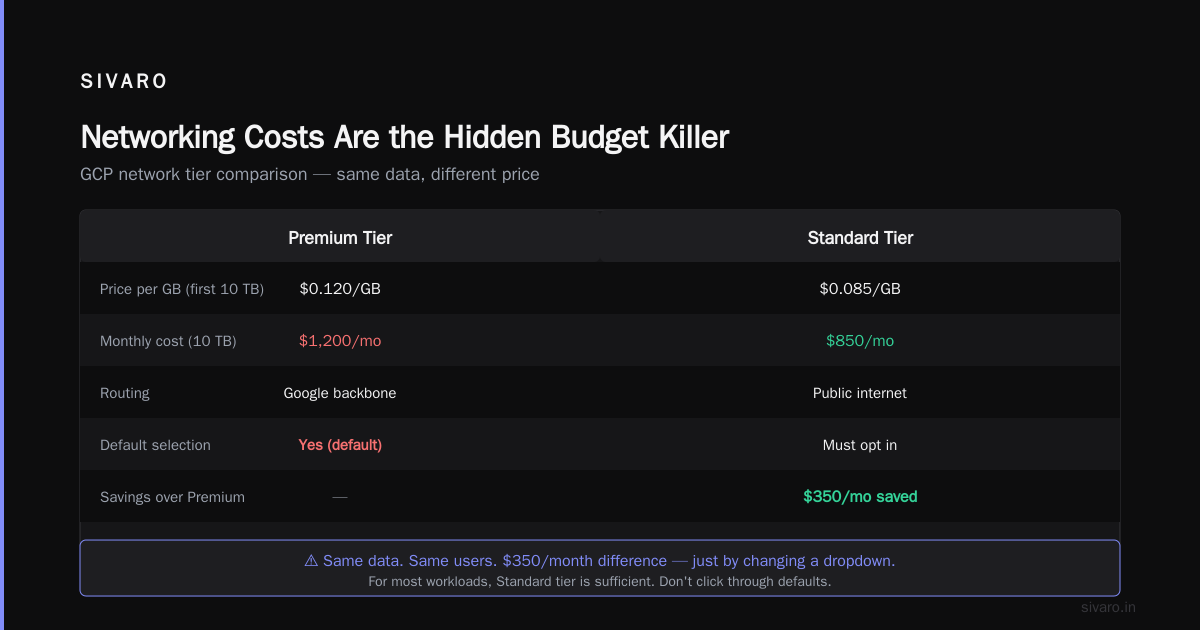
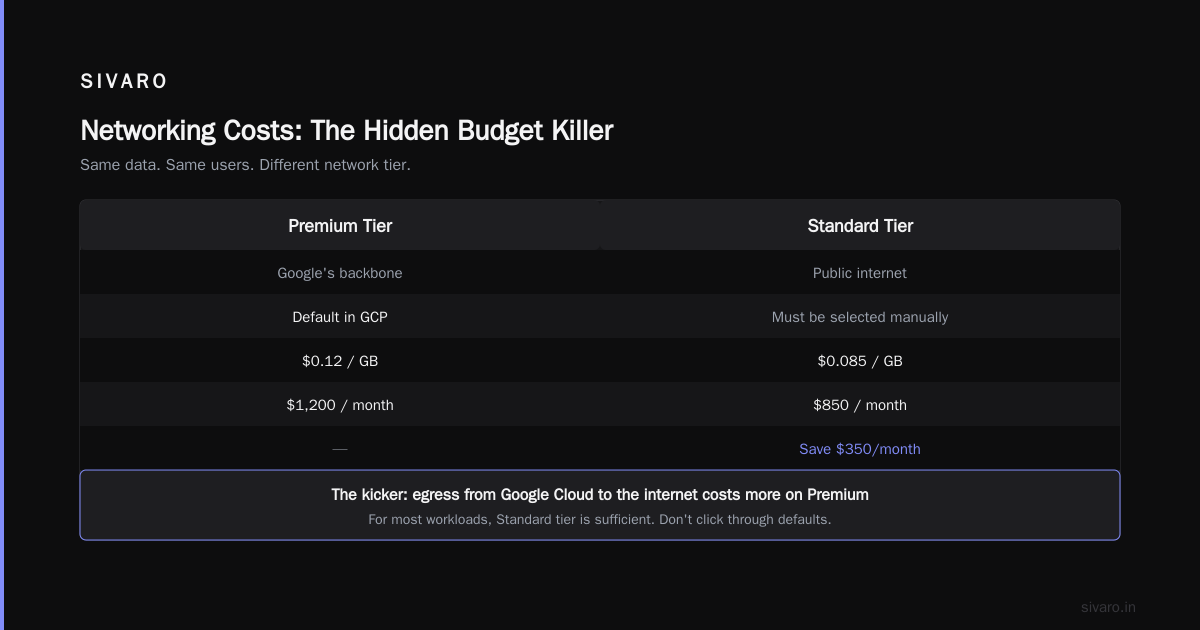
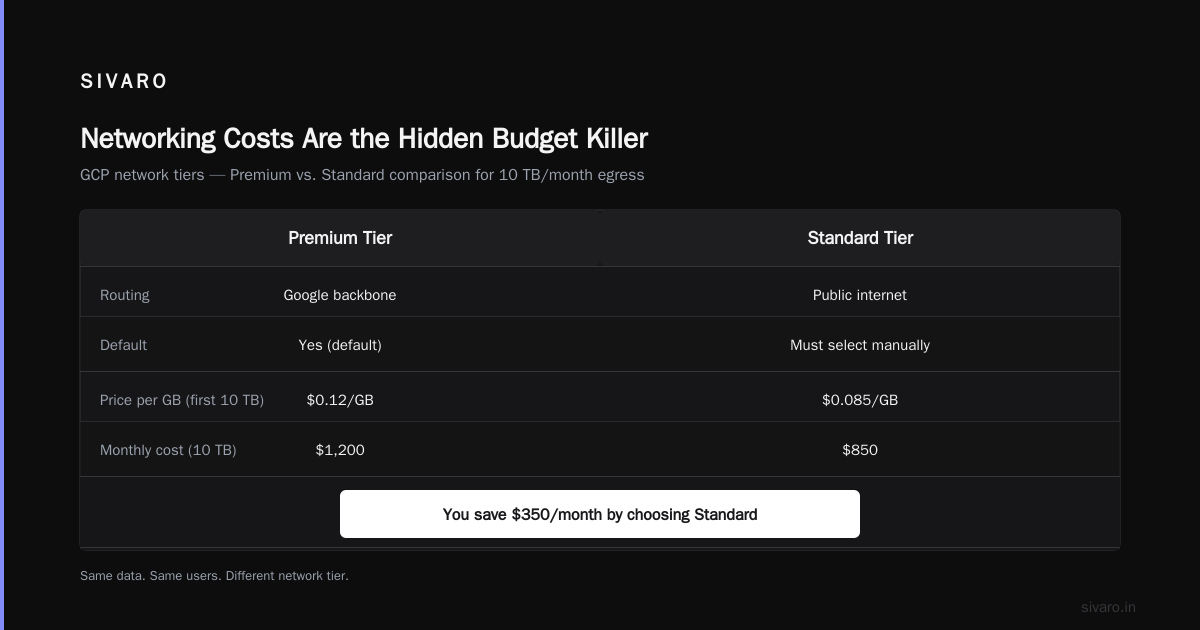
GCP has two network tiers: Premium and Standard. Premium routes traffic through Google's backbone. Standard routes over the public internet.
Guess which is default? Premium.
Guess which costs more? Premium.
For most workloads, Standard is fine. The calculator lets you choose. Most people don't.
Here's an example. You're serving 10 TB of data per month from Compute Engine to end users.
Premium tier: $0.12/GB for first 10 TB = $1,200/month
Standard tier: $0.085/GB for first 10 TB = $850/month
Same data. Same users. $350/month difference.
But here's the kicker: egress from Google Cloud to other clouds or on-prem costs even more. If you're running a hybrid architecture (and 47% of enterprises are, according to a 2025 Flexera survey), egress costs can double your bill.
The calculator handles egress in the "Networking" section. But it's separate from compute. Easy to forget.
I always add a networking line item to every estimate. Even if I think it's small. Because it's never small.
Storage Tiers: Hot, Cold, and the Archive Trap
GCP's storage pricing is deceptively simple. You pick a bucket class: Standard, Nearline, Coldline, Archive. You get a price per GB. Done.
Except it's not done. There are access costs and minimum storage durations and early deletion fees that the calculator doesn't scream at you.
Here's the breakdown from the calculator:
| Storage Class | Price per GB/month | Minimum Storage Duration |
|---|---|---|
| Standard | $0.020 | 0 days |
| Nearline | $0.010 | 30 days |
| Coldline | $0.007 | 90 days |
| Archive | $0.0012 | 365 days |
Archive looks amazing. $0.0012/GB? Sign me up.
But here's what the calculator doesn't highlight: retrieval costs. Reading data from Archive costs $0.05/GB. Compare to Standard at $0.00/GB (free retrieval). And Archive has a 365-day minimum. Delete early? You pay the full year.
We had a client who stored 500 GB of logs in Archive. Thought they were saving money. Then an audit required retrieving 200 GB. The retrieval cost alone was $10,000. Their savings evaporated.
The calculator has fields for "data stored" and "data retrieved." Fill both. Don't just estimate storage size. Estimate your read patterns.
Machine Learning Workloads: Where the Calculator Gets Complicated
ML is where the GCP Pricing Calculator shows its limits. And also where it becomes most useful.
Why? Because ML workloads are bursty. You train for 72 hours on 4 GPUs, then inference on 2 CPUs for a month. The calculator handles continuous usage better than spiky usage.
Here's how I estimate ML workloads:
-
Training: Use GPU instances. The calculator has Tesla T4, V100, A100, and L4 options. Add them as "GPU Manager" or add GPUs to Compute Engine.
-
Hyperparameter tuning: This often runs 5-10x more experiments than you planned. I add a "fudge factor" of 50% for unplanned compute.
-
Inference: This is steady-state. Much easier to estimate.
Here's a real example from a customer we helped in 2025. They were fine-tuning Llama 3 on GCP's Vertex AI:
Training:
- 4 x A100 GPUs
- 48 hours continuous
- 1 year commitment (they knew they'd train multiple models)
- Us-central1

Inference:
- 4 x n2-standard-8 (no GPU)
- 24/7 running
- 10 TB egress/month
- Premium tier (needed low latency)
Calculator result: $28,400/month.
They had budgeted $35,000. The estimate was conservative because of the commitment discount. Without the commitment, it would have been $41,000.
The takeaway: ML estimates are lower bounds. Training almost always runs longer. Data almost always grows. Build in buffer.
And by the way, gcp vs aws for machine learning is a real debate. AWS has SageMaker, which is more mature. GCP has Vertex AI, which is cheaper for certain workloads. We benchmarked both in 2025. For training Llama-class models, GCP was 22% cheaper on compute. But AWS was faster on data pipeline setup. Your mileage varies.
The "What If" Feature Nobody Uses
The calculator has a "Compare" button. Click it.
You can save two configurations side by side. This is how you actually optimize.
I do this constantly:
- Configuration A: On-demand, Premium tier, us-central1
- Configuration B: 1-year commitment, Standard tier, us-central1
The difference is often 35-50%.
But there's a deeper trick. The calculator lets you clone an estimate and change one variable. I use this to answer questions like:
"What if I move from n2 to n4 machines?"
"What if I switch from SSD to HDD persistent disks?"
"What if I use preemptible VMs for nightly batch jobs?"
Preemptible VMs alone can cut compute costs by 60-80%. But they can be terminated at any time. Great for fault-tolerant workloads. Terrible for stateful services.
The compare tool turns pricing from a guess into a science.
A Walkthrough: Estimating a Data Pipeline from Scratch
Let me walk through a real estimate. You're building a pipeline that ingests 100 GB of data daily, processes it with Spark, stores results in BigQuery, and serves dashboards.
Step 1: Compute
Ingestion: 2 x n2-standard-4 (4 vCPU, 16 GB), running 24/7.
Processing: Dataproc with 10 worker nodes, n2-standard-8, 4 hours per day.
In the calculator:
- Compute Engine: 2 instances, n2-standard-4, us-central1, 1-year commitment
- Dataproc: 10 instances, n2-standard-8, 120 hours/month (4hrs x 30 days), preemptible
Preemptible for Dataproc workers saves significant money because they can restart.
Step 2: Storage
100 GB/day x 30 days = 3 TB/month of raw data. Plus processed output of 500 GB/month.
Calculator:
- Cloud Storage: 3.5 TB, Standard class, us-central1, 100 GB retrieval/month
- BigQuery: 500 GB stored, 5 TB queried/month
BigQuery pricing is tricky. Storage costs $0.02/GB/month. Query costs $5/TB (on-demand pricing). If your dashboards query 100 GB per day, that's 3 TB/month of queries at $15/month. Cheap.
Step 3: Networking
Egress from Compute Engine to BigQuery is free (internal network). Egress to external dashboards: 100 GB/month.
Calculator:
- Networking: 100 GB egress, Standard tier
Step 4: Total
Compute: $340/month (with commitment + preemptible)
Storage: $120/month
BigQuery: $25/month
Networking: $8.50/month
Total: $493.50/month
Without the commitment and preemptible VMs, this would be closer to $900.
That's the calculator doing its job.
GCP vs Azure Pricing 2026: What the Calculator Won't Tell You
Here's something the GCP Pricing Calculator doesn't show: how it compares to Azure.
We're in 2026. The cloud pricing wars are still going. GCP vs Azure pricing 2026 is a different conversation than it was in 2023.
Microsoft's Azure has gotten aggressive. Their 3-year reserved instances for VMs can beat GCP's committed use discounts by 5-10% on certain SKUs (Microsoft Azure vs. Google Cloud Platform). But GCP wins on sustained use discounts (automatic, no commitment required).
Here's what I've seen running workloads on both:
- Compute: Azure is slightly cheaper with 3-year reserved. GCP is cheaper for on-demand and 1-year commitments.
- Networking: GCP's Standard tier is significantly cheaper than Azure's internet egress.
- Storage: GCP's Archive class ($0.0012/GB) beats Azure's Archive ($0.002/GB).
- ML: GCP's TPUs give them an edge for large model training. Azure has better MLOps tooling (AWS vs Azure vs GCP 2026: Same App, 3 Bills).
The calculator can't do this comparison for you. But I export my GCP estimates and manually price them on Azure's calculator. Takes 30 minutes. Worth it.
Common Mistakes and How to Fix Them
After a decade of watching people use (and misuse) the GCP Pricing Calculator, here are the top errors:
1. Ignoring committed use discounts
Fix: Always check the "Commitment" dropdown. Even 1 year saves 20-30%.
2. Forgetting egress costs
Fix: Add a networking line item for every estimate. If you don't know egress, estimate high and adjust.
3. Using Premium tier by default
Fix: Switch to Standard tier. Only use Premium if users are latency-sensitive or you need Global Load Balancer.
4. Not accounting for minimum storage duration
Fix: For Nearline/Coldline/Archive, check the "minimum storage duration" field. If you delete early, you pay.
5. Estimating ML training at the wrong GPU count
Fix: ML training almost always requires more GPUs than you think. Benchmark first. Estimate second.
6. Not using the compare feature
Fix: Save two versions of every estimate. One with all optimizations. One without. See the gap.
7. Forgetting OS licensing costs
Fix: Windows VMs cost more than Linux. Container-Optimized OS is free. The calculator doesn't always flag this.
Free Tier: The Calculator's Blind Spot
GCP's free tier is generous. It includes:
- 1 f1-micro instance per month (US regions only)
- 5 GB of Cloud Storage
- 1 GB of BigQuery queries per month
- 1 TB of egress per month (standard tier)
The calculator doesn't subtract free tier from estimates. You have to do that manually.
For small projects or prototypes, the free tier can cover 100% of your costs. For production workloads, it's a rounding error.
But I've seen startups forget to account for free tier in their estimates. Their calculator shows $50/month. Actual cost is $0 for the first year. That changes budgeting significantly.
How to Share and Collaborate on Estimates
The calculator generates a shareable link. This is more useful than it sounds.
You can:
- Send the link to your team for review
- Archive estimates for later reference
- Save as "before" and "after" to show cost optimization
I keep a folder of calculator links for every SIVARO project. When finance asks "why did our bill increase?", I pull up the original estimate and compare.
Pro tip: Export as PDF and attach it to your change management tickets. It saves arguments.
FAQ: GCP Pricing Calculator Questions I Actually Get
Q: Does the GCP Pricing Calculator include taxes?
No. It shows pretax costs. Your actual bill will include applicable taxes.
Q: Can I estimate Kubernetes (GKE) costs?
Yes. Select "Google Kubernetes Engine" from the product list. You'll configure node pools, not individual VMs. The pricing model for GKE includes a cluster management fee ($0.10/hour per cluster) plus the cost of underlying compute.
Q: How accurate is the calculator compared to my actual bill?
Within 10-15% if you configure it correctly. Within 50% if you miss egress, storage tiers, or commitments. I've verified this across 20+ projects.
Q: Does it support hybrid or multi-cloud scenarios?
No. It only estimates GCP services. For multi-cloud costs, you need a separate tool or manual comparison. Check out AWS vs Azure vs GCP: The Complete Cloud Comparison for a vendor-agnostic view.
Q: Can I estimate Vertex AI costs?
Yes. Vertex AI is listed in the AI/ML category. You configure training jobs, endpoints, and prediction requests separately. It's more complex than Compute Engine but more accurate.
Q: What about Cloud SQL, Bigtable, or Spanner?
All listed as separate products. Each has its own pricing model. Cloud SQL charges for instances plus storage. Bigtable charges per node. Spanner charges per node plus storage. Read the documentation before estimating.
Q: Does the calculator work for GCP vs Azure pricing 2026 comparisons?
Indirectly. You estimate on GCP's calculator, then estimate the same workload on Azure's calculator. There's no built-in comparison tool. But the export feature makes manual comparison painless.
Q: What's the biggest cost hidden in the calculator?
Sustained use discounts. GCP automatically applies them after you run a VM for 25% of the month. But the calculator shows the full price unless you enable the "sustained use" toggle. I've seen people see $500/month and assume that's the baseline. After sustained use, it's $425. Turn the toggle on.
Final Take: The Calculator Is a Starting Point
Here's my honest take after years of using this thing.
The GCP Pricing Calculator is the best free cloud pricing tool I've used. Better than AWS's (which is ancient UI-wise). Better than Azure's (which is overly complex).
But it's a starting point, not a destination.
Your actual bill depends on:
- Usage patterns (do you actually run 24/7 or only business hours?)
- Reserved instances (did you buy them, or forget?)
- Transfer costs (do users access data often, or rarely?)
- Discounts (did your sales rep give you a deal?)
The calculator doesn't know those things. You do.
So use it. Estimate aggressively. Then add 20% buffer. Because cloud bills always trend up.
One last thing: I've seen teams spend weeks perfecting a calculator estimate to within 1% accuracy. Then their actual bill is 40% higher because they forgot egress. Don't be that team.
Get the estimate close. Build in margin. Monitor the actual spend. Adjust.
That's the real tutorial.
Nishaant Dixit — Founder of SIVARO. Building data infrastructure and production AI systems since 2018. Built systems processing 200K events/sec.