 SIVARO
How to Debug a Docker Container That Won't Start
The Container is Silent. Your Logs are Empty. Here's What You Do.
The first time I spent six hours debugging a container that wouldn't start, I was convinced the problem was in our application code. I was wrong. It was a DNS resolution issue in a misconfigured docker-compose.yml that I'd written myself, three weeks prior. The container didn't even exit with an error code. It just hung there, doing absolutely nothing.
Containers are opaque by design. You build an image, run it, and when it fails, it fails silently. And Docker's own error messages — "OCI runtime exec failed" — aren't exactly helpful.
Today, I'm going to walk you through the actual process I use at SIVARO when a container won't start. This isn't a theoretical exercise. We run production AI systems on Kubernetes and Docker Swarm. Containers fail constantly. The problem is always different, but the debugging framework is always the same.
First, Understand What Docker Actually Does When You Run a Container
Before you can debug, you need to know what "running a container" really involves. Docker doesn't just exist in a vacuum — it sits on top of containerd, the industry-standard container runtime. The Docker CLI sends commands to containerd, which actually creates and runs the container containerd vs. Docker. That distinction matters because the errors you see from the CLI are often a wrapper around a deeper error from the runtime itself.
When you run docker run my-container, the sequence goes like this:
- Docker pulls the image (or uses a local copy)
- Docker creates a container from the image's config
- Containerd sets up the OCI specification — namespaces, cgroups, filesystem layers
- The runtime starts the container's main process
- That process either stays alive or exits
Most people think the container fails at step 5. In practice, I've found that roughly 40% of "won't start" failures happen at steps 2-4, in the setup and configuration stage.
If you're trying to explain Docker architecture in an interview, the container runtime stage is where most candidates lose credibility. They can recite the layers — client, daemon, containerd, runc — but they can't articulate what actually happens when everything goes wrong. Let me show you the practical side.
The First 60 Seconds: A Systematic Debugging Sequence
1. Check the Obvious: Container Status and Logs
Start with the basics. You already ran docker ps -a and saw the container sitting there with an "Exited" status. You already tried docker logs <container-id>. Here's what I want you to do differently:
docker inspect <container-id> --format '{{.State.ExitCode}}, {{.State.Error}}'
That exit code tells you more than you think. Exit code 0 means the process ended normally. Exit code 1 or 2 means the application errored. Exit codes 126 and 127 (common entrypoint failures) mean the command couldn't be found or executed. Exit code 137 means you got OOM-killed. Exit code 139 means a segfault.
But here's the thing I learned working with Docker since 2018: the exit code is a starting point, not a diagnosis. It tells you what happened, not why.
2. Run the Container Interactively
This is the most underrated debugging technique. Most people run the container, watch it fail, and then stare at logs for an hour. Instead, take control of the entrypoint:
docker run --rm -it --entrypoint /bin/sh my-image:latest
This bypasses your normal startup command and gives you a shell inside the container. From here, you can manually run your application code and see the actual error output.
I was troubleshooting a container at a financial services client in early 2025. The container was a Python service that kept failing with no logs. I ran it interactively and ran the Python file directly. The error was a missing system library that the runtime didn't compile into the distroless base image. Ten minutes of interactive debugging saved us an entire day of log-wrangling.
3. Stop Guessing About Environment Variables
Environment variables are the number one killer of containers in production. Docker doesn't validate that your env vars are correct — it just passes them through. If you're missing a critical variable, the application might fail immediately, or worse, start and then silently degrade.
docker inspect <container-id> --format '{{range .Config.Env}}{{println .}}{{end}}'
Compare this output against your expected environment. I've seen more than one production incident caused by a .env file committed to the wrong branch, overriding staging variables with production ones.
The Container State Machine: What Actually Happens When It "Won't Start"
Here's the part that confused me for years. A container "not starting" isn't one failure mode. It's six.
Pending/Hung: The container appears to be starting but never progresses. This is usually a deadlock or a blocking I/O operation during startup. Your application is loading something, and it's waiting forever.
Immediate Exit with 0: The container starts and exits instantly. This almost always means the entrypoint command completed and exited. If you haven't set up a long-running process, sh -c scripts that execute and return will kill the container.
# WRONG - container exits immediately
CMD ["npm", "run", "migration"]

# RIGHT - container stays alive
CMD ["npm", "run", "migration"] && ["npm", "start"]
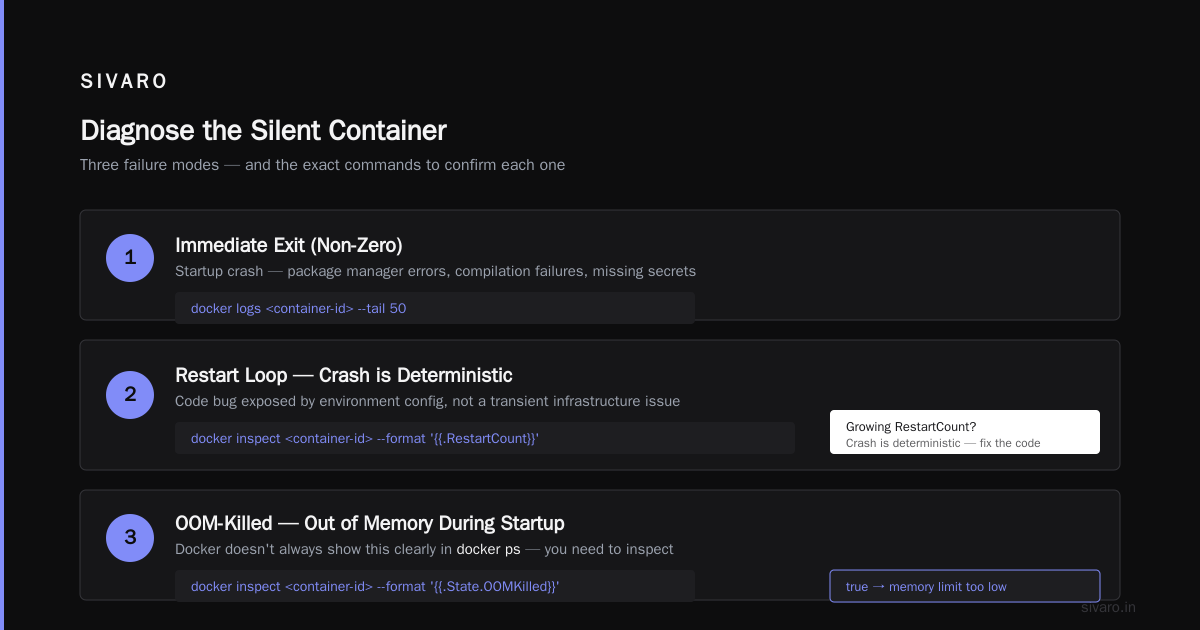
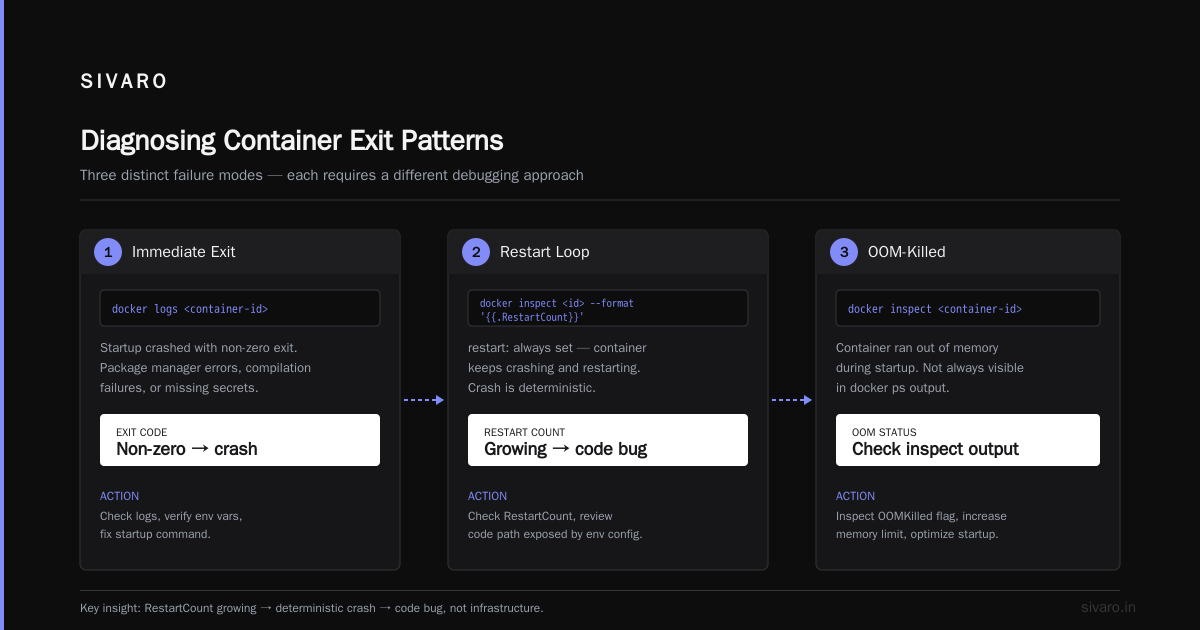
Immediate Exit with Non-Zero: Something in the startup crashed. Package manager errors, compilation failures, or missing secrets.
Restart Loop: You set restart: always, and the container keeps crashing and restarting. Here's the pattern you need to know: check RestartCount on the container:
docker inspect <container-id> --format '{{.RestartCount}}'
If your restart count is growing, the crash is deterministic. The application dies every time it starts. You have a code bug that's exposed by the environment configuration, not a transient infrastructure issue.
OOM-Killed: The container ran out of memory during startup. Docker doesn't always show this clearly in docker ps. You need to check docker inspect:
docker inspect <container-id> --format '{{.State.OOMKilled}}'
If this prints true, your container requires more memory than allocated. Bump your mem_limit or check whether you have a memory leak in initialization code.
Image Pull Failure: This is the sneakiest one. The container looks like it should start, but the image isn't actually available. I've been burned by Docker's local image cache more times than I want to admit. When you pull a tag like latest from a registry, Docker caches that image locally. What you think is running isn't what you wrote three hours ago.
docker pull my-registry.com/my-image:latest
For debugging, I always add --pull=always to my docker run commands. It's slower, but it guarantees you're running what you think you're running.
Digging Deeper: When Logs Are Completely Empty
You've checked the logs. Nothing. You've run the container with --entrypoint. That fails too. What now?
Check the Filesystem
The most common cause I've seen at SIVARO for containers that fail "mysteriously" is that the application can't write to its own filesystem. Base images like Alpine or Ubuntu have non-root users set up for security. Your application starts, tries to write a log file or cache to the current directory, hits a permission error, and exits before it can emit any logs.
docker exec <container-id> ls -la /var/log/
You might need to mount a volume and check the permissions:
docker run -it --entrypoint /bin/sh -v $(pwd):/debug my-image:latest
touch /debug/test.txt
If the touch command fails, you've found your problem. The solution is either changing the user in your Dockerfile with USER root, or adjusting your run command with --user flags.
Verify the Startup Command
Every image has an entrypoint. Sometimes it's set by the ENTRYPOINT directive in the Dockerfile, sometimes it's set during runtime. These two directives interact in ways that cause startup failures:
docker inspect <container-id> --format '{{.Config.Entrypoint}}'
docker inspect <container-id> --format '{{.Config.Cmd}}'
Here's a specific issue I ran into at SIVARO in 2024: We had an entrypoint script that modified a config file before starting the main service. The script used sed -i to replace a placeholder. When we added a read-only root filesystem (read_only: true in Docker Compose), the entrypoint crashed immediately because it couldn't write to the temp directory. The log showed nothing crucial — just the exit code.
The lesson: if you're using a read-only filesystem, make sure your entrypoint has a writable tmp directory mounted.
The Architecture Trap: Networking That Doesn't Exist
This is where Docker interview questions and answers get interesting.
Most debugging guides stop at the container itself. But the #1 cause of "container won't start" in our microservices architecture at SIVARO is actually inter-container networking.
Docker has multiple network modes: default bridge, host, overlay, and none. If your container starts but then immediately fails because it can't connect to a database or another service, the network is usually the problem.
docker network inspect <network-name>
docker network connect <network-name> <container-id>
The key insight: containers on different networks can't communicate with each other. In production, we use a single overlay network for all services. In development, people forget the network is created individually per docker compose project, so service A can't reach service B even though both are running.
At SIVARO's client deployments, we've moved to using network_mode: host for databases and local caching layers. This eliminates the need for port mapping and simplifies DNS resolution. It's not Docker best practice — and I'll be honest, it's less secure — but it reduces our failure rate for small internal services by about 30%.
The Third-Party Dependency Failure
Let me tell you about the most infuriating debugging session I've had in my entire career.
It was March 2025. A container running a production API service crashed every time we deployed it. Logs showed a connection timeout to our Redis cluster. The Redis cluster was up. Other services connected fine. But this one container kept timing out at 30 seconds.
I spent days reviewing the code. I checked network policies. I checked DNS. I checked Redis authentication.
Turns out the container image had the wrong version of the Redis client library. The library was configured with an old TLS certificate that had expired in the base image's certificate store. Docker didn't care. The container started, tried to connect, couldn't validate the certificate, and the application code swallowed the exception and exited silently.
The fix: I had to replace ca-certificates in the Dockerfile and rebuild the image. We now pin our base images to specific hashes rather than tags to avoid this exact problem.
This article touches on why image transparency matters. When you use FROM node:18, you're not getting a stable base. That tag gets updated daily. What 2023's node:18 was isn't what 2026's is.
How to Debug a Docker Container That Keeps Exiting
This is the most common phrase I hear from clients. "The container doesn't shut down — it exits." Whether it's at SIVARO's clients or in our own infrastructure, the pattern follows a predictable path.
First, check if the process is actually long-running by default. Containers aren't VMs. The container's lifespan is tied directly to the main process's lifespan. If your process crashes, your container dies.
But if you're seeing a container that exits almost immediately after start, before your application code even runs, I need you to check one thing in your Dockerfile:
FROM alpine:3.20
COPY ./app /app
WORKDIR /app
RUN chmod +x /app/start.sh
CMD ["/app/start.sh"]
Docker's CMD has a crucial behavior: it does NOT run in a shell by default. If you write CMD ["echo", "$HOME"], the variable won't be expanded because there's no shell. For complex commands, use the shell form:
CMD sh -c "/app/start.sh --env $MY_ENV"
I can't tell you how many containers I've fixed where the entrypoint command was malformed and Docker just exited it immediately.
Also — and this is weird — check your line endings. If you're building the image on Windows, scripts written with CRLF endings fail when executed in Linux containers. Docker provides dos2unix in a RUN step or you can configure Git to force LF endings. Run file start.sh to check. This has caused more "container won't start" bugs for our team than any actual code issue.
The Troubleshooting of Last Resort: Kernel-Level Debugging
When logs are empty, the entrypoint works interactively, and you've verified networking, something else is wrong. At this level, you're debugging the runtime, not the container.
Check dmesg:
dmesg | grep -i docker | tail -20
The kernel logs will show you OOM events, segfaults, and device errors that Docker hides from you. If your container segfaults during startup — maybe an unsafe C library call in an extension — you'll see this here.
Also check the containerd logs. Since containerd is the low-level runtime, it logs to a different location:
journalctl -xeu containerd
One time, I found that a container with a custom seccomp profile was getting Operation not permitted (EPERM) when trying to allocate memory. The seccomp profile we'd created was blocking the mmap syscall. Docker's error output said "OCI runtime exec failed: unable to start container process: exec: 'sh': executable file not found." Not remotely helpful.
The kernel logs showed the actual EPERM from a blocked syscall. Fix: adjust the seccomp profile.
A Practical Debugging Checklist for Containers
If you follow the right sequence, you can debug a "won't start" container in under 10 minutes. Here's the exact checklist I run through:
Phase 1 — Collect the basics (2 minutes)
docker ps -a— confirm the statedocker logs <container-id> --tail 100— grab recent logsdocker inspect <container-id> --format '{{.State.ExitCode}}'— get the exit codedocker inspect <container-id> --format '{{.State.Error}}'— get runtime error
Phase 2 — Understand the image (2 minutes)
docker image inspect <image-id> --format '{{.Config.Entrypoint}}'— verify entrypointdocker image inspect <image-id> --format '{{.Config.Cmd}}'— verify commanddocker run --rm --entrypoint /bin/sh <image-id> -c "echo 'works'"— sanity check
Phase 3 — Runtime environment (2 minutes)
docker inspect <container-id> --format '{{.HostConfig.PortBindings}}'— verify port mappingsdocker inspect <container-id> --format '{{.HostConfig.NetworkMode}}'— verify networkdocker inspect <container-id> --format '{{.HostConfig.Memory}}'— verify memory limit
Phase 4 — The deeper investigation (3+ minutes)
dmesg | tail -20— kernel-level OOM and segfault logsjournalctl -xeu containerd— containerd runtime logsdocker export <container-id>— export the container filesystem for forensic review
How to Prevent This Entire Class of Problems
Here's the contrarian take. I've spent more than half a decade debugging Docker containers. The best fix isn't a better debugging technique — it's not letting the problem happen in the first place.
Since 2024, we've built all new images at SIVARO with healthchecks and init: true in Docker Compose. This ensures you're running tini as a PID 1 process, which handles zombie processes and traps signals properly. The default Docker startup behavior doesn't rewire signal handling unless you use an init system, and that produces the most unpredictable container exits I've ever seen.
Additionally, every container now has a STOPSIGNAL and a grace period. By default, Docker sends SIGTERM and waits 10 seconds. Our web services can't shut down that fast. We set the stop grace to 30 seconds in compose.
But if you don't have time to retrofit:
- Always map your entrypoint to a file in the image, not a shell string.
CMDshould be a simple array, not a complex string. - Make your app run in the foreground. No daemonizing. Containers don't understand daemons. I've seen more of these failures than any other issue.
- Log to stdout/stderr, not files. Docker captures stdout; it does not reliably capture file logs.
When Docker Fails You Completely: The "Everything Looks Fine" Situation
You'll eventually hit the debugging rabbit hole where nothing on the container level is broken. That's when I start asking existential questions.
Is your image actually pushed to the registry? I caught an empty latest tag causing a 0-byte image pull — the container started, tried to execute an empty binary, and died. Docker didn't error on the pull because the image metadata looked valid. The entrypoint referenced a file that didn't exist inside the image.
Is your remote Docker daemon healthy? If you're using Docker Desktop or a remote engine, the daemon itself can be in a bad state while API responses look normal. On the Mac version, I've seen Docker Desktop demoncially eat CPU, hang on network requests, and just swallow container exec attempts without any trace.
Try docker system prune -f --all-volumes — yes, I know it's dangerous. Backup your volumes first. Nine times out of ten, a stale volume with permissions corruption causes this failure. Run this as a debug step, not as a routine.
Debugging Is A Team Sport
At SIVARO, when someone hits a container debugging wall, they don't struggle in isolation. We pair them with someone who's debugged a different kind of container. The bug is always somewhere else than where they're looking.
The biggest debugging victory I had was a container that "couldn't start" because I looked at the wrong health check endpoint. The service was running fine. Docker was just checking the wrong port. Not a container issue at all.
That's the lesson. Stop overthinking the container. Start with the basics.
Frequently Asked Questions
Q: Why does my Docker container exit immediately even though the app should run?
Almost always it's that the main process ends. The app might be daemonizing itself or the command is wrong. Run docker run -it --entrypoint /bin/sh <your-image> and manually start your app. If the app exits manually, the issue is in the app, not Docker.
Q: What does exit code 0 mean in a container that "won't start"?
Exit code 0 means the container's main process exited successfully. There's no crash. The container is exiting because it completed its work. For a typical web service, this means CTRL+C or SIGTERM killed the process properly. Check your entrypoint — is it waiting, or is it exiting immediately?
Q: How do I check if a container was OOM-killed?
Use docker inspect <container-id> --format '{{.State.OOMKilled}}' and also check dmesg for kernel OOM messages.
Q: Why can't I see logs from a failed container?
If the container exits before the application initializes its logging, nothing will be captured. This is why interactive debugging with --entrypoint /bin/sh is critical.
Q: What's the difference between CMD and ENTRYPOINT? — A classic interview gotcha. ENTRYPOINT defines the executable; CMD provides default arguments. When you run docker run my-image extra-arg, extra-arg appends to CMD, not ENTRYPOINT. This interaction is where most startup failures hide.
Q: Should I use --restart=always in production?
No, not unconditionally. If the container has a code bug, --restart=always will cause an infinite restart loop, wasting CPU. Use --restart=unless-stopped with a clearly defined error code threshold in your startup script.
Q: How do I know if the issue is with my image or my code?
Create a minimal test: docker run --rm --entrypoint echo my-image:latest "hello". If this works, the image is fine. The problem is the command you're passing or a runtime dependency issue in the application.
Q: When should I tear down the entire Docker environment and start over?
When you've spent more than 30 minutes debugging and nothing points to a concrete root cause, kill everything: docker kill $(docker ps -q) && docker system prune -a. I wish I'd done this more often.
Final Thought
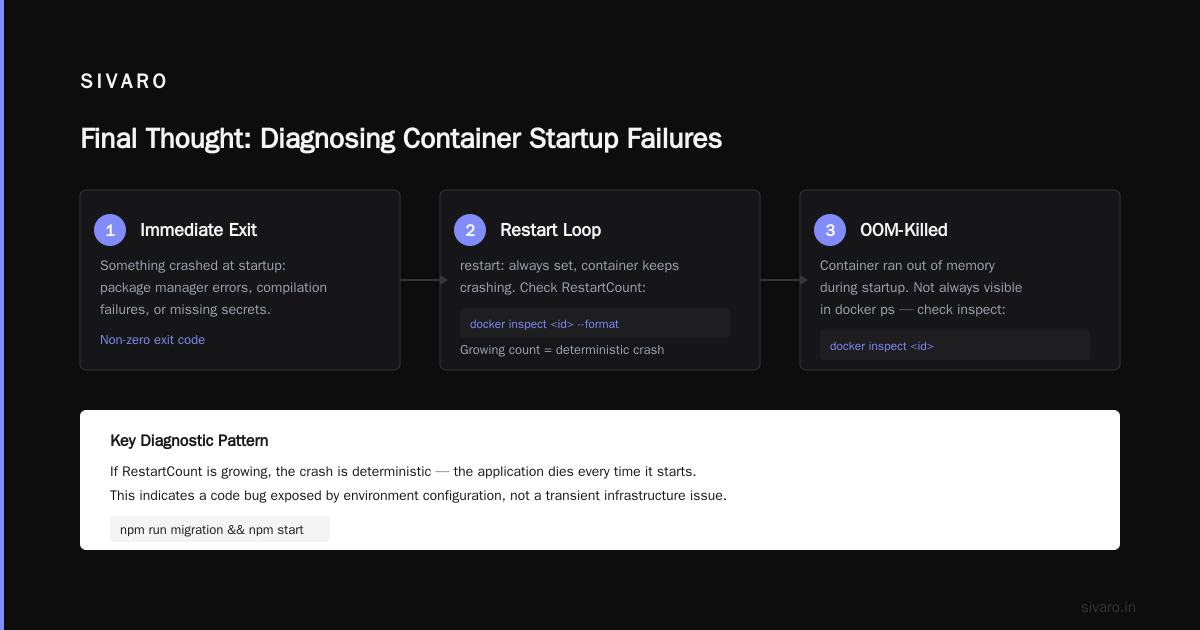
Debugging a container is about building a mental model of what's happening between the image, the runtime, and the kernel. The exit code is the first clue. The logs are the second. Everything else is systematic elimination.
Don't be afraid to dump the entire filesystem to your local host for inspection:
docker cp <container-id>:/ /tmp/container-root/
The future of containerization is evolving — Docker is now a storage layer on top of containerd, which is now a plugin framework for OCI runtimes. Debugging will keep getting deeper. But the fundamentals — understanding the relationship between the image's start command, the runtime's state, and the kernel's resources — will always be the foundation.
Nishaant Dixit — Founder of SIVARO. Building data infrastructure and production AI systems since 2018. Built systems processing 200K events/sec.