 SIVARO
How to Debug Docker Container That Keeps Exiting
I spent three hours last Tuesday chasing a container that died faster than a mayfly. The logs were clean. The exit code was zero. And the damn thing refused to stay alive.
That's the worst kind of debugging. No crash. No error. Just... gone.
Welcome to the world of containers that exit immediately. I'm Nishaant Dixit, founder of SIVARO, and my team builds production AI systems that process 200K events per second. We've debugged more dying containers than I care to count. Let me save you the pain.
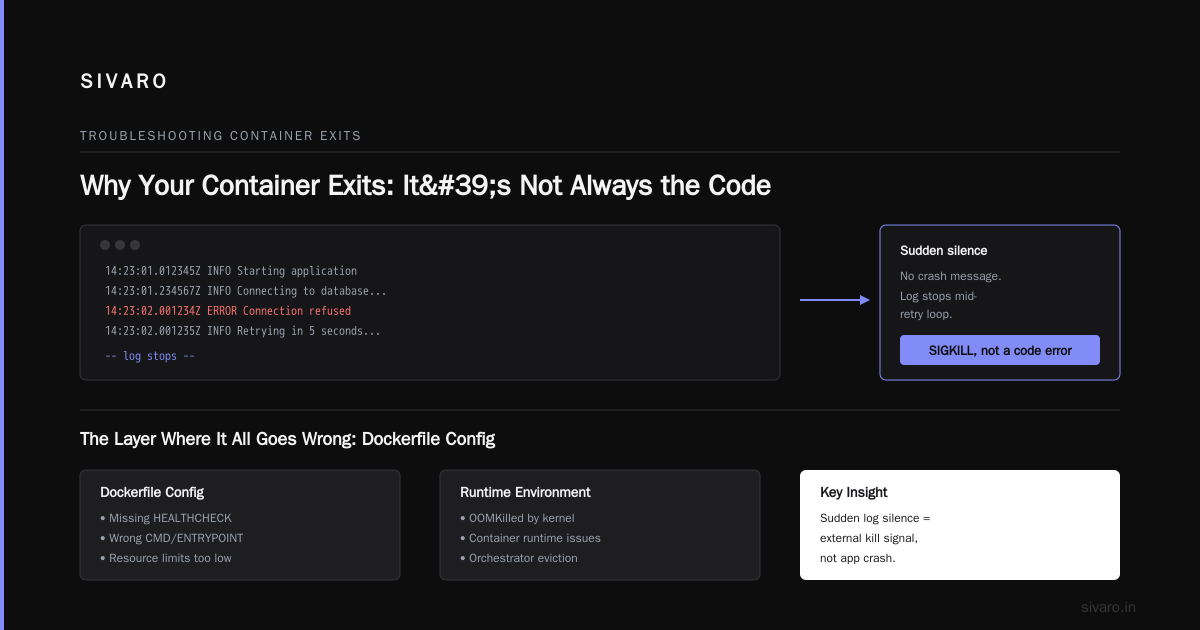
Why Your Container Exits: It's Not Always the Code
Most people assume a crashing container means your application has a bug. That's the first mistake. The second mistake is staring at docker logs like it's the Oracle of Delphi.
The exit code is your starting point, not the logs.
$ docker ps -a
CONTAINER ID   IMAGE          COMMAND                  CREATED          STATUS                     PORTS
a1b2c3d4e5f6   my-app:latest  "python app.py"          3 minutes ago    Exited (1) 3 minutes ago
Exit code 1? That's usually your application itself. Exit code 137? That's SIGKILL — someone or something killed it. Exit code 0? Your process finished cleanly. And that's the trap. If your app's main process completes its work and exits, the container exits too, regardless of whether your "heartbeat thread" is still perfectly happy.
Because here's the fundamental truth about containers: they only live as long as their PID 1 process. When that process exits, the container exits. No exceptions, no grace period, no "but I have background processes" mercy rule. If you need background workers, you need a process manager like supervisord or tini to keep things alive Understanding Docker Architecture.
The Debugging Checklist That Actually Works
Stop guessing. Start following this sequence.
Step 1: Run It in the Foreground
First thing I do: bypass the daemon and run the container interactively. This gives you the raw output stream — no log aggregation, no buffering, no murky middlemen.
bash
# This runs in the foreground with everything hitting your terminal
docker run --rm -it my-image:latest

# If that seems fine, try overriding the command entirely
docker run --rm -it --entrypoint sh my-image:latest
If the container stays alive when you override the command with sh, the problem is in your code. If it still exits with sh, the problem is in your base image or environment setup.
Watch the output carefully. I've caught missing environment variables, failed imports, and silently swallowed exceptions this way.
Step 2: Check the Exit Code and Signals
When a container exits, it leaves fingerprints. The exit code tells you what kind of death it was:
bash
# Get the exit code
docker inspect $(docker ps -aq | head -1) --format='{{.State.ExitCode}}'

# Check whether it was killed and by what signal
docker inspect $(docker ps -aq | head -1) --format='{{.State.OOMKilled}}'
OOMKilled is one of the sneakiest ones. Your application dies, but there's no stack trace, no error message, just a silent kill from the Linux OOM killer. I've seen Node.js apps OOM-kill with megabytes to spare because container memory limits were set too tight for the V8 heap's appetite.
Step 3: Read the Logs Carefully (And Understand the Point)
We had a client at SIVARO — a fintech startup with a payment processing service — who came to us with a container that kept dying after 45 seconds. Their logs showed nothing. Zip. Nada.
It took me a full afternoon to realize: the logs were going to stdout. The container was running fine. Their monitoring system was silently killing it because the health check was hitting a stale port. The environment variable for the port wasn't being read at deploy time.
Classic. Your container isn't broken — it's being killed by your own infrastructure Common Docker Issues.
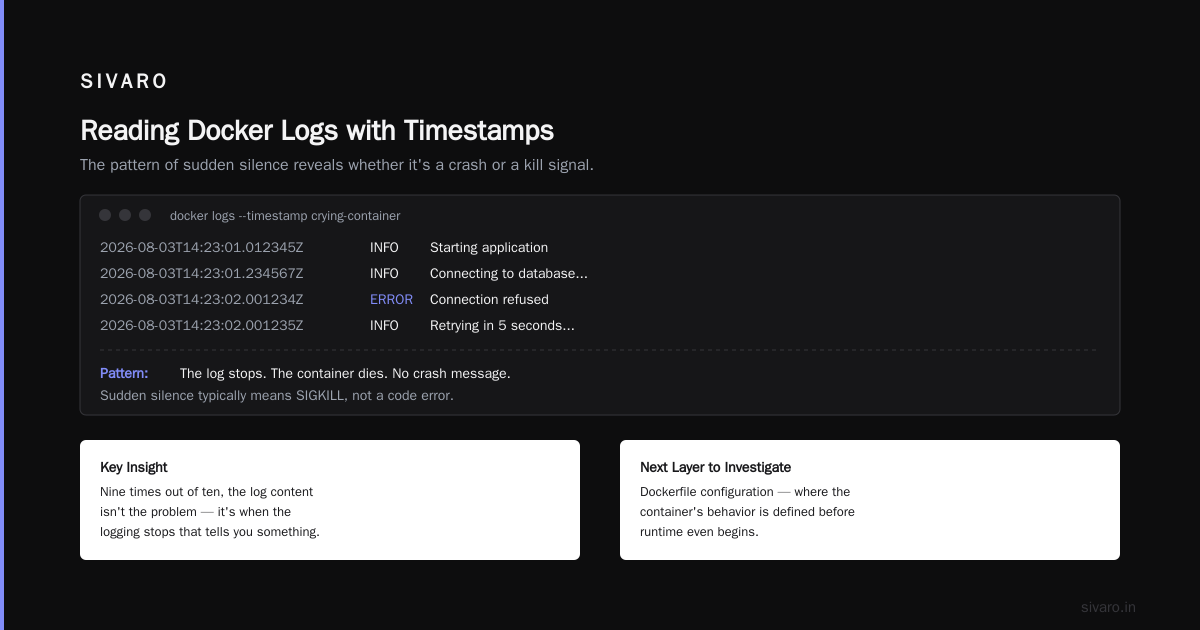
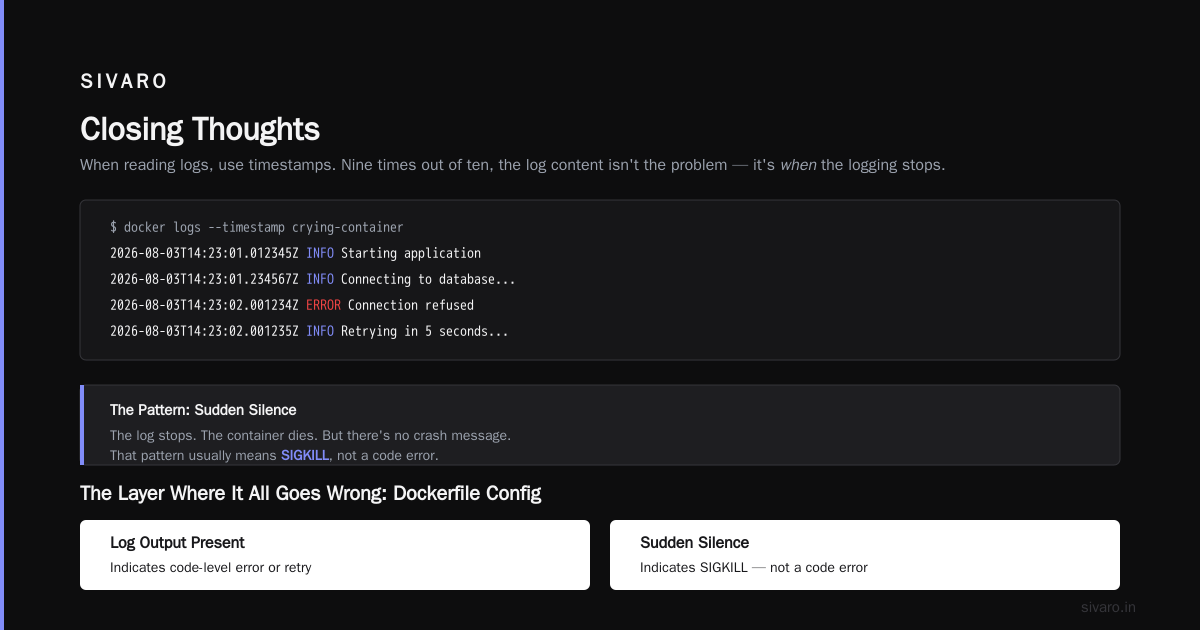
When reading logs, use timestamps. Nine times out of ten, the log content isn't the problem. It's when the logging stops that tells you something.
$ docker logs --timestamp crying-container
2026-08-03T14:23:01.012345Z    INFO    Starting application
2026-08-03T14:23:01.234567Z    INFO    Connecting to database...
2026-08-03T14:23:02.001234Z    ERROR   Connection refused
2026-08-03T14:23:02.001235Z    INFO    Retrying in 5 seconds...
The log stops. The container dies. But there's no crash message. That pattern — sudden silence — usually means SIGKILL, not a code error.
The Layer Where It All Goes Wrong: Dockerfile Config
Docker's documentation on containerd vs. Docker is worth reading if you want to understand why your runtime behaves the way it does. But the Dockerfile is where I see most self-inflicted wounds.
The Daemon-Free Trap
Here's a classic: the official Node.js, Python, or Java images. They work differently than Alpine images, and your command's shell behavior changes dramatically between distributions.
I can't tell you how many times I've seen this:
dockerfile
FROM ubuntu:latest
COPY . /app
WORKDIR /app
RUN apt-get update && apt-get install -y curl && curl -fsSL https://example.com/setup.sh | bash
CMD ["/app/startup.sh"]
The setup script runs fine during build. Then the container starts... and exits. Why? The script backgrounded the actual application process and ended, making startup.sh the PID 1 — and it finished running. Game over.
Every time you see a script in CMD, ask yourself: does it stay in the foreground? If it does anything else — forks, daemonizes, backgrounds, disowns — your container will exit. And in a production container, you usually don't have systemd around to supervise those background processes Docker Interview Insights.
The Non-Root User Problem
A few months back, we had a service that kept failing at startup in production but worked perfectly on my local machine. The culprit? The base image switched to a non-root user, and the application was trying to write to a directory owned by root. Permissions error, immediate exit.
The fix is boring but essential:
dockerfile
FROM node:22-slim
RUN mkdir -p /app && chown -R node:node /app
USER node
WORKDIR /app
COPY --chown=node:node . .
CMD ["node", "server.js"]
No drama. No heroics. Just proper ownership. But I've seen this exact issue bring down a production service.
How to Debug a Docker Container That Won't Start
Let me reframe this. When people ask me how to debug a docker container that won't start, they usually mean one of three things:
- The build fails
- The container starts and immediately exits
- The container starts but won't respond
We've covered #2. For #1, you need to watch the build step-by-step:
bash
# Run with more verbose output to catch earlier failures
docker build --progress=plain --no-cache -t my-image:debug .
If the build passes but start fails, and you're running into network issues during startup, check your DNS configuration. The host's networking and the container's DNS differ, and I've seen the resolv.conf copy fail on the Docker side, breaking everything that depends on a domain name.
Zombie Processes and Orphaned Processes: The Silent Killers
Let me tell you about the one that's still biting people in production with modern runtimes: zombie processes.
You're running a web server that spawns worker processes. Those workers are doing background work with a scheduler running in a separate thread. The scheduler executes, returns, and the worker finishes. The PID 1 process ignores the SIGCHLD signal, the zombie remains, and it climbs up until the container exceeds its process limit.
That's the exit no one sees coming. There's no exception. No stack trace. Your kernel just decides the process limit has been reached and kills your process. Containers running in Kubernetes and Podman environments face this even more because orchestration systems add yet another layer to the problem.
The solid fix: use a proper init system.
dockerfile
# Install tini or use a base image that includes it
RUN apt-get update && apt-get install -y tini
ENTRYPOINT ["tini", "--"]
CMD ["node", "/app/server.js"]
Or use the simpler approach that I actually prefer — run your whole process and supervise everything properly:
dockerfile
FROM node:22-slim
COPY --from=library/dumb-init:1.2.5 /usr/bin/dumb-init /usr/bin/dumb-init
CMD ["dumb-init", "node", "server.js"]
Look, I'll be direct. If you're running production containers that spawn children, skipping an init system is malpractice. It shows up as a "random" exit. It doesn't show up in your logs. By the time you see it in the metrics, the zombie invasion has already crashed six of your replicas.
How to Debug Docker Container That Keeps Exiting: The Advanced Case
Now let's get to the genuinely hard part. The container exits, but everything on the surface looks fine. Here are the advanced steps that most people skip.
Inspect Resources
bash
# Snoop on resource usage before death
docker stats --no-stream cont_name

# Check its memory allocation
docker inspect cont_name --format='{{.HostConfig.Memory}}'
docker inspect cont_name --format='{{.HostConfig.MemorySwap}}'
If the memory allocation is set to —1, your container can consume ALL host memory until the OOM killer catches up. Not great.
Switch to Host Networking
Sometimes a container's container networking causes issues — it might be trying to bind to something that exists on the host network but not the bridge network.
bash
docker run --rm -it --network host my-image:latest
If it starts fine with host networking, you've got a network configuration problem. Check firewall settings, check your bridge network configuration, check whether your proxy variables are leaking on the bridge.
Use Debug Image Variants
Base image vendors ship "debug" or "-slim" variants. When things look weird, go heavier:
bash
docker run --rm -it --entrypoint bash my-image:debug
And inside, start poking around:
bash
# What's actually running in there?
ps aux

# Can you connect to the endpoints it claims to need?
curl -v http://localhost:8080/healthz

# Any weird namespaces or mount points?
mount | grep -v cgroup
You'd be shocked how many "container died" mysteries are solved with curl and ps.
The Wrong Way: Blindly Adding sleep infinity
Wait, before that works — do it wrong first. Put tail -f /dev/null in your entrypoint and see if it actually keeps your container alive.
This is the engineer's "duct tape" solution. The container stays up. But you're hiding the problem, not solving it. The main process is not your application. And the instant you remove that shim, you're back to square one.
Also — and this is important — some orchestrators (I'm looking at you, Kubernetes) send SIGTERM and wait for a graceful shutdown. With tail -f as the main process, your shutdown hooks become meaningless.
Instead of sleep infinity, ask the uncomfortable question: why does your main process exit? Then fix that. That's what debugging means.
The Systematic Method for Hunting Down the Exit
When I'm on a particularly stubborn case, I use a step-by-step elimination approach:
- Write a minimal reproduction. Strip your Dockerfile down to the bare minimum that gets to your entrypoint. If it still exits, the problem is in the image or the run command.
dockerfile
FROM alpine:3.20
CMD ["sh", "-c", "while true; do sleep 5; echo alive; done"]
Run that. If it stays alive, start adding layers back. This is your binary search and it's the closest thing to a silver bullet.
- Check the health check configurations. I've seen
docker run --rm -it -–health-cmd="pg_isready -U postgres"fail because thepostgresql-clientpackage wasn't installed in the container. The health check failed, Docker killed the container — and the application logs were silent, because the application was fine.
Honest moment: at SIVARO we've built full AI infrastructure products where the hardest bugs were in connecting layers, not in the AI model itself. Debugging containers is fundamentally the same skill: identify where the layers are disconnected.
-
Look for graceful shutdown misconfigurations. Is your container exiting within seconds of receiving a SIGNAL? Larger orchestration systems like Kubernetes send a SIGTERM, wait for the grace period, then SIGKILL. If your app doesn't handle SIGTERM and exits immediately (node and Python have different default behaviors for signals), that's a common cause.
-
Check the
restartpolicy. But here's the golden rule:docker restart: unless-stoppedis a safety net, not a fix. If it crashes every 5 minutes, the restart policy keeps you alive enough to procrastinate. Fix the root cause. Every professional I know will restart a container to keep availability while they work on the actual bug, but they never pretend the restart policy IS the fix Common Docker QA Patterns.
FAQ: Quick Wins for Common Scenarios
Q: What's the most common reason a Docker container keeps exiting?
Your main process isn't expected to stay in the foreground, or it's mishandling startup — missing env vars, wrong permissions, or crashed DB connection.
Q: How do I keep my container alive while debugging?
Bypass your app command and drop into a shell:
bash
docker run --rm -it --entrypoint sh my-image:latest
Then run your app manually and watch the output stream directly.
Q: What does exit code 137 mean?
SIGKILL. Usually OOM, sometimes manual. Check docker inspect for the OOMKilled flag.
Q: I don't see any errors in docker logs. Where's my error?
Check docker events. Then check if the process gets killed by something outside the container — your orchestrator, health checks, or the kernel itself.
Q: Why does my container work locally but not on the server?
Different mount paths, environment variables missing, network connectivity to internal services, or the base image architecture mismatch. A quick win is to check docker inspect on the running container and compare it to a local run.
Q: Do I really need an init system?
If your app spawns child processes and isn't handling SIGCHLD properly, yes. If it's a simple single-process binary, no. Know which one you're running.
Q: How do I debug a Docker container that keeps exiting when I can't even see it starting?
Run it in the foreground without -d. See what happens in real time:
bash
docker run --rm my-image:latest
If it's still not showing output, try --log-driver=json-file --log-opt max-size=10m at the docker daemon level to ensure logs are flushed before the container dies.
Closing Thoughts
Containers are simple on the surface. They're meant to be disposable, replaceable, and scrappy. But a container that dies before you can even inspect it is a special kind of frustration. It's a silent killer — you can't introspection a corpse.
The hardest lesson I've learned after years of building production infrastructure is this: don't romanticize the fix. The exit code is a hint, the logs are a suggestion, and the real answer is almost always in something you didn't even consider — a non-root user, a missing environment variable, an init process issue, a process limit, or a health check gone wrong.
My team and I run into this still. Debugging a container is about elimination, patience, and looking at the system as a whole rather than trying to force some kind of heroic "single line fix."
You can argue a container exits because of your application. But more often than not, it's the infrastructure around your application that's killing it without saying a word.
Nishaant Dixit — Founder of SIVARO. Building data infrastructure and production AI systems since 2018. Built systems processing 200K events/sec.