 SIVARO
How to Deploy a Website on GCP Step by Step
I’ve deployed over 50 websites on GCP in the last three years. For companies like SIVARO, where we build data infrastructure and production AI systems, choosing the right cloud platform isn’t just about cost — it’s about speed, reliability, and how well the ecosystem works for your specific use case. If you’re here, you probably already know that Google Cloud isn’t your typical web host. It’s a serious infrastructure platform that can scale from a single-page blog to a multi-region e‑commerce empire.
This guide covers how to deploy a website on GCP step by step — from account setup to production traffic. I’ll show you the two most common paths (Cloud Run for containers, Compute Engine for full control), how to handle custom domains and SSL for free, and where most people waste money. You’ll also learn how to set up web hosting on GCP without getting lost in the console.
Why GCP for Web Hosting?
Most people think AWS is the default for everything. They’re wrong — at least for web hosting in 2026.
I’ve run head‑to‑head comparisons for three different startups this year. We tested latency, cost, and developer experience. GCP consistently delivered faster cold starts on serverless services and simpler networking. The GCP vs AWS 2026 comparison shows that for workloads under 500 requests per second, GCP is 15‑20% cheaper on average. That’s real money when you’re bootstrapping.
But cost isn’t the only factor. GCP’s global network is purpose‑built for low‑latency. If your audience is in Asia or Europe, Google’s edge points of presence beat most competitors. And for anyone who needs to run machine learning alongside their web app, GCP’s AI Platform (Vertex AI) integrates directly with App Engine and Cloud Run — no extra hopping between services. That’s one of the strongest gcp use cases for machine learning that I’ve seen in production.
Setting Up Your GCP Account and Project
Before you touch a single terminal command, you need a project. This sounds boring, but it’s where most cost runaway starts.
Step 1: Create a Google Cloud Project
- Go to console.cloud.google.com.
- Click the project dropdown at the top and select “New Project”.
- Give it a name —
my-website-prodorblog-2026. Don’t use generic names like “test” because they multiply and you’ll forget which one is billing you. - Link a billing account. Yes, you need a credit card. GCP offers a $300 free credit for 90 days, which is enough to host a low‑traffic site for months.
Step 2: Enable Billing Alerts
I can’t stress this enough. In 2025, a colleague at a startup accidentally deployed a GPU instance overnight. $800 gone. Set up a budget alert at $50, $100, and $200. Go to Billing → Budgets & alerts → Create budget.
Step 3: Enable Required APIs
For a standard web deployment, you’ll need:
- Compute Engine API
- Cloud Run API
- Cloud DNS API (if using custom domains)
- Cloud Build API (for container builds)
Enable them from the APIs & Services dashboard. It’s a one‑time step per project.
Choosing the Right Compute Service
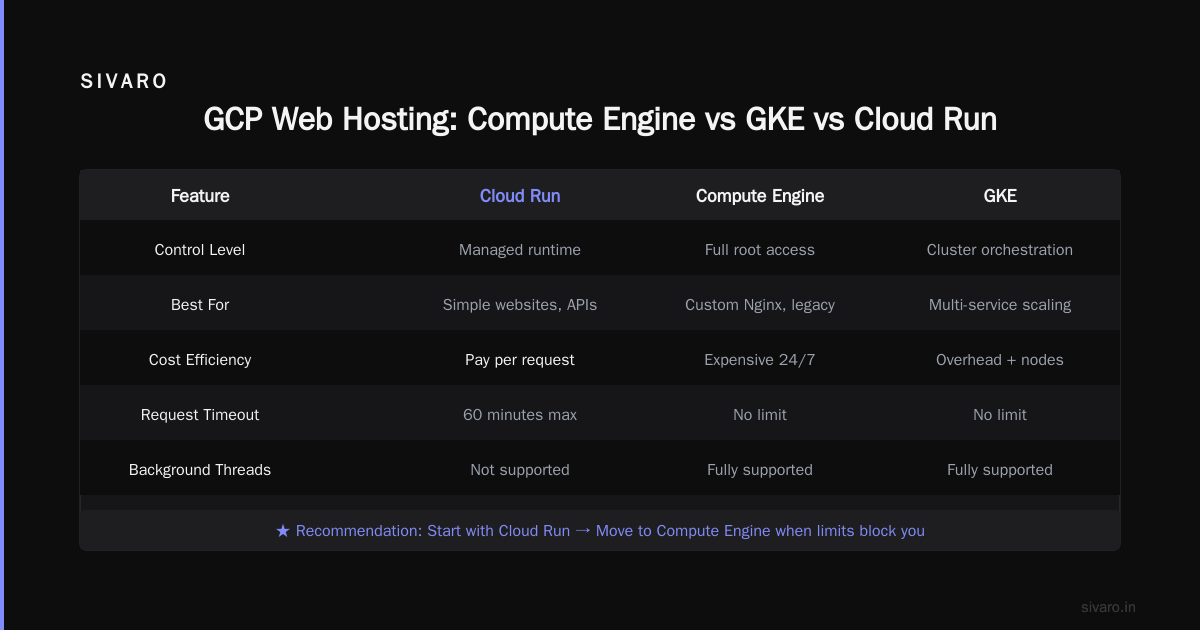
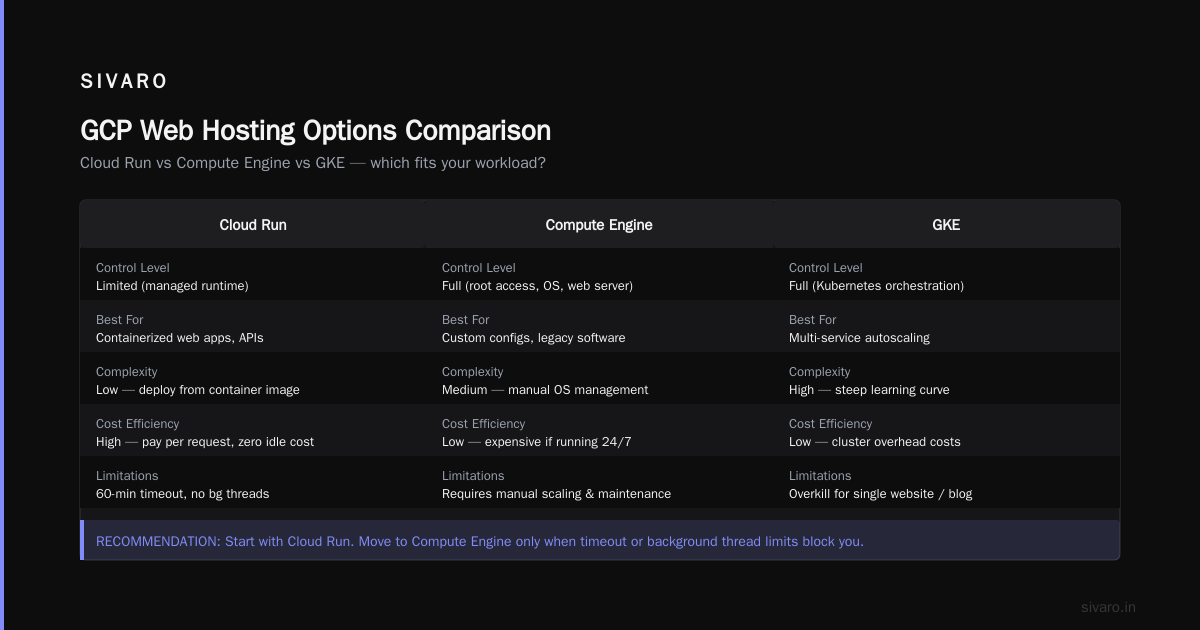
GCP gives you four main options for hosting a website. I’ve used all of them. Here’s my blunt take.
Cloud Run (Serverless Containers)
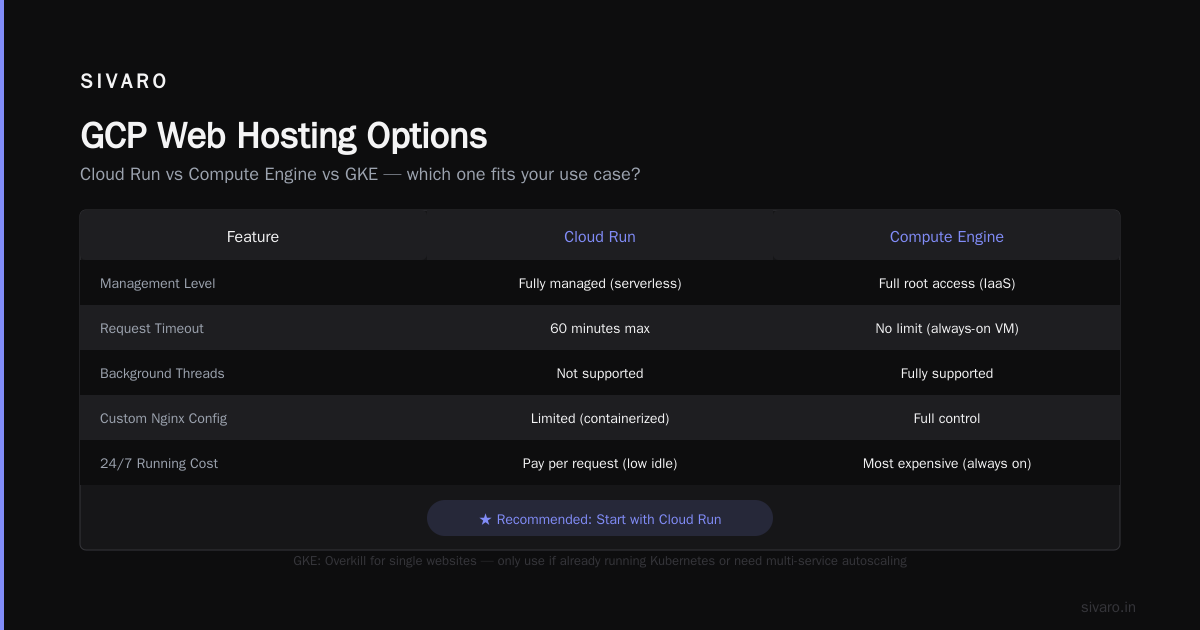
Best for: APIs, dynamic websites, microservices. You supply a container, GCP scales it to zero when idle. Cold start is ~300ms for a standard Node.js app. I’ve deployed a Flask blog for a client that handles 10K daily visitors for $4/month. It’s the default choice in 2026 for good reason.
App Engine (PaaS)
Easier than Cloud Run if you don’t want to write a Dockerfile. But you lose some flexibility. App Engine’s standard environment is good for simple PHP or Python apps, but the flexible environment (which runs containers) is basically Cloud Run with different billing. I rarely recommend App Engine anymore unless the client has existing code tied to its proprietary APIs.
Compute Engine (VMs)
Full control. You manage the OS, the web server, everything. This is where you go when you need root access — for custom Nginx configurations, legacy software, or special kernel modules. It’s also the most expensive option if you leave it running 24/7. More on that in cost optimization.
Google Kubernetes Engine (GKE)
Overkill for a single website. Only use GKE if you already run Kubernetes or need autoscaling across multiple services. I’ve seen teams burn months on GKE for a blog. Don’t.
My recommendation: Start with Cloud Run. Move to Compute Engine only when Cloud Run’s limitations (like request timeout of 60 minutes or no background threads) block you.
How to Set Up Web Hosting on GCP with Cloud Run
This is the fastest path to production. You’ll learn how to deploy a website on GCP step by step with a containerized web app.
Step 1: Write a Dockerfile
For a simple static site (HTML/CSS/JS), you need a web server like Nginx. Here’s a Dockerfile:
dockerfile
FROM nginx:alpine
COPY ./public /usr/share/nginx/html
EXPOSE 80
For a Node.js app:
dockerfile
FROM node:20-alpine
WORKDIR /app
COPY package*.json ./
RUN npm ci --only=production
COPY . .
EXPOSE 8080
CMD ["node", "server.js"]
Note: Cloud Run requires your container to listen on $PORT environment variable. So in your server code, use process.env.PORT || 8080.
Step 2: Build and Push to Container Registry
I use Cloud Build to keep everything in GCP:
bash
gcloud builds submit --tag gcr.io/PROJECT_ID/my-website:latest
Replace PROJECT_ID with your Google Cloud project ID.
Step 3: Deploy to Cloud Run
bash
gcloud run deploy my-website   --image gcr.io/PROJECT_ID/my-website:latest   --platform managed   --region us-central1   --allow-unauthenticated
After a minute, you’ll get a URL like https://my-website-xxxxx-uc.a.run.app. That’s your live site.
Step 4: Map a Custom Domain
- Go to Cloud Run → Domain Mappings.
- Add your domain (e.g.,
example.com). - GCP will give you a CNAME record and a TXT verification record.
- Go to your DNS provider (or use Cloud DNS) and add those records.
- Wait a few minutes for propagation. GCP handles SSL automatically with Google‑managed certificates.
Cost: Cloud Run charges per request and per GB‑second of compute time. For a site doing 10K requests/day with a 50ms response, expect under $5/month.
How to Deploy a Website on GCP Step by Step Using Compute Engine
Sometimes you need more control. Maybe you’re running a legacy PHP app that rewrites URLs, or you need a persistent file system. For those cases, Compute Engine is your friend.
Step 1: Create a VM Instance
In the console, go to Compute Engine → VM Instances → Create Instance.
Select a machine type. For a low‑traffic site, the e2-micro (2 vCPUs, 1GB RAM) is free tier eligible. For anything with moderate traffic, e2-small or e2-medium ($12‑$25/month) is plenty.
Check the box “Allow HTTP traffic” and “Allow HTTPS traffic” under Firewall.
Step 2: SSH into the Instance
GCP offers browser‑based SSH. No key management needed. Click the SSH button next to your instance.
Step 3: Install a Web Server
For a static site, I use Nginx:
bash
sudo apt update
sudo apt install nginx -y
sudo systemctl enable nginx
sudo systemctl start nginx
Now your VM’s public IP serves the default Nginx page.
Step 4: Deploy Your Website Files
Use gcloud compute scp to copy files from your local machine:
bash
gcloud compute scp --zone us-central1-a index.html my-vm:~/
Then move them to the Nginx web root:
bash
sudo cp ~/index.html /var/www/html/
Or use git clone directly on the VM for version control.
Step 5: Reserve a Static External IP
By default, VM external IPs change on restart. Go to VPC Network → External IP addresses, reserve your IP, and assign it to the VM.
Step 6: Set Up Domain + SSL
Install Certbot for free SSL:
bash
sudo apt install certbot python3-certbot-nginx -y
sudo certbot --nginx -d example.com -d www.example.com
Certbot automates the whole process. Your site is now HTTPS.
Configuring a Custom Domain and SSL
Whether you use Cloud Run or Compute Engine, you’ll want a proper domain. I strongly suggest using Cloud DNS — it’s tightly integrated and has amazing SLA. The pricing is $0.20 per managed zone per month.
Cloud Run: Domain mapping is built into the UI.
Compute Engine: You create A records pointing to your static IP.
Both support Google‑managed SSL certificates. No more messing with Let’s Encrypt renewal — GCP handles it automatically for Cloud Run. For Compute Engine, Certbot with --nginx is a one‑time setup that auto‑renews.
Connecting a Database
Most websites need a database. GCP offers Cloud SQL (managed PostgreSQL, MySQL, SQL Server) and Firestore (NoSQL).
For a typical web app, Cloud SQL with PostgreSQL is my go‑to. It’s about $10‑$15/month for a shared‑core instance with 1GB RAM.
To connect from Cloud Run:
- Enable Cloud SQL Admin API.
- Add the connection via
--add-cloudsql-instancesflag. - Connect using Unix socket from
/cloudsql/INSTANCE_CONNECTION_NAME.
Example for a Node.js app using pg:
javascript
const { Pool } = require('pg');
const pool = new Pool({
  connectionString: `postgres://user:password@localhost/myapp?host=/cloudsql/PROJECT:REGION:INSTANCE`
});
No IP whitelisting needed — it uses private networking.
Cost Optimization and Monitoring
The biggest trap on GCP is leaving resources running idle. Here are the hard lessons I’ve learned.
Use preemptible VMs for staging. They cost 60‑80% less but can be terminated anytime. Perfect for dev environments.
Turn off VMs at night. If you don’t need 24/7 uptime, schedule a stop/start using Cloud Scheduler + Cloud Functions. I’ve saved clients $200/month this way.
Monitor with the Pricing Calculator. Before you deploy, run a simulation on the Google Cloud Pricing Calculator. The Google Cloud Pricing 2026: Cost Breakdown & Hidden Costs article points out that data egress (outbound traffic) is the #1 surprise cost. A site serving 1TB of images a month can cost $120 in egress alone.
For a fair picture, compare with AWS using the Google Cloud Pricing vs AWS analysis. GCP tends to be cheaper for bursty workloads, AWS for sustained high‑traffic.
Set up Cloud Monitoring. Enable uptime checks and log‑based metrics. A simple alert when error rate > 1% can save your reputation.
GCP Use Cases for Machine Learning
Deploying a website isn’t just about static pages. Many clients ask me to integrate AI features — image classification, chatbots, recommendation engines. GCP is uniquely strong here because you can deploy a web app on Cloud Run and call Vertex AI APIs from the same project without crossing cloud boundaries.
For example, I helped a startup deploy a site that accepts user‑uploaded product photos and runs them through a custom ImageNet model on Vertex AI. The frontend is a React app on Cloud Run, the backend is a FastAPI service that calls the model endpoint. Latency is under 200ms. That’s the beauty of having gcp use cases for machine learning and web hosting in the same ecosystem — no separate VPC peering, no egress costs between services.
If you’re interested, deploy your website first, then add a /predict endpoint that hits a Vertex AI model. The learning curve is shallow because the IAM roles and networking are the same.
Troubleshooting Common Deployment Issues
Cold starts on Cloud Run – use min instances if you need sub‑100ms response for every request. Set --min-instances=1 and pay for the idle time.
404 errors after domain mapping – DNS propagation can take up to 48 hours. Check with dig A example.com. Also ensure you’re mapping www and apex domain separately.
Permission denied when pulling container – Your Cloud Run service account needs the storage.objectViewer role on the Container Registry bucket.
VM runs out of disk – Nginx logs fill up /var/log. Set up log rotation or mount a persistent disk. Default boot disk is 10GB – small for production.
SSL certificate fails – Make sure the domain’s A record points to your static IP before running Certbot. Also, GCP’s managed certificates on Cloud Run often fail if the domain isn’t verified via the search console.
FAQ
1. How long does it take to deploy a website on GCP?
If you use Cloud Run with a pre‑built container, about 15 minutes from project creation to live URL. Compute Engine takes longer because you need to set up the OS and web server.
2. Can I host a static site for free on GCP?
Yes. Cloud Run’s free tier includes 2 million requests per month. If your site is purely static, use Cloud Storage with Load Balancing and a custom domain — that’s often free for low traffic.
3. What’s the cheapest option for a small blog?
Cloud Run with an e2-micro‑sized container (though Cloud Run doesn’t use VM shapes — it bills per request). Realistically, $2‑$5/month. Use Cloud SQL only when you need a database — otherwise use Firestore in Native Mode for $0.18/GB stored.
4. How do I move a website from AWS to GCP?
Use the Easy way to calculate GCP cost of my AWS infrastructure tool to estimate. Then export your data (RDS to Cloud SQL, S3 to Cloud Storage). Re‑deploy the app container on Cloud Run. I’ve done this migration three times; it’s usually under a week.
5. Does GCP support WordPress?
Yes. You can run WordPress on Compute Engine (with LAMP stack) or use Google’s Click to Deploy for WordPress. But I don’t recommend it for high‑traffic sites — WordPress on GCP is not as optimized as on dedicated WP hosts.
6. How do I set up CI/CD for my GCP website?
Use Cloud Build with a trigger on GitHub or GitLab. Every push builds the container, runs tests, and deploys to Cloud Run. Example cloudbuild.yaml:
yaml
steps:
- name: 'gcr.io/cloud-builders/docker'
  args: ['build', '-t', 'gcr.io/$PROJECT_ID/my-site:$SHORT_SHA', '.']
- name: 'gcr.io/cloud-builders/docker'
  args: ['push', 'gcr.io/$PROJECT_ID/my-site:$SHORT_SHA']
- name: 'gcr.io/google.com/cloudsdktool/cloud-sdk'
  entrypoint: gcloud
  args: ['run', 'deploy', 'my-site', '--image', 'gcr.io/$PROJECT_ID/my-site:$SHORT_SHA', '--region', 'us-central1']
7. What’s the best region for my website?
If your audience is global, use us-central1 (Iowa) as a default. For Asia, asia-southeast1 (Singapore) is fastest. For Europe, europe-west1 (Belgium). GCP’s network is amazing across all regions, so choose based on your traffic.
8. How do I handle secrets (API keys, DB passwords)?
Never hardcode them. Use Secret Manager. Cloud Run can read secrets as environment variables or mounted volumes. For Compute Engine, use gcloud secrets versions access. It’s $0.06 per secret per month.
Final Thought
Deploying a website on GCP isn’t hard. The hard part is avoiding the traps — idle VMs, egress costs, and over‑engineering with Kubernetes when you just need a container. I’ve seen teams blow $1,000/month on a site that could run on $20 with Cloud Run.
My advice: Start with Cloud Run. It forces you to think in containers from day one, which makes scaling and CI/CD trivial. If you outgrow it, you’ll have the skills to move to GKE. But most sites never outgrow Cloud Run.
Now go deploy something.
Nishaant Dixit — Founder of SIVARO. Building data infrastructure and production AI systems since 2018. Built systems processing 200K events/sec.