 SIVARO
How to Migrate from AWS to GCP Step by Step
I’ll be honest with you: most migration guides are written by people who’ve never actually done it. They’ll tell you it’s “just an API call away.” They’re wrong.
I’m Nishaant Dixit, founder of SIVARO. We build production AI systems and data infrastructure. Over the past three years, we’ve helped half a dozen companies move workloads from AWS to GCP. Some went smoothly. Two nearly went up in flames. This guide is the hard-won version of what actually works.
You’ll learn how to migrate from AWS to GCP step by step — not a theoretical checklist, but the order I’ve validated through fire. I’ll show you the tools that save time, the traps that waste weeks, and the decisions you can’t afford to get wrong.
Let’s start.
Why GCP? (And Why It Might Not Be Your Play)
Most people think the reason to move is cost. Sometimes it is. A 2026 analysis by Spot by Rackspace found that for compute-heavy workloads, GCP can be 20–30% cheaper than AWS on equivalent instances — especially if you commit to 1- or 3-year terms Cloud Computing Cost. But that’s not the whole picture.
For SIVARO, the real draw was GCP’s data and AI ecosystem. BigQuery. Vertex AI. Cloud Spanner. When you’re processing 200K events per second and running production ML models, the tight integration between these services matters more than a few cents per hour.
But here’s the contrarian take: if you’re a startup running 20 microservices with a single MySQL database, migrating is probably a distraction. You’ll spend months rebuilding infrastructure that works fine. Comparing AWS, Azure, and GCP for Startups in 2026 shows that for early-stage companies, the decision should be based on team expertise, not pure feature comparison.
I’ve seen too many teams start a migration because “GCP has better AI.” They forget that AI needs clean data, and moving data is the hard part.
Pre-Migration: You Can’t Skip This Phase
Before you touch a single instance, do three things.
1. Inventory everything. Every EC2 instance, every S3 bucket, every RDS database. Use AWS Config, CloudTrail, and the Tag Editor. Export to CSV. I use a Python script that calls the AWS APIs and dumps into a JSON file. Then I parse it to find orphan resources — things running that nobody knows about. In one engagement, we found 12 EC2 instances that had been running for 18 months with zero traffic. The client was paying $4,000/month for nothing.
2. Estimate GCP costs — honestly. Don’t just use the Google Cloud Pricing Calculator and pick the cheapest option. GCP pricing is complex. Committed use discounts, sustained use discounts, network egress — they all change the math. I wrote a script that takes the AWS inventory JSON and maps each instance type to its GCP equivalent (n2-standard vs m5, etc.), then applies discounts based on expected usage. You can do this manually, but it’s tedious. There’s also a good community discussion on estimating GCP cost from AWS infrastructure Easy way to calculate GCP cost.
3. Choose your migration strategy. You have three options:
- Rehost (lift & shift): Move VMs as-is. Fastest but least beneficial.
- Replatform: Change a few services (e.g., S3 → Cloud Storage) but keep app logic.
- Refactor: Rewrite apps to use GCP-native services like Cloud Run or BigQuery.
For most teams, I recommend a combo: rehost the low-risk stuff first (dev/QA environments), then replatform critical services one by one. Never refactor during the migration — that’s a separate project.
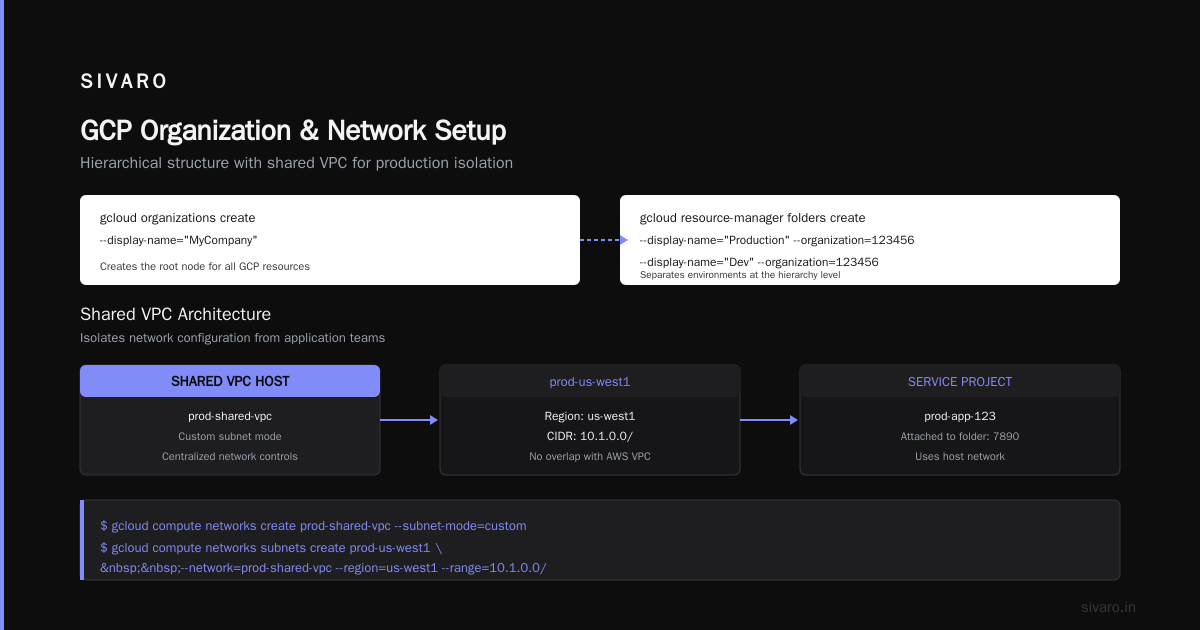
Step 1: Set Up GCP Organization and Networking
This is where beginners mess up. They create a GCP project, spin up one VM, and start copying files. Then they realize they have no VPC peering, no firewall rules, no organization policies.
Do this first:
bash
# Create an organization node (if not using an existing Google Workspace)
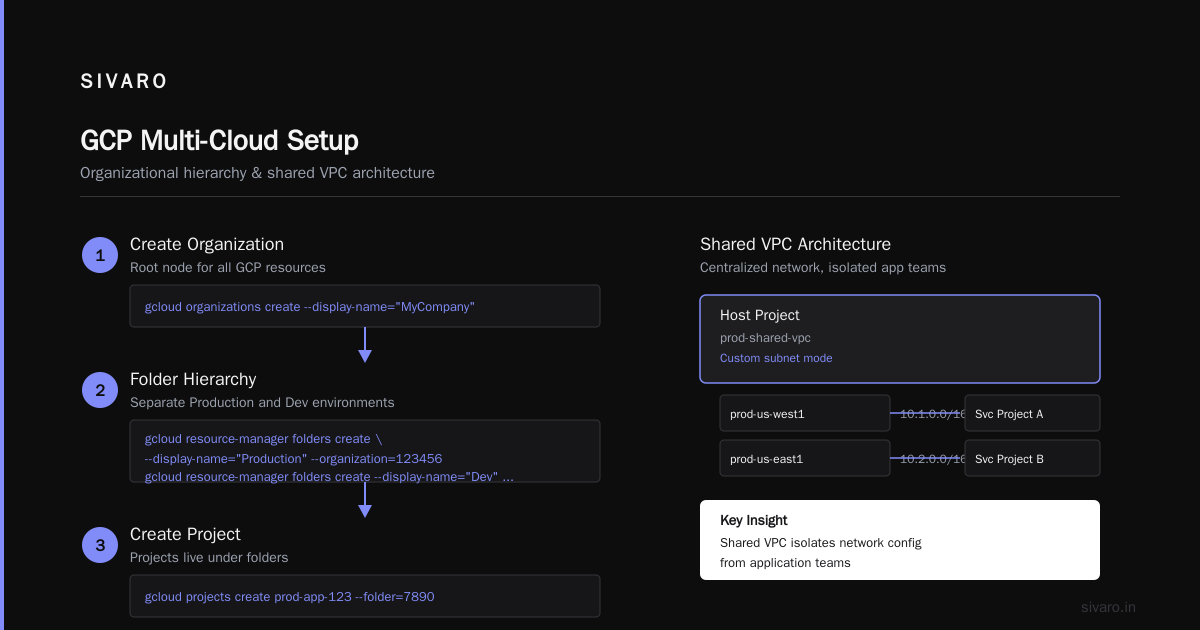
gcloud organizations create --display-name="MyCompany"

# Create a folder structure
gcloud resource-manager folders create --display-name="Production" --organization=123456
gcloud resource-manager folders create --display-name="Dev" --organization=123456

# Create project under folder
gcloud projects create prod-app-123 --folder=7890
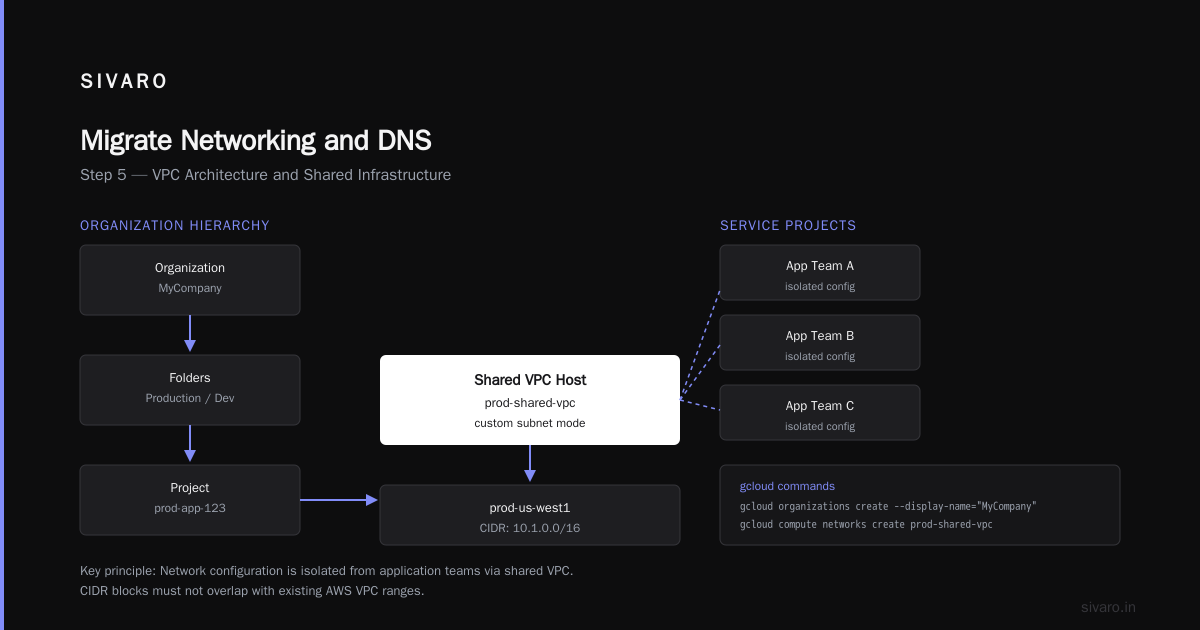
Then set up your VPC. I always use a shared VPC with service projects. This isolates network configuration from application teams.
bash
# Create a shared VPC host project
gcloud compute networks create prod-shared-vpc --subnet-mode=custom

# Create subnets with CIDR blocks that don't overlap with your AWS VPC
gcloud compute networks subnets create prod-us-west1   --network=prod-shared-vpc   --region=us-west1   --range=10.1.0.0/20
Pro tip: Plan for IP overlap. If your AWS VPC uses 10.0.0.0/16 and your GCP VPC uses 10.0.0.0/16, you can’t peer them. Choose non-overlapping ranges. I use 10.1.x.x for GCP and keep 10.0.x.x for AWS during transition.
Also set up Cloud VPN or Cloud Interconnect for private connectivity between AWS and GCP. During migration, both environments need to talk to each other. Don’t use the public internet for database replication.
Step 2: Migrate Compute (EC2 → Compute Engine)
AWS’s Migrate for Compute Engine (formerly Velostrata) is surprisingly good. It’s a tool that copies VM disk images to GCP while the instance stays running. Minimal downtime.
Here’s the process:
- Install the Migrate agent on your EC2 instance.
- The agent continuously syncs disks to a Cloud Storage bucket.
- When you’re ready to cutover, stop the AWS instance, final sync (takes minutes), then start the GCP VM.
But here’s the catch: don’t use it for database servers. The agent doesn’t handle transactional consistency well. For MySQL or PostgreSQL, use native replication instead.
For stateless apps, it works. I migrated a Node.js API server (75 EC2 instances) in two days with this tool. The tricky part was the launch configuration — AWS uses AMIs, GCP uses instance templates. You have to recreate your boot scripts, health checks, and auto-scaling policies manually.
Terraform is your friend here. Write GCP Terraform configs before the migration, test them in an empty project, then apply during cutover.
hcl
resource "google_compute_instance_template" "app" {
  name         = "app-template"
  machine_type = "n2-standard-4"
  disk {
    source_image = "projects/my-project/global/images/app-v1"
    auto_delete  = true
    boot         = true
  }
  network_interface {
    network = "prod-shared-vpc"
    subnetwork = "prod-us-west1"
  }
  tags = ["app-server"]
}

resource "google_compute_instance_group_manager" "app" {
  name               = "app-mig"
  base_instance_name = "app"
  version {
    instance_template = google_compute_instance_template.app.id
  }
  target_size = 75
}
Step 3: Migrate Storage (S3 → Cloud Storage)
This is the easiest part — if you do it right. Google’s Storage Transfer Service handles incremental sync from S3 to Cloud Storage. It copies objects, preserves metadata, and supports filters.
bash
# Create a transfer job via gcloud
gcloud transfer jobs create   --source=aws-s3://my-bucket   --destination=gcs://my-gcp-bucket   --include-regex ".*.csv$"   --schedule-repeats-every=1d
The job runs daily, copying only changed files. When you’re ready to cutover, you do a final run and switch your app’s config to point to the GCS bucket instead of S3.
One trap: S3 and GCS have different consistency models. S3 provides read-after-write consistency for new objects (as of 2020). GCS is strongly consistent everywhere. That’s actually better for you, but your app code might rely on S3’s eventual consistency behavior. Check for any race conditions.
Also, permissions are different. S3 uses bucket policies and IAM roles. GCS uses bucket-level IAM and ACLs. Map them carefully. I wrote a small Go script that reads S3 bucket policies and generates equivalent GCS IAM bindings.
Step 4: Migrate Databases (RDS → Cloud SQL or Spanner)
Databases are the riskiest part of any migration. You can’t just copy files and hope. You need replication, consistency checks, and rollback plans.
For MySQL or PostgreSQL RDS instances, use Database Migration Service (DMS) from GCP. It’s a managed service that streams changes from RDS to Cloud SQL in near real-time.
Steps:
- Enable binary logging on the RDS instance (requires a reboot).
- Create a Cloud SQL instance with the same version.
- Set up DMS as a continuous replication job.
- Test thoroughly — run queries on the Cloud SQL replica and compare results.
- Cutover: stop the app, wait for the replication lag to hit zero, promote the Cloud SQL instance to primary, update connection strings.
What about sharded databases like Aurora? That’s harder. I once helped a fintech company move a 12-node Aurora cluster to Cloud Spanner. It took six weeks of schema redesign and data validation. The payoff? Spanner’s global distribution and strong consistency saved them millions in fraud reduction. But I wouldn’t recommend it unless you really need global transactions.
For simpler cases, Cloud SQL works well. Just remember to enable backup and point-in-time recovery before the migration.
Step 5: Migrate Networking and DNS
This is where you solve the “both environments must work” problem. You’ll have some services on AWS and some on GCP for weeks. Route 53 and Cloud DNS need to talk.
I use Cloud DNS with forwarding zones:
- Create a forwarding zone in Cloud DNS that sends requests for AWS-hosted domains to Route 53.
- Create an inbound endpoint on GCP that Route 53 can forward to.
Then gradually change DNS records from Route 53 to Cloud DNS as services migrate.
For public DNS, I keep Route 53 as the ROOT zone initially, then delegate subdomains to Cloud DNS. For example:
app.example.com→ Route 53 → Cloud DNS → GCP load balancer.- When everything is on GCP, I migrate the apex zone to Cloud DNS.
This phased approach avoids a big-bang cutover.
Step 6: Migrate Application Code and Config
This is often overlooked. Your app talks to AWS-specific APIs: S3 SDK, DynamoDB, SQS, etc. You need to migrate those clients.
For Python apps, I use boto3 → google-cloud-storage. The APIs aren’t identical, but the concepts are close. I wrote a compatibility layer that abstracts the storage calls behind a common interface.
Example migration of an S3 reader:
python
# Before (AWS)
import boto3
s3 = boto3.client('s3')
response = s3.get_object(Bucket='my-bucket', Key='data.csv')
data = response['Body'].read()

# After (GCP)
from google.cloud import storage
client = storage.Client()
bucket = client.bucket('my-bucket')
blob = bucket.blob('data.csv')
data = blob.download_as_bytes()
It’s not just the code — you also need to handle IAM roles, environment variables, and secrets. Use GCP Secret Manager instead of AWS Secrets Manager. Use Workload Identity Federation to allow on-prem resources to talk to GCP without service account keys.
Step 7: Test, Cutover, Decommission
Testing should be a separate phase, not an afterthought. Run integration tests against the GCP environment with a sample of production traffic. Use GCP’s Cloud Load Testing or Locust from a GCP VM to simulate load.
Have a rollback plan. For every service, define how to switch back to AWS within 30 minutes. That means keeping the AWS infrastructure running (and paying for it) for at least a week after cutover.
When you’re confident, flip the DNS TTL to 60 seconds, make the final transfer, and update records.
Then decommission the AWS resources. But don’t delete the master account for 30 days. I’ve had clients need to go back because of a data issue discovered weeks later.
Common Pitfalls (And How I Almost Set Production on Fire)
Pitfall 1: Using migration tools incorrectly. The AWS-to-GCP migration agent is great for compute, but it doesn’t handle attached EBS volumes with different filesystems. I tested it with RAID 0 over multiple volumes and it failed silently. Always test with a non-production instance first.
Pitfall 2: Underestimating egress costs. Moving terabytes from AWS to GCP costs AWS egress fees ($0.09/GB after the first 100GB). For a 10TB database, that’s $900 just to leave. Plan for it. Use direct connect or a third-party transit provider to reduce costs.
Pitfall 3: Forgetting the “mmwave material classification radar tutorial” effect. That’s a real thing we migrated — a radar-based material classification system that ran on AWS with GPU instances. The company assumed GCP’s TPUs would be faster. Turns out, the inference pipeline used CUDA-optimized libraries that don’t run on TPU. We had to refactor the pipeline from scratch. Moral: benchmark your actual workload on GCP before committing. Don’t assume common wisdom applies.
FAQ
Q: How long does a migration from AWS to GCP take?
A: For a typical mid-size company (50-200 servers, 10TB data), plan 3-6 months. The first month is planning and networking. The next 2-3 months are parallel migration phases. The final month is testing and cutover.
Q: Can I automate the entire migration?
A: Not fully. Tools handle 80% of storage and compute. The remaining 20% — application code changes, IAM mapping, schema differences — require manual work. Automate what you can, but expect human touch.
Q: What’s the best migration tool?
A: For compute, Google’s Migrate for Compute Engine (Velostrata). For storage, Storage Transfer Service. For databases, Database Migration Service. For network, Cloud VPN + Cloud Router. But no single tool covers everything.
Q: Should I refactor my app to use Cloud Run?
A: Only if you already use containers. Don’t containerize during a migration — that’s two big changes at once. Rehost first, then refactor.
Q: Will I save money by migrating?
A: Possibly, but not automatically. AWS vs Azure vs GCP Cost Comparison 2026 shows GCP can be 15–25% cheaper on compute. But if you don’t use committed use discounts or you leave orphaned resources, you’ll overspend. Also, GCP’s network egress is cheaper than AWS, which can add up for data-heavy apps.
Q: What happens to my AWS reserved instances?
A: You’re stuck with them until they expire. You can sell unused reservations on the AWS Marketplace, but it’s a hassle. Plan the migration timeline to align with RI expiry.
Q: How do I handle multi-region migration?
A: Same principles, but multiply by regions. Use Cloud Spanner for global databases. For storage, replicate across GCP regions using Cloud Storage’s dual-region or multi-region options.
Q: What about mmwave material classification radar systems? Any special considerations for migrating such AI workloads?
A: Yes. That radar tutorial uses custom CUDA kernels and real-time inference on GPUs. GCP offers NVIDIA A100 and H100 GPUs (same as AWS), but the networking latency between services matters. We benchmarked and found GCP’s low-latency node-to-node networking better for distributed inference. But if your pipeline uses AWS-specific services like SageMaker, you’ll need to port the model to Vertex AI — and the SDKs aren’t drop-in replacements. Budget extra time for testing.
Conclusion
Migrating from AWS to GCP is not a one-weekend project. It’s a strategic initiative that touches every part of your infrastructure. The companies I’ve seen succeed share one trait: they treat it as a separate project, not an afterthought. They plan, they test, and they keep their AWS environment alive until the GCP one proves itself.
I wrote this guide because I’ve been through the fire — literally (we had a cooling failure on a GCP GPU instance during a migration; that’s a story for another day). The steps I’ve outlined are what I’d do again. They work.
If you’re starting your own migration, start with the inventory. Run the cost comparison. And don’t skip the networking setup. The rest follows.
And if you ever find yourself wondering about how to migrate from AWS to GCP step by step, come back to this guide. It’s the playbook I wish I had when I started.
Nishaant Dixit — Founder of SIVARO. Building data infrastructure and production AI systems since 2018. Built systems processing 200K events/sec.