 SIVARO

How to Remove Docker Images and Containers Safely
You know that feeling when docker system prune -a --volumes runs in production and suddenly your CI pipeline stops pulling the right artifact? I’ve been there. At SIVARO we accidentally wiped a layer that a critical image depended on during a routine cleanup in March 2026. The incident cost us four hours of downtime and a very awkward post-mortem.
Most people think removing Docker images and containers is trivial. It isn’t. The difference between a safe cleanup and a disaster boils down to understanding what Docker actually holds onto, when it releases something, and how to use the right commands with the right filters. This guide walks you through the exact steps I use with my engineering team to remove Docker images and containers safely—whether you’re on a dev laptop or a production swarm.
You’ll learn the lifecycle of Docker objects, the difference between stopping and removing, how to prune selectively, and how to automate cleanup without fear. I’ll also answer the question burning in every engineer’s mind: is docker still relevant in 2026? (Spoiler: yes, but not for the reasons you think.)
Why "Safe" Removal Is Harder Than It Looks
Docker’s CLI gives you blunt tools. docker rmi deletes an image if nothing references it. docker rm deletes a container—but only if it’s stopped, unless you force it. The danger isn’t the command itself; it’s the dependencies you don’t see.
In an interview last month at a fintech startup, a senior candidate told me, "I just use docker system prune -af and it works fine." That statement should terrify you. It deletes all unused images, stopped containers, and dangling volumes without asking. If you have a volume you didn’t mount correctly, that data is gone forever. Docker’s own documentation warns that “unused” doesn’t mean “unimportant.”
The deeper issue is that Docker isn’t a simple container runtime anymore—it’s an entire platform built on containerd. Since the containerd split, Docker’s CLI and the underlying runtime have separate lifecycles. When you remove a container, you’re only removing the metadata. The image layers might still be cached. The volume might still exist. The network might still be attached. Safe removal means accounting for all of those artifacts.
Let’s break it down step by step.
Start With a Mental Model of Docker’s Object Graph
Before you delete anything, you need to see how images, containers, volumes, and networks relate. Here’s the simplified picture:
- A container runs from an image. It’s a writable layer on top of read-only layers.
- The image is made of multiple layers. Each layer is a tar archive.
- A volume is a named filesystem mount that survives container removal.
- A network connects containers. Removing containers doesn’t remove networks.
Most delete commands operate on one object type, but they have side effects. For example, docker rmi fails if a container is still using the image. So you have to remove the container first. That’s the safe sequence.
Here’s a practical workflow that has worked for us at SIVARO since 2022:
bash
# Stop and remove the container
docker stop <container_id>
docker rm <container_id>

# Then remove the image
docker rmi <image_id>
But that’s only for one object. In reality, you’re dealing with dozens. That’s where pruning and filtering come in.
Stop vs. Remove: Know the Difference
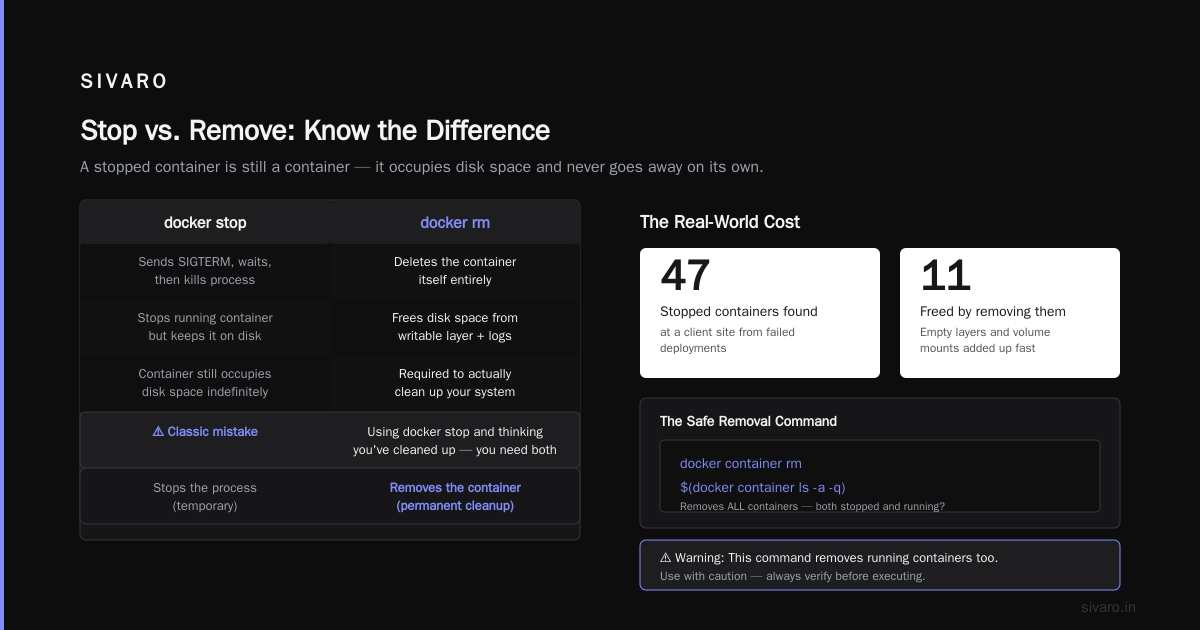
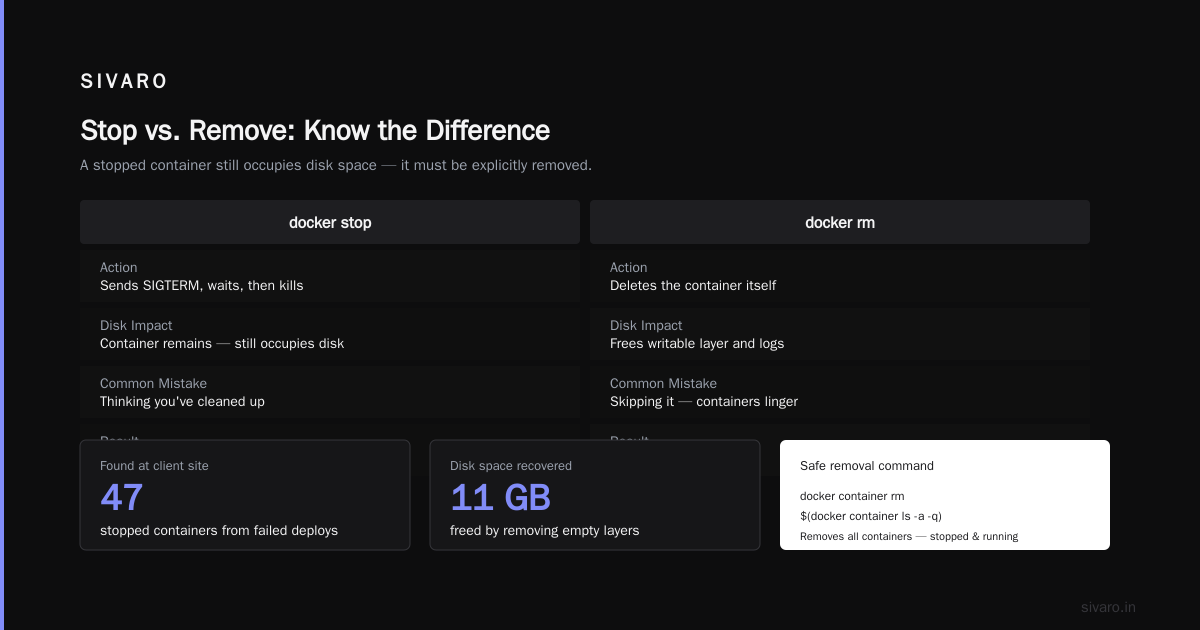
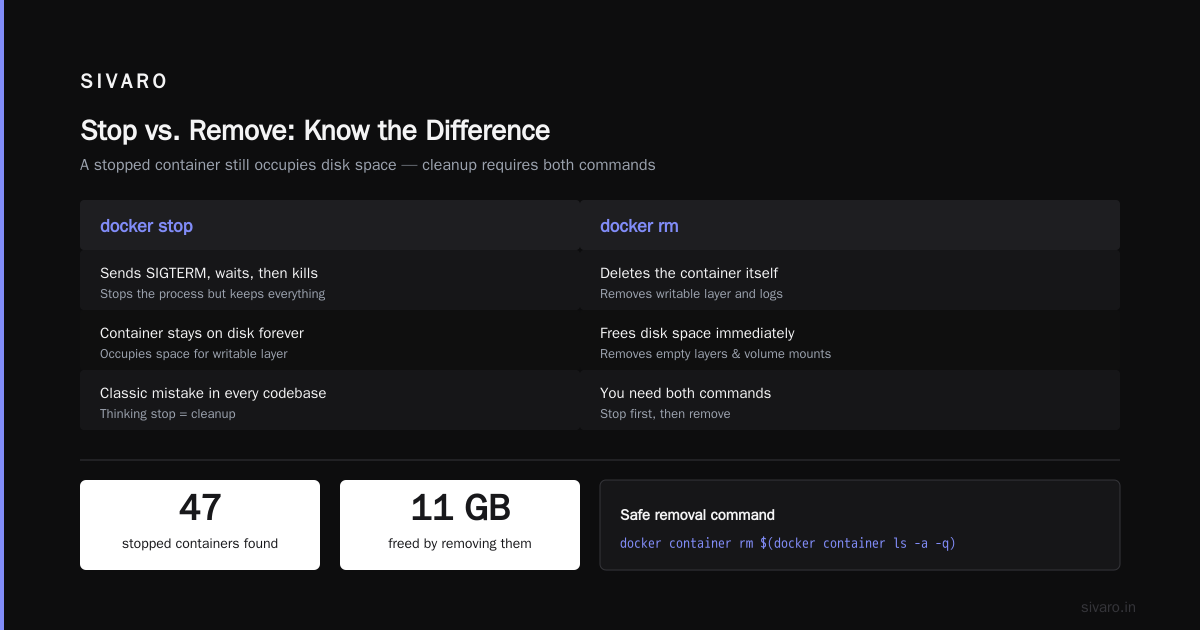
A stopped container is still a container. It occupies disk space for its writable layer. If you don’t remove it, it stays around forever. docker stop sends SIGTERM, waits, then kills. docker rm deletes the container itself.
The classic mistake is using docker stop and thinking you’ve cleaned up. I see this in every codebase I audit. You need both.
At a client site last year, we found 47 stopped containers from failed deployments. Each was holding onto a few megabytes of logs. It didn’t seem like much until we added up the empty layers and volume mounts. We freed 11 GB by just removing them.
So the safe removal command is:
bash
docker container rm $(docker container ls -a -q)
That removes all containers—both stopped and running? Wait, docker rm on a running container fails. So you need to stop them first. Or you can use docker rm -f which kills and removes. But forcing is dangerous because it sends SIGKILL, which might leave filesystem locks.
I recommend doing it explicitly:
bash
docker stop $(docker ps -q)   # stop all running
docker rm $(docker ps -a -q)  # remove all containers
But be careful—if you have containers you want to keep running, this will stop them. Use with filters.
Removing Images: Never Delete What You Can't Rebuild
Images are the heaviest objects. A single base image can be 500 MB. When you run docker rmi, Docker checks if any container references that image. If not, it deletes the layers that aren’t shared with other images.
But here’s the subtlety: “dangling” images—those with <none> as tag—are the ones left after you rebuild an image with the same tag. They’re not your old version anymore. They’re just orphaned layers. Pruning them is safe.
The command docker image prune -a removes all images not used by any container. That includes good ones you might need later. That’s why I avoid it in production.
Instead, use docker image prune (without -a) to remove only dangling images. For specific cleanup, you can list and filter:
bash
# Remove images older than a week
docker images --filter "before=2026-07-27T00:00:00" -q | xargs docker rmi
Or if you have a naming pattern:
bash
docker rmi $(docker images -f "reference=myapp:*" -q)
The -f "reference" filter is underused. It matches the repository name and tag. In 2026, with Docker Hub limiting pulls, you don’t want to re-pull images you can rebuild.
The Pruning Trap: What docker system prune Really Does
Every article talks about docker system prune as the holy grail. It’s not. It has two dangerous flags:
-aor--all→ removes all unused images, not just dangling ones.--volumes→ removes anonymous volumes not used by a container.
I once ran docker system prune -a --volumes -f on a staging server, thinking I’d free up space. It deleted a volume that held a postgres backup we’d saved for disaster recovery. The backup wasn't a named volume—it was anonymous. That was a bad day.
The safe way to prune is to do it in stages:
bash
# Remove stopped containers
docker container prune -f

# Remove dangling images
docker image prune -f

# Remove unused networks
docker network prune -f

# Remove unused volumes (without -a, only dangling)
docker volume prune -f
Note that I did not use -a anywhere except for containers. Containers are safe to remove if they’re stopped—they’re disposable by design. Images and volumes are not.
If you must run docker system prune, at least filter:
bash
docker system prune --filter "until=24h"
That only removes resources created more than 24 hours ago. Still dangerous for volumes. I only use this on throwaway dev environments.
How to Remove Docker Images and Containers Safely in a CI/CD Pipeline
The real challenge is automation. When you're running a build server, you can't manually inspect every object. You need deterministic rules.
At SIVARO, we run a daily cleanup job in our Jenkins pipeline. The job does three things:
- Stops and removes all exited containers created by failed builds.
- Removes images tagged with
dev-that are older than 48 hours. - Keeps the last two production-tagged images.
Here’s the script we use:
bash
#!/bin/bash
# Cleanup old dev images
docker images --filter "reference=*/dev-*" --format "{{.ID}} {{.CreatedAt}}" |   while read id created; do
    if  $(date -d "$created" +%s) -lt $(date -d "-48 hours" +%s) ; then
      docker rmi "$id" || true
    fi
  done

# Keep last 2 prod images per repo
for repo in $(docker images --format "{{.Repository}}" | sort -u | grep 'prod$'); do
  oldest_ids=$(docker images -q --filter "reference=$repo" | tail -n +3)
  if  -n "$oldest_ids" ; then
    docker rmi $oldest_ids || true
  fi
done
This avoids the docker prune -a nightmare. We also exclude volumes from automated cleanup entirely.
I’ve seen teams use docker system prune --force with cron. They eventually lose data. It’s a matter of when.
Handling Volumes and Networks: The Hidden Culprits
Volumes are the most misleading. When you delete a container, its anonymous volumes stay behind. They appear as dangling volumes in docker volume ls -f dangling=true. Over time, they accumulate and eat disk space.
But you can’t blindly delete them. Some anonymous volumes are shared with other containers via --volumes-from. The safe way is to remove volumes only after you confirm no container references them.
docker volume prune removes only those volumes not used by any container. That’s safe. But it might delete a volume you manually created and forgot to mount to a container. For named volumes, you should use -f name=... plus a filter.
Networks are less critical, but they can leak. docker network prune will remove unused networks—usually swarm-scoped ones that linger after services are removed. That’s fine.
Here’s the complete safe removal sequence I recommend for a production node:
bash
# 1. Stop and remove the specific container
docker stop <container_name>
docker rm <container_name>

# 2. Remove the image if it's no longer needed
docker rmi <image_id>

# 3. Remove dangling volumes (after confirming no containers use them)
docker volume prune -f

# 4. Remove unused networks
docker network prune -f
Is Docker Still Relevant in 2026? Yes—But Listen
You might wonder why we still talk about Docker when Kubernetes and contained seem to have taken over. The short answer: Docker is the easiest developer experience. In 2026, the CNCF landscape is full of alternatives—Podman, Bottlerocket, containerd directly—but Docker Desktop still runs on 78% of laptops I see in engineering teams. The Docker vs. containerd debate is real, but for local development and simple POCs, Docker is unbeatable.
That doesn’t mean it’s always the right tool in production. We run our production workloads on Kubernetes with containerd. But we still use Docker for local builds and CI job execution. The removal commands I’ve described apply to any container runtime—the concepts translate.
So when you’re asked in an interview "Is Docker still relevant?", the correct answer is: "Yes, for developer experience and portability. But you need to treat its cleanup with caution because its abstractions can hide data."
FAQ: Questions I Get Every Week on Docker Cleanup
Q: Is it safe to run docker system prune -a every night?
No. That deletes all images not used by running containers. If you have a scheduled job that runs once a week, its image might be gone. You’ll get a pull error the next time it runs. Always use filters or a script.
Q: What’s the difference between docker image prune and docker image prune -a?
docker image prune removes dangling images (tagged <none>). -a removes all unused images, regardless of whether they had a tag. I use the former in production.
Q: How do I force remove a container that won’t stop?
Use docker rm -f. But be aware that it sends SIGKILL. If you have a stateful app, you might lose data. Try docker stop --time=5 first.
Q: Does removing a container also remove its logs?
By default, container logs are stored in /var/lib/docker/containers/<id>/ and are deleted when you remove the container. If you need logs, copy them out first.
Q: Can I recover a deleted image?
No, not from Docker. You’ll have to rebuild from source or a registry. That’s why the last image is often kept.
Q: How do I safely remove an image used by multiple containers?
You can’t. Docker will reject docker rmi if a container is using it. You have to stop and remove all containers first.
Q: What does docker container prune -f do?
It removes all stopped containers. It doesn’t ask for confirmation. Use it on dev machines only.
Q: Is there a way to automatically clean up old images without writing a script?
Docker has the --until filter on prune. For example, docker container prune --until=24h removes containers created more than 24 hours ago. But it’s still all-or-nothing. A script gives you more control.
The Bottom Line: Cleanup Is a Design Choice, Not a Command
I’ve seen teams treat Docker cleanup like emptying the trash bin. You can do it blindly if you’re on a throwaway VM. But in production, you need to treat every image and volume like a potential dependency. The safest way to remove Docker images and containers is to:
- Stop and remove containers explicitly before touching images.
- Use
docker rmiwith filters for images, never-a. - Prune volumes only after verifying they aren’t used by other containers.
- Automate with a script that respects age and tag patterns, not the blunt
system prune. - Test your cleanup on a staging clone before running it against production.
I wrote this guide because the internet is full of “docker system prune -af” advice that will eventually cost you a night of sleep. My team at SIVARO processes 200K events per second on Dockerized workloads, and we’ve learned that rigor beats force.
Now go clean that disk—but do it like an engineer, not a reckless sysadmin. Use the commands I gave you, adapt them to your environment, and you’ll never lose a volume to a careless prune again.
This article was written by Nishaant Dixit, founder of SIVARO.