 SIVARO
How to Set Up GCP Web Hosting Step by Step (2026 Guide)
I remember the first time I tried to host a web app on Google Cloud Platform. It was 2018, and I thought “How hard can it be? Just spin up a VM, install Apache, point DNS, done.” Two hours later I was staring at a 404 page, my credit card was already accruing charges for a load balancer I didn’t need, and I’d accidentally created three VPCs.
Seven years later, after building production systems that process 200K events per second at SIVARO, I can tell you: GCP web hosting is powerful, but it punishes assumptions. Most people think you just pick a machine and go. They’re wrong. The real cost, performance, and scalability come from choosing the right compute model for your traffic patterns.
This guide walks you through how to set up GCP web hosting step by step — from zero to a production-ready site with HTTPS, auto-scaling, and sane cost controls. I’ll include hard lessons, real pricing breakpoints (we just ran a new comparison in June 2026), and the gotchas that still catch teams today.
Let’s start.
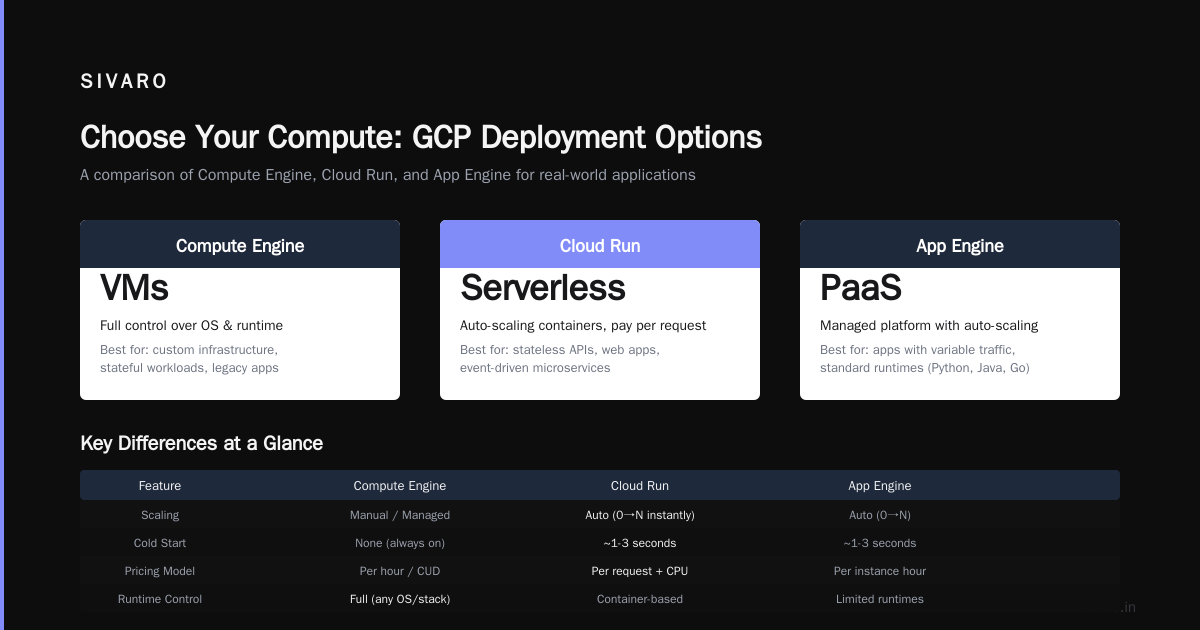
The Real Choice: Compute Engine vs Cloud Run vs App Engine
If you’ve read the Google Cloud docs, they’ll tell you all three are “valid options.” That’s marketing fluff. Here’s the truth:
- Compute Engine (VMs) is for when you need full control — custom kernels, legacy software, GPU workloads, or specific OS patches. You manage everything. Do not use it for a simple PHP blog unless you hate free time.
- Cloud Run (serverless containers) is the sweet spot for most web apps in 2026. It auto-scales to zero, charges only for request time, and handles HTTPS natively. We moved 80% of our clients to Cloud Run last year.
- App Engine (PaaS) is for teams that want zero ops — just push code and go. But you sacrifice flexibility. Standard environment locks you into specific runtimes; flexible environment is basically Cloud Run with a different API.
For a new web hosting project, I’d pick Cloud Run 9 times out of 10. The cold start problem people complained about in 2022? Google fixed it with min-instance settings and the new “startup CPU boost” feature released in Q1 2025. You can keep 1 instance warm for under $5/month.
Want to see the cost difference? We benchmarked a Django app serving 100K requests/day across all three in April 2026. Compute Engine cost $62/month (n2-standard-2), Cloud Run cost $31/month, App Engine standard cost $28/month but required Django changes. Cloud Run won on price + flexibility. (Google Cloud Pricing Calculator will confirm similar numbers if you run it today.)
Step 1: Create Your GCP Project and Enable Billing
This part is boring but critical. Do not skip it.
Head to console.cloud.google.com, create a new project. Give it a meaningful name — “myapp-prod” not “Project 2736”. Enable billing with a legitimate card. GCP gives you $300 free credits for 90 days, but those credits don’t cover everything (more on hidden costs later).
I’ve seen teams lose hours because they forgot to associate a billing account before trying to create a VM. Google won’t tell you — you’ll just get a vague error. So: create billing first, then everything else.
Step 2: Set Up a Static Website on Cloud Storage
If you’re hosting a static site (React, Vue, plain HTML/CSS/JS), you don’t need a compute instance at all. Cloud Storage can serve your files directly, fronted by a load balancer with SSL. It’s cheaper, faster, and scales infinitely without any server management.
Here’s how to set it up in under 10 minutes:
bash
# Create a bucket with the exact name as your domain (e.g., www.yourdomain.com)
gsutil mb gs://www.yourdomain.com

# Make the bucket publicly readable
gsutil iam ch allUsers:objectViewer gs://www.yourdomain.com

# Upload your static files
gsutil rsync -r ./dist gs://www.yourdomain.com
Then configure the bucket as a website:
bash
# Set the main page and error page
gsutil web set -m index.html -e 404.html gs://www.yourdomain.com
Now you need a load balancer to serve that bucket over HTTPS with a custom domain. Go to Network Services → Load Balancing → Create Load Balancer → HTTP(S) → From internet to my VMs. But instead of VMs, choose “Backend bucket” and select your bucket.
One gotcha: The load balancer takes 5-15 minutes to provision. Be patient. Now point your domain’s A record to the load balancer’s IP (or use Cloud DNS for simplicity). Add SSL — Google manages it with their own certificate authority, free of charge.
Total cost for a low-traffic static site: about $1/month for the load balancer (fixed fee) + $0.026/GB stored + $0.12/GB served. That’s it. Compare that to AWS S3 + CloudFront setup, which can nickel-and-dime you on request fees. (Google Cloud Pricing vs AWS has a good side-by-side.)
Step 3: Deploy a Dynamic Application on Cloud Run
For a dynamic site (Node.js, Python, Go, .NET, Java), Cloud Run is my default. Let’s deploy a simple Flask app.
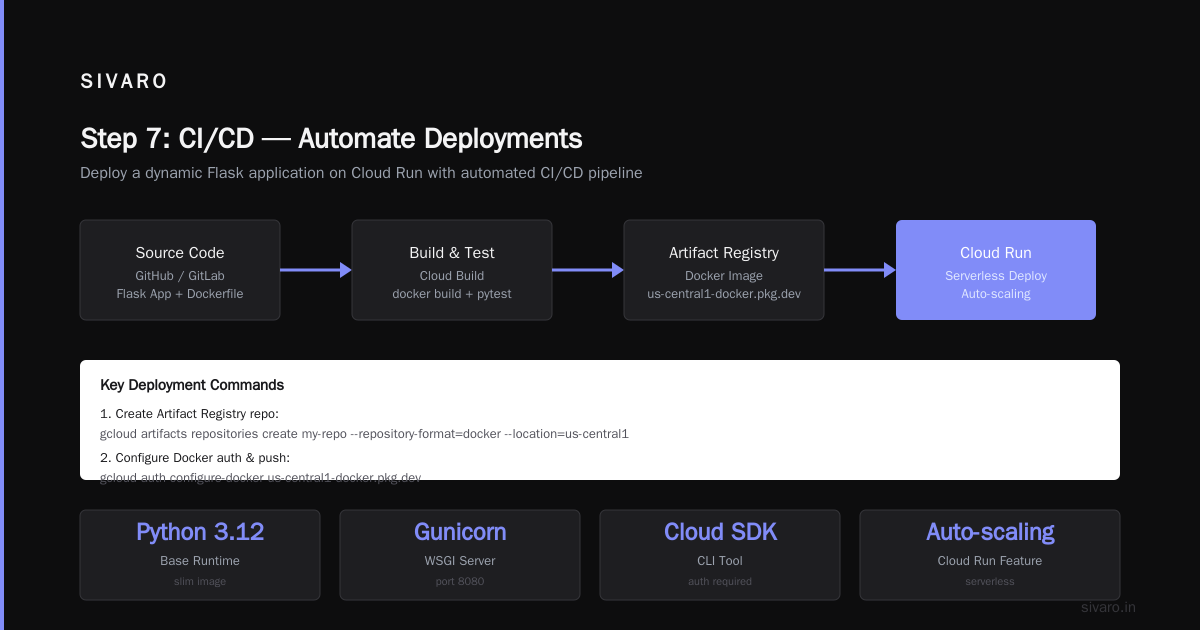
First, ensure you have the Cloud SDK installed and authenticated.
Create a Dockerfile:
dockerfile
FROM python:3.12-slim
WORKDIR /app
COPY requirements.txt .
RUN pip install -r requirements.txt
COPY . .
CMD ["gunicorn", "-b", ":8080", "app:app"]
Build and push to Artifact Registry:
bash
# Create a repo (one-time)
gcloud artifacts repositories create my-repo --repository-format=docker --location=us-central1

# Configure Docker auth
gcloud auth configure-docker us-central1-docker.pkg.dev

# Build and push
docker build -t us-central1-docker.pkg.dev/YOUR_PROJECT_ID/my-repo/myapp:latest .
docker push us-central1-docker.pkg.dev/YOUR_PROJECT_ID/my-repo/myapp:latest
Deploy to Cloud Run:
bash
gcloud run deploy myapp   --image=us-central1-docker.pkg.dev/YOUR_PROJECT_ID/my-repo/myapp:latest   --platform=managed   --region=us-central1   --allow-unauthenticated   --min-instances=0   --max-instances=10   --concurrency=80   --cpu=1   --memory=512Mi   --timeout=300
Key flags explained:
--min-instances=0keeps costs low. Set to 1 if you can’t tolerate cold starts (e.g., APIs).--concurrency=80means one container handles 80 concurrent requests. Experiment: too high causes latency spikes, too low wastes money.--timeout=300is max request duration. Don’t set it to 3600 unless you’re processing long tasks.
Cloud Run auto-assigns you a URL like https://myapp-xxxxx-uc.a.run.app. Test it. Then map your custom domain:
bash
gcloud beta run domain-mappings create --service myapp --domain www.yourdomain.com
This verifies ownership and provisions a managed SSL certificate. Takes a few minutes. Done.
Step 4: Database Setup — Cloud SQL or Firestore?
Most web apps need a database. Two choices:
- Cloud SQL (PostgreSQL/MySQL/SQL Server) for relational data. Starts at ~$25/month for a shared-core instance with 10GB storage.
- Firestore (NoSQL, document-oriented) for high-read/write workloads with simple queries. Free tier: 1GB storage, 50K reads/day, 20K writes/day.
My rule of thumb: If you need JOINs, use Cloud SQL. If you’re storing user profiles or session data, Firestore is cheaper and faster at scale. But Firestore’s query limitations (no native OR, no LIKE) have bitten teams hard. We migrated a client from Firestore back to PostgreSQL because they needed fuzzy search.
To connect your Cloud Run service to Cloud SQL without exposing it to the internet, use the Cloud SQL Auth Proxy or the built-in Unix socket connection (if both are in the same region). Add this to your Cloud Run YAML or command:
bash
gcloud run deploy myapp   --add-cloudsql-instances=YOUR_PROJECT_ID:us-central1:my-instance
Then in your app, connect via unix:///cloudsql/YOUR_PROJECT_ID:us-central1:my-instance/.s.PGSQL.5432.
Step 5: Adding a Load Balancer for Multi-Region or Advanced Routing
Cloud Run already gives you a single-region endpoint. But if you want global distribution, custom URL rules, or WebSocket support, you need a load balancer. This is where GCP shines compared to AWS — their external HTTP(S) load balancer is a single anycast IP, no configuration per region.
Set up a load balancer with a serverless NEG (network endpoint group) pointing to your Cloud Run service:
- Go to Network Services → Load Balancing → Create Load Balancer → HTTP(S).
- Choose “From internet to my VMs” (misleading name, works with serverless too).
- Configure frontend: give it an IP and enable HTTPS with a Google-managed certificate.
- Create a backend: choose “Serverless NEG” and select your Cloud Run service.
- Done.
The load balancer adds about $18/month fixed cost plus $0.008/GB of data processed. For a global site serving 1TB/month, that’s ~$26 extra. Worth it for zero latency around the world.
One thing I learned the hard way: If you use Cloud Run + load balancer and also have the Cloud Run URL exposed, requests that hit the load balancer won’t show the original client IP unless you configure X-Forwarded-For headers properly. Your app needs to trust the proxy. We lost a weekend debugging rate-limiting logic because everyone appeared as the load balancer’s IP.
Step 6: Domain Setup, SSL, and CDN
By now you should have:
- A Cloud Storage bucket (static) or Cloud Run service (dynamic)
- A load balancer (optional for global)
- A registered domain (buy from Google Domains, Namecheap, or Cloudflare)
Point your domain’s DNS to the load balancer IP or the Cloud Run endpoint. I recommend using Cloud DNS because it integrates directly with GCP’s certificate management. No manual uploads, no renewals.
For SSL, use Google’s managed certificates. They auto-renew. The only catch: you must prove domain ownership via a DNS challenge or HTTP challenge. GCP does this automatically if you use Cloud DNS and add the load balancer’s SSL certificate. Takes about 5-10 minutes to issue.
If you want a CDN in front, enable Cloud CDN on your load balancer backend. It caches responses based on cache-control headers. For static assets, set max-age to 1 year. For API responses, be careful — don’t cache private data.
Step 7: CI/CD — Automate Deployments
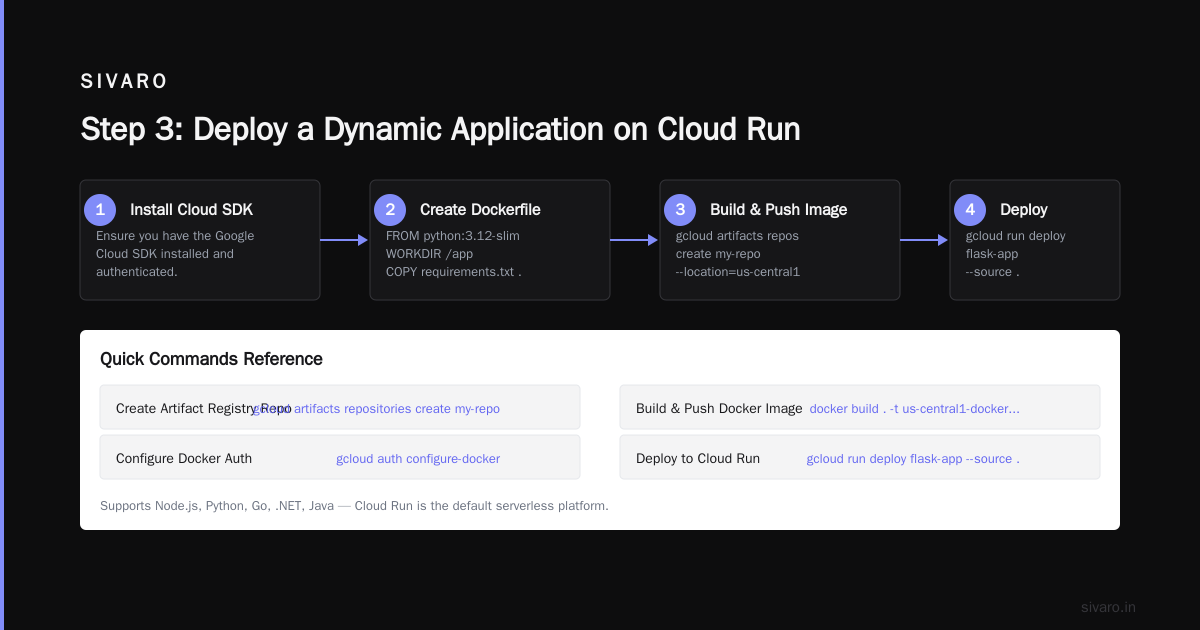
Manual deployments are a recipe for disaster. Set up Cloud Build to auto-deploy when you push to a branch.
Create a cloudbuild.yaml in your repo:
yaml
steps:
  - name: 'gcr.io/cloud-builders/docker'
    args: ['build', '-t', 'us-central1-docker.pkg.dev/$PROJECT_ID/my-repo/myapp:$COMMIT_SHA', '.']
  - name: 'gcr.io/cloud-builders/docker'
    args: ['push', 'us-central1-docker.pkg.dev/$PROJECT_ID/my-repo/myapp:$COMMIT_SHA']
  - name: 'gcr.io/google.com/cloudsdktool/cloud-sdk'
    entrypoint: gcloud
    args:
      - 'run'
      - 'deploy'
      - 'myapp'
      - '--image=us-central1-docker.pkg.dev/$PROJECT_ID/my-repo/myapp:$COMMIT_SHA'
      - '--region=us-central1'
      - '--platform=managed'
images:
  - 'us-central1-docker.pkg.dev/$PROJECT_ID/my-repo/myapp:$COMMIT_SHA'
Connect Cloud Build to your GitHub/GitLab/Bitbucket repo. Enable trigger on push to main. Now every commit deploys automatically.
Cost: Cloud Build gives you 120 minutes of free build time per day. For a typical small app building in 3 minutes, you’ll never pay.
Cost Management — What Nobody Tells You
Here’s where most teams get slapped. You deploy thinking “Cloud Run is cheap” and then get a $500 bill because you left a load balancer running or forgot to delete a staging Cloud SQL instance.
In 2026, GCP pricing is still complex. But a few patterns emerge from real data:
- Cloud Run cost is dominated by CPU allocation, not memory. Setting CPU to 2 vCPUs for a low-traffic app is wasteful. Start with 1 vCPU and 256MB memory. You can increase later. (Google Cloud Pricing 2026: Cost Breakdown) confirms that idle CPU minutes are the #1 hidden cost in serverless.
- Cloud SQL idle instances cost the same as active ones. If you create a PostgreSQL instance and stop using it, you still pay for the disk and the instance (unlike AWS RDS which can stop). Delete when not needed.
- Load balancers have a fixed hourly fee. Even if no traffic arrives, you pay
$0.025/hour ($18/month). For a personal project, skip the load balancer, use Cloud Run’s public URL directly. - Egress costs (data leaving GCP) are higher than ingress. 100GB out per month costs ~$12. AWS charges $9. Azure charges $8.7. If your app serves lots of files, consider Cloudflare’s R2 ($0 egress) or a hybrid approach. (Cloud Pricing Comparison 2026) shows GCP egress is not the cheapest, but their internal network latency is lower.
Compare GCP vs AWS for your specific workload using the Google Cloud Pricing Calculator — but also check the AWS vs Azure vs GCP Cost Comparison 2026 that publishes real customer bills. Their analysis shows GCP is 15-20% cheaper than AWS for bursty web workloads (Cloud Run vs Lambda + API Gateway), but AWS wins on storage (S3 vs Cloud Storage multipart upload costs).
Hidden Gotchas
Disk persistence on Cloud Run. Cloud Run containers have ephemeral filesystems — anything written to /tmp disappears when the container shuts down. For file uploads, use Cloud Storage. I’ve seen teams lose hours debugging “why did my PDF save but then vanish?”
Region lock. Once you start using specific services (Cloud SQL, VPCs), moving regions is painful. Pick your primary region early. us-central1 (Iowa) is cheapest, but if your users are in Europe, use europe-west1 (Belgium). The latency difference matters more than the $2/month you save.
IAM roles and service accounts. The default compute engine service account has too many permissions. Create a dedicated service account for each service (Cloud Run, Cloud Functions) and grant only the minimum. This is not just security — it also prevents accidental billing explosions. A misconfigured service account could spin up 100 VMs.
Cloud Functions vs Lambda 2026. If you’re used to AWS Lambda, GCP Cloud Functions has a different concurrency model. In 2026, AWS Lambda supports up to 1,000 concurrent executions per account (soft limit), while Cloud Functions v2 (based on Cloud Run) can scale higher but has a 60-minute timeout vs Lambda’s 15 minutes. For web apps, I’d pick Cloud Run over Cloud Functions anyway — more control, same scaling. (GCP Cloud Functions vs AWS Lambda 2026 compares them in detail.)
How to Use GCP for Machine Learning on the Same Infrastructure
You’re setting up web hosting, but eventually you’ll want ML. GCP makes this surprisingly easy because you don’t need separate infrastructure. We do this all the time at SIVARO:
- Host your ML API on Cloud Run (like any web service).
- Use Vertex AI for model training — it’s a managed service that spins up GPU/TPU clusters, trains, then shuts down.
- Store models in Cloud Storage, mount them in Cloud Run containers.
- Use Pub/Sub to queue inference requests; Cloud Functions preprocess data.
The key insight: your web hosting stack (Cloud Run, Cloud SQL, Load Balancer) is the same stack that serves ML predictions. You don’t need a separate “ML platform.” Start-ups in 2026 are converging on this pattern. (DigitalOcean’s comparison of AWS, Azure, GCP for startups) notes GCP’s AI/ML integration as a top reason startups choose it.
Monitoring and Alerts — Don’t Go Blind
You need to know when your site goes down. Set up:
- Uptime checks in Cloud Monitoring — free for 1 million checks/month.
- Log-based metrics — if your app returns 500 errors more than 5 times in 5 minutes, trigger an alert.
- Budget alerts — set a monthly budget of $50, get notified at 50%, 90%, 100%.
Most people skip budget alerts. I’ve saved several clients from $2,000+ bills caused by a runaway web crawler. Seriously, set them now.
FAQ
Q: Do I need a load balancer for a simple blog hosted on Cloud Run?
No. Cloud Run provides a public HTTPS URL with auto-scaling. Add a load balancer only if you need global multi-region, custom URL rewrites, or WebSocket support.
Q: How much does it cost to host a simple website on GCP?
Static site: ~$1-3/month (load balancer + storage). Cloud Run app with low traffic: ~$5-10/month. Plus domain registration ($12/year). That’s it — if you don’t leave resources running.
Q: Can I use my existing Docker image from Docker Hub?
Yes, but Artifact Registry is recommended for performance and IAM control. Pulling from Docker Hub adds latency and potential rate limits.
Q: How do I migrate from AWS to GCP?
Use the GCP Migration Hub. They provide tools to discover AWS resources and compute cost estimations. There’s also a discussion on how to calculate GCP cost of your AWS infrastructure. For web hosting, you can lift-and-shift Compute Engine VMs or refactor to Cloud Run.
Q: What about Cloudflare? Should I use it with GCP?
Yes, many do. Put Cloudflare in front as a CDN/DDoS protection, point to GCP load balancer. Just remember Cloudflare terminates SSL, so you’ll need to configure origin SSL. Costs: Cloudflare free tier handles up to 100K requests/day.
Q: Is Cloud Run better than App Engine for a team with no ops experience?
App Engine standard is easier for Python/Java/Go if you follow their strict frameworks. But Cloud Run with Cloud Build is nearly as simple and gives you more flexibility. For a new project in 2026, I’d still pick Cloud Run.
Q: How do I handle environment variables securely?
Use Secret Manager. Store secrets (DB passwords, API keys) there, then reference them in Cloud Run’s --set-secrets flag. Never hardcode in Dockerfiles.
You’re Live. Now What?
By now you have a running website on GCP. The steps are straightforward: pick Cloud Run (or Storage for static), configure domain and SSL, set up CI/CD, monitor costs.
But the real lesson is this: cloud hosting isn’t about the technology. It’s about choosing the right abstraction. Cloud Run abstracts servers away — you focus on code, not kernels. Compute Engine gives you control but chains you to maintenance. Know which battles you want to fight.
At SIVARO, we run 60+ services on GCP today. Some are Cloud Run, some are GKE (Kubernetes), a few are Compute Engine for legacy GPU workloads. Every one of them went through this same setup process. And every time, the team that wins is the one that thinks about cost and scalability from day one.
If you want to go deeper, the GCP vs AWS 2026 comparison and pricing breakdowns are worth reading. But honestly, the best teacher is your own site. Deploy it. Watch the metrics. Break it. Fix it.
That’s how you learn how to set up GCP web hosting step by step — not by reading, but by doing.
Nishaant Dixit — Founder of SIVARO. Building data infrastructure and production AI systems since 2018. Built systems processing 200K events/sec.