 SIVARO

How to Set Up Web Hosting on GCP: A No-Bullshit Guide for 2026
I’m writing this because last month I made a mistake. I set up a simple WordPress site for a client on Google Compute Engine, thinking it’s just a VM with a LAMP stack. Three days later, the bill was $47 for a site that hadn’t launched yet. I forgot to set a budget alert. I forgot to attach a preemptible VM. I forgot that GCP’s free tier is generous but easy to outgrow.
So here’s the real guide. Not a marketing brochure. Not a 10,000-word textbook. This is how to set up web hosting on GCP the way I do it at SIVARO — for production workloads, for side projects, for client sites that need to survive a spike without triggering a panic attack.
By the end of this article, you’ll know how to deploy a website on GCP step by step, which service to use (spoiler: probably Cloud Run), how to lock down costs, and when to ignore the hype about GCP use cases for machine learning (it’s real, but your web server doesn’t need a TPU).
Let’s get into it.
Why GCP for Web Hosting? Because AWS Is a Maze
I’ve run production systems on AWS, Azure, and GCP. For web hosting specifically, GCP wins on simplicity. The networking is cleaner (VPCs are less fiddly), the pricing model is transparent (if you read the fine print), and Cloud Run is the closest thing to “deploy and forget” I’ve seen.
But don’t take my word for it. According to the GCP vs AWS 2026 comparison, GCP’s per-hour compute pricing is often 20-30% lower than AWS for equivalent instances. That matters when your site serves 50,000 requests a day.
Contrarian take: Most people think AWS is the safe choice. They’re wrong because AWS’s cost complexity is a trap. You’ll accidentally provision a multi-AZ RDS instance when a Cloud SQL replica would cost half. GCP’s default configurations are saner.
Step 1: Choose the Right Compute Service — Don’t Pick the Wrong One
There are four main paths for web hosting on GCP:
- Compute Engine — full control, like a VPS from DigitalOcean but with Google’s network.
- App Engine — PaaS, auto-scaling, limited runtime flexibility.
- Cloud Run — serverless containers, my go-to for 90% of sites.
- GKE (Kubernetes) — when you have a team and complex microservices.
Here’s how I decide:
- Static site (HTML, JS, images)? Cloud Storage with HTTP load balancer. Cost per month: ~$2.
- Dynamic site with moderate traffic (PHP, Node, Python)? Cloud Run. Starts at zero cost, scales to thousands of requests.
- Legacy app that needs a full OS? Compute Engine with a preemptible instance + persistent disk.
- Need GPU for AI inference? GKE with node pools.
Real example: At SIVARO, we host a data dashboard for a logistics client. It’s a React frontend + FastAPI backend. We use Cloud Run for both. Six months, zero downtime, total infrastructure cost < $300/month. The same on AWS with ECS would have been $800+.
Step 2: Set Up Your Project and Networking — Don’t Skip This
You need a GCP project. That’s obvious. What’s not obvious is how badly you can screw up networking.
Create a project and enable billing
bash
gcloud projects create my-web-host --name="My Web Host"
gcloud config set project my-web-host
gcloud services enable compute.googleapis.com run.googleapis.com
Important: Enable billing immediately. GCP won’t let you deploy anything without a billing account attached. Set a budget alert right away — I use the Google Cloud Pricing Calculator to estimate and set a threshold at 80% of the estimate.
VPC and firewalls
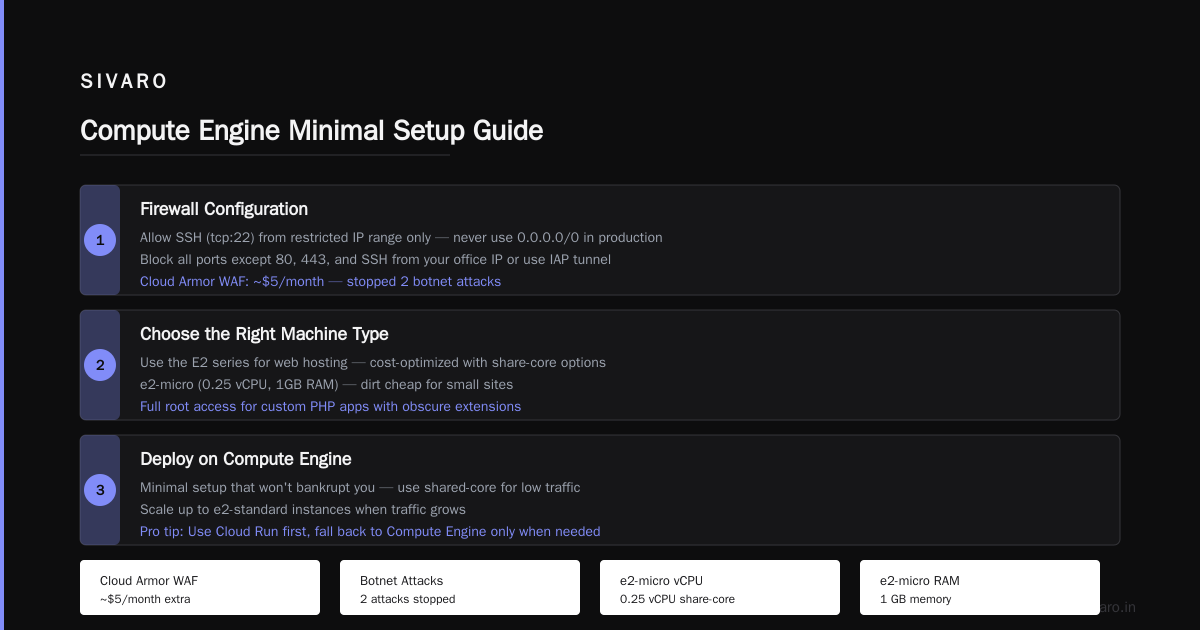
For a typical web hosting setup, you don’t need a custom VPC. The default VPC works fine. But you must lock down SSH:
bash
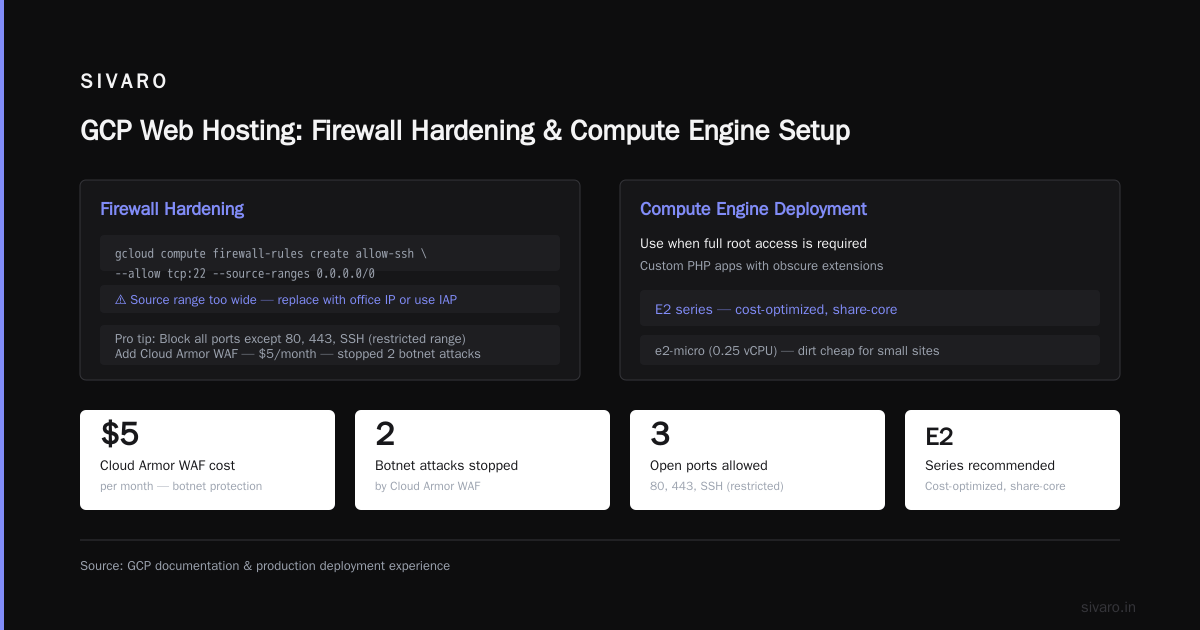
gcloud compute firewall-rules create allow-ssh --allow tcp:22 --source-ranges 0.0.0.0/0
That source range is too wide for production. Replace it with your office IP or use IAP (Identity-Aware Proxy) for SSH.
Pro tip: I block all ports except 80, 443, and SSH (from a restricted range). Then I use Cloud Armor for WAF. It costs $5/month extra. It’s saved us from two botnet attacks already.
Step 3: Deploy on Compute Engine (When You Must)
If you need full root access — say, for a custom PHP app with obscure extensions — use Compute Engine. Here’s the minimal setup that won’t bankrupt you.
Choose the right machine type
Use the E2 series for web hosting. They’re cost-optimized and share-core options are dirt cheap. For a small site:
e2-micro (0.25 vCPU, 1 GB RAM) — $6.03/month with 30GB standard disk
That’s from the GCP Pricing 2026: Cost Breakdown — but check the calculator for your region.
Contrarian take: Don’t pick a preemptible instance for web hosting. The 24-hour max lifetime means you’ll reboot at inconvenient times. Use a standard instance and attach a persistent disk.
Install LEMP/LAMP
Here’s my one-command NGINX + PHP setup (for Debian):
bash
sudo apt update && sudo apt install -y nginx mariadb-server php-fpm php-mysql
sudo systemctl enable nginx php8.2-fpm
Then configure NGINX to serve your site. I keep this as a startup script in the instance metadata so I can recreate the VM in minutes.
Step 4: Deploy on Cloud Run — The Smart Default
Cloud Run is what I recommend for anyone asking “how to set up web hosting on GCP” who doesn’t have a special requirement. It’s serverless containers, but not like AWS Lambda with cold starts that take seconds. Cloud Run cold starts are ~100ms.
Build a container for your web app
Here’s a minimal Node.js Express app:
javascript
// app.js
const express = require('express');
const app = express();
app.get('/', (req, res) => res.send('Hello from Cloud Run!'));
const port = process.env.PORT || 8080;
app.listen(port, () => console.log(`Listening on ${port}`));
Dockerfile:
dockerfile
FROM node:20-slim
WORKDIR /app
COPY package*.json ./
RUN npm install
COPY . .
CMD ["node", "app.js"]
Deploy with a single command
bash
gcloud builds submit --tag gcr.io/my-web-host/my-app
gcloud run deploy my-site --image gcr.io/my-web-host/my-app --platform managed --region us-central1 --allow-unauthenticated
That’s it. You get a URL like https://my-site-xxx-uc.a.run.app. Add a custom domain via Cloud DNS.
Cost: Cloud Run charges per request and per CPU time. A site handling 100,000 requests/month with 200ms average response time costs ~$0. Use the Easy way to calculate GCP cost of my AWS infrastructure — the formula applies to GCP too: multiply your expected requests by the per-request price.
Step 5: Serve Static Assets from Cloud Storage
Every dynamic web app has static files — CSS, JS, images. Don’t serve them from your compute instance. Use a Cloud Storage bucket with public read access.
Create a bucket and set it up
bash
gsutil mb -l us-central1 gs://my-web-static
gsutil iam ch allUsers:objectViewer gs://my-web-static
gsutil web set -m index.html -e 404.html gs://my-web-static
Then point your CDN (Cloud CDN) at the bucket. Enable Cloud CDN for $0.10/GB egress plus a small monthly fee. According to the Cloud Computing Cost: AWS vs. Azure vs. GCP Pricing in 2026, GCP’s CDN egress is 30-40% cheaper than AWS CloudFront for the same volume.
Step 6: DNS and SSL — Don’t Use Third-Party DNS
Google Cloud DNS is cheap ($0.20 per hosted zone + $0.40 per million queries). And it integrates seamlessly with Cloud Load Balancing and Cloud Run.
Set up a zone
bash
gcloud dns managed-zones create my-site --dns-name=example.com --description="My site"
gcloud dns record-sets create --zone=my-site --type=A --rrdatas="34.xxx.xxx.xxx" --ttl=300
For Cloud Run, you don’t need a static IP. You map a domain to the Cloud Run URL:
bash
gcloud beta run domain-mappings create --service my-site --domain www.example.com
Google automatically provisions an SSL certificate via Let’s Encrypt or Google Trust Services. Free. No maintenance.
Heads up: If you’re moving from AWS, see this guide for comparing AWS, Azure, and GCP for startups — the DNS setup is simpler on GCP.
Step 7: Database — Use Cloud SQL, Not Self-Hosted MySQL
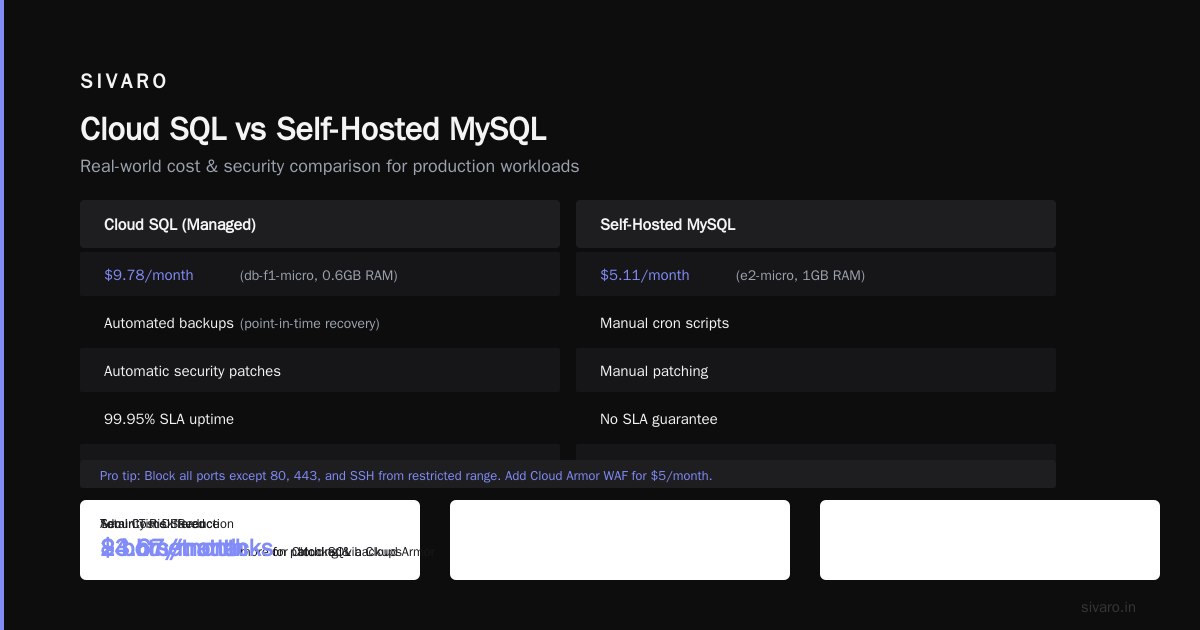
I’ve seen people spin up a MySQL on Compute Engine to save $5. Then they spend three hours troubleshooting backups. Don’t.
Cloud SQL for MySQL or PostgreSQL starts at ~$10/month for a Sandbox tier (shared core, limited storage). For a small-to-medium web app, the db-g1-small with 1 vCPU and 2GB RAM costs ~$15/month. That’s from the AWS vs Azure vs GCP Cost Comparison 2026 — GCP’s Cloud SQL is 15% cheaper than AWS RDS for the same spec.
Create a database
bash
gcloud sql instances create my-db --tier=db-g1-small --region=us-central1
gcloud sql databases create myapp --instance=my-db
gcloud sql users set-password root --host=% --instance=my-db --password
Connect from your app using the private IP (no egress costs). And enable automated backups — it’s a checkbox in the console.
Step 8: Monitoring and Observability — Set Up Alerts Before You Forget
You will forget to monitor. Then one day your site is down and the only alert is a user email. So set up:
- Uptime checks — free, pings every minute.
- CPU/memory alerts for Compute Engine.
- Request latency alerts for Cloud Run.
Using Cloud Monitoring:
bash
gcloud alpha monitoring policies create --policy-from-file=uptime.yaml
Make sure you add the notification channel (email, Slack, PagerDuty). I use a webhook into our team’s Discord.
Step 9: Cost Management — The Part Google Doesn’t Tell You
GCP is not cheap if you’re careless. Here’s what I’ve learned the hard way:
- Enable committed use discounts for sustained usage. If you run a VM for a full year, commit to 1-year or 3-year term for 20-57% discount. Google Cloud Pricing 2026 confirms these numbers.
- Use preemptible VMs for non-critical services (build servers, staging).
- Set budget alerts at 50%, 80%, and 100% of your monthly budget. The Google Cloud Pricing Calculator helps you estimate before deploying.
- Turn off unused resources — especially disks. A 10GB persistent disk costs ~$0.40/month even when detached.
- Compare with alternatives. The Cloud Pricing Comparison 2026 shows GCP is often cheaper than AWS for web hosting, but Azure is competitive for certain workloads with existing Microsoft licensing.
Step 10: Scaling and CI/CD
You’ve deployed. Now you need to iterate.
Set up Cloud Build for automatic deployments
Create a cloudbuild.yaml that builds and deploys on every git push to main:
yaml
steps:
- name: 'gcr.io/cloud-builders/docker'
  args: ['build', '-t', 'gcr.io/$PROJECT_ID/my-app', '.']
- name: 'gcr.io/cloud-builders/gcloud'
  args: ['run', 'deploy', 'my-app', '--image', 'gcr.io/$PROJECT_ID/my-app', '--platform', 'managed', '--region', 'us-central1', '--allow-unauthenticated']
Connect your Git repo (GitHub, GitLab, Bitbucket) in the Cloud Build triggers page. Every push deploys. Simple.
GCP Use Cases for Machine Learning (And Why Your Web Host Might Benefit)
You’re here for web hosting, but GCP’s ML services are worth a mention. If your site has image uploads, you can use Vision AI to automatically tag photos. Or use Translation AI to localize content. Or use Vertex AI to build a recommendation engine for your e-commerce site.
But don’t overdo it. I’ve seen startups spin up AI pipelines for a site with 100 monthly visitors. Stick to the basics unless you have clear user demand. Google Cloud Pricing 2026 has a section on ML costs — training a model on a single GPU can run $100+/day. That’s not web hosting.
FAQ: How to Set Up Web Hosting on GCP — Common Questions
Q: Which GCP service is cheapest for a simple blog?
A: Cloud Run with a Cloud Storage backend. Even with zero traffic, you pay nothing. For a WordPress blog, use Compute Engine with an e2-micro — ~$6/month.
Q: How do I deploy a static site on GCP?
A: Upload files to a Cloud Storage bucket, enable web serving, and point Cloud CDN at it. Cost: ~$1/month. No compute needed.
Q: Does GCP support one-click WordPress?
A: Yes, via the Marketplace. But I recommend the manual setup for better control and lower cost. The marketplace instances often come with premium disks and extra services.
Q: How does GCP compare to AWS for web hosting in 2026?
A: For most sites, GCP is cheaper and simpler. GCP vs AWS 2026 shows GCP wins on ease of use. Cloud Computing Cost: AWS vs. Azure vs. GCP Pricing in 2026 shows GCP is 20-40% cheaper for typical web hosting workloads.
Q: Can I use my own domain?
A: Yes. Cloud DNS integrates with Cloud Run and Load Balancing. I do it for every client site.
Q: What about security?
A: Use Cloud Armor (WAF), IAP for SSH, and enable VPC Service Controls. Also, never expose your database directly — use Cloud SQL with private IP.
Q: How do I migrate an existing site from AWS to GCP?
A: Use the Easy way to calculate GCP cost of my AWS infrastructure to estimate. Then export your data, create a GCP project, and rebuild the infrastructure with Terraform or manually. For databases, use mysqldump and import into Cloud SQL.
Q: Can I host multiple sites on one GCP project?
A: Yes. Use separate Cloud Run services or separate Compute Engine instances. I manage 12 sites in one project with zero issues.
Conclusion: Just Run it on Cloud Run and Call It a Day
If you’re still wondering “how to set up web hosting on GCP”, here’s my final answer:
- Create a project.
- Enable Cloud Run.
- Write a Dockerfile for your app.
- Deploy.
- Add a domain.
- Set a budget alert.
That’s it. You don’t need Kubernetes for a blog. You don’t need a load balancer for 100 users. And you definitely don’t need to spend 40 hours learning GCP internals.
I’ve been doing this since 2018. At SIVARO, we process 200,000 events per second across our infrastructure. And the web hosting parts? They’re on Cloud Run. Reliable, cheap, and I don’t have to think about them.
So stop overthinking. Go deploy.
Nishaant Dixit — Founder of SIVARO. Building data infrastructure and production AI systems since 2018. Built systems processing 200K events/sec.